

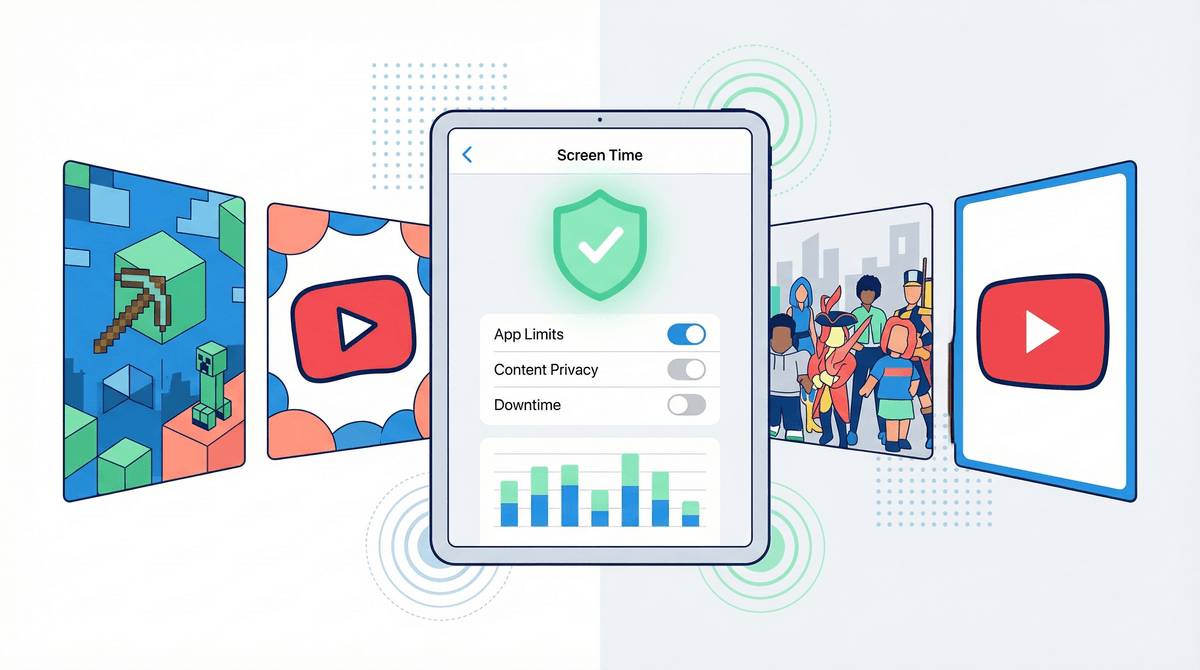
Look, if you've handed your kid an iPad, you've probably had that moment of panic where you wonder if they're about to accidentally buy $300 worth of Robux or stumble onto something deeply inappropriate. iPad parental controls—Apple calls them "Screen Time"—are your safety net.
Screen Time is Apple's built-in suite of tools that lets you control what your kids can access, how long they can use apps, who they can communicate with, and what content they can see. It's not perfect (spoiler: nothing is), but it's actually pretty robust once you know what you're doing.
The good news? You don't need to be tech-savvy to set this up. The bad news? Apple has buried some of the most important settings in places you'd never think to look.
Here's the thing: iPads are incredible learning tools and absolutely terrible babysitters. They can be portals to educational content, creative apps, and meaningful connection—or they can be infinite scroll machines that keep your kid up until 2am watching Minecraft griefing videos.
The difference often comes down to boundaries. Not because you're a helicopter parent, but because kids' brains literally aren't wired yet to self-regulate around this stuff. The dopamine hits from games, YouTube, and social media are designed to be addictive. Your 8-year-old doesn't stand a chance against a team of engineers optimizing for engagement.
Plus, there's the safety piece. Even with YouTube Kids, even with "safe" apps, things slip through. And as kids get older, they're going to want to communicate with friends online—which means you need to think about who can contact them and what they're sharing.
Downtime & App Limits
Downtime is basically bedtime for the iPad. You set hours when only apps you approve (and phone calls) work. Everything else gets locked. This is clutch for preventing the "just one more video" spiral at 10pm.
App Limits let you set daily time limits for categories (like Games or Social Networking) or specific apps. When time's up, the app grays out. Kids can request more time, which you can approve or deny from your phone.
Pro tip: Don't just set limits and walk away. Talk to your kids about why the limits exist. "Your brain needs time to do other things" lands better than "because I said so."
Content & Privacy Restrictions
This is where the real power is, and also where Apple has made things unnecessarily complicated.
Go to Settings > Screen Time > Content & Privacy Restrictions and you'll find controls for:
- App Store purchases (turn off in-app purchases here—seriously, do it now)
- Explicit content in music, podcasts, books, and apps
- Web content filtering (more on this in a sec)
- Siri restrictions (so kids can't just ask Siri to search for inappropriate stuff)
- Game Center settings (who can friend them, multiplayer access)
The web content filter has three options: Unrestricted (nope), Limit Adult Websites (decent but imperfect), and Allowed Websites Only (nuclear option for younger kids). The middle option blocks known adult sites but isn't foolproof—kids are resourceful little creatures.
Communication Limits
This controls who your kid can communicate with during Screen Time and Downtime. You can limit it to just contacts you've approved, which is smart for younger kids.
But here's the catch: this only works with Apple's native apps (Messages, FaceTime). It doesn't control who can message them on Roblox, Discord, or any other app. You'll need to manage those settings separately within each app.
Ask to Buy
If your kid has their own Apple ID (which they need for Family Sharing to work properly), turn on Ask to Buy. This means any purchase—app, in-app, movie, whatever—requires your approval. It's saved countless parents from surprise $99 charges.
Ages 5-8: Go restrictive. Use Allowed Websites Only, turn off app installation, enable Ask to Buy, and set generous but firm Downtime hours. At this age, the iPad should be a tool you hand them for specific activities, not something they have free rein with.
Ages 9-12: Start loosening up, but keep the training wheels on. Switch to Limit Adult Websites, allow app installation with Ask to Buy, and involve them in setting App Limits together. This is when you want to teach them to self-regulate, not just enforce rules.
Ages 13+: Here's where it gets real. Teens need more autonomy, but they also need guardrails. Consider keeping content restrictions but loosening time limits. Have honest conversations about what they're accessing and why certain boundaries exist. Learn more about talking to teens about screen time .
.
Screen Time is per-device, not per-child—unless you set up Family Sharing properly. If you want to manage your kid's iPad from your phone, you need to:
- Create an Apple ID for your child (under 13 requires parental consent)
- Add them to Family Sharing
- Turn on Screen Time for their account
- Manage it from your device under Settings > Screen Time > [Child's Name]
Kids will absolutely try to circumvent this stuff. Common workarounds include:
- Changing the time zone to get more app time (you can disable this in restrictions)
- Deleting and reinstalling apps to reset timers (turn off app deletion)
- Using Screen Recording to watch YouTube after time's up (honestly, if they're this motivated, have a conversation)
Screen Time reports are eye-opening. Check them weekly. You might think your kid is using educational apps, but the data doesn't lie. If YouTube is dominating their screen time, it's worth investigating what they're actually watching.
This isn't a substitute for supervision. Parental controls are a tool, not a solution. You still need to know what apps they're using, what games they're playing, and who they're talking to. Check in regularly. Sit with them while they're on the iPad sometimes. Be present.
Don't forget about Safari. Even with web filtering on, kids can access a lot through the browser. For younger kids, consider turning off Safari entirely and using a kid-safe browser app instead.
In-app purchases are the devil. Seriously, turn them off. Even "free" games like Fortnite and Roblox are designed to make kids want to spend money. Learn more about how Robux is in fact real money.
YouTube is a special kind of chaos. YouTube Kids is better than regular YouTube, but it's not perfect. Weird stuff still gets through. Consider alternatives to YouTube for younger kids, or curate specific channels they can watch.
iPad parental controls are powerful, but they're not magic. The goal isn't to lock down every possible thing your kid could access—it's to create reasonable boundaries that protect them while teaching them to make good choices.
Start with tighter restrictions for younger kids and gradually loosen them as they prove they can handle more freedom. Talk to your kids about why the rules exist. Check in on what they're doing. Adjust as needed.
And remember: every family is different. What works for your neighbor's kid might not work for yours. The point is to be intentional about it, not perfect.
- Set up Family Sharing if you haven't already—it makes everything easier
- Turn on Screen Time and spend 20 minutes configuring the basics
- Disable in-app purchases (do this right now, I'll wait)
- Set Downtime hours that work for your family
- Check Screen Time reports weekly for the first month to see actual usage patterns
- Have a conversation with your kids about the boundaries and why they exist
Need help with specific apps? Check out our guides on Roblox parental controls, Minecraft safety settings, and YouTube vs. YouTube Kids.
You've got this.