

The Ultimate Guide to Circle Parental Control Alternatives in 2024
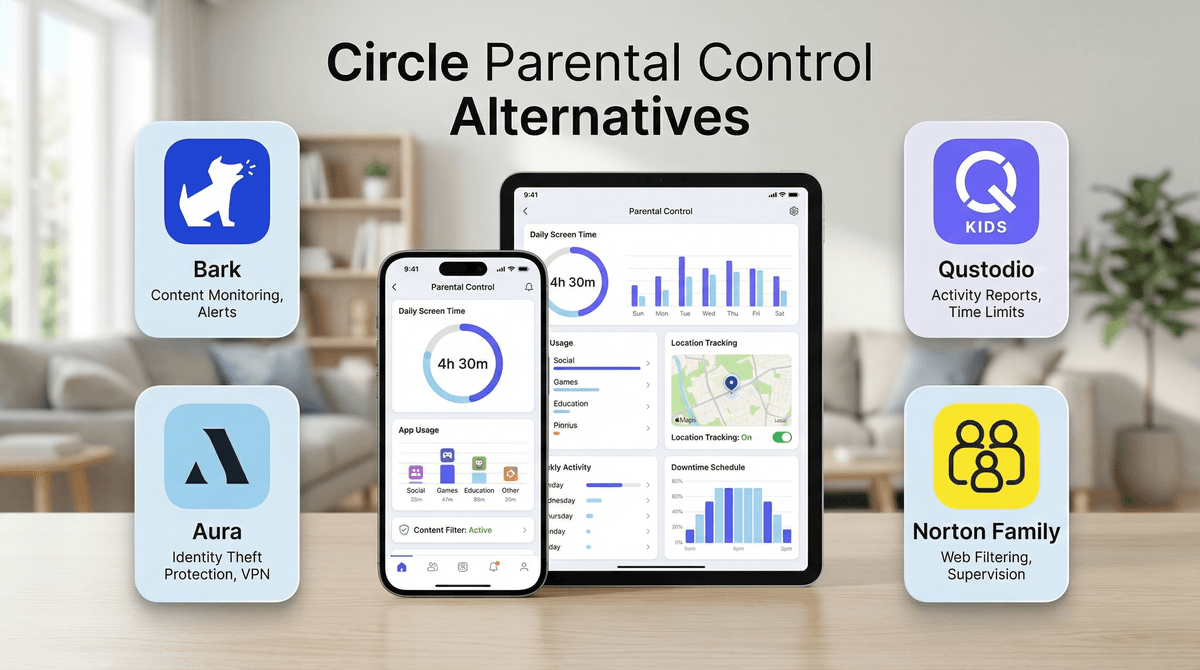
TL;DR: Circle is shutting down, and if you're scrambling to find a replacement, here's what you need to know: Bark is best for monitoring social media and texts, Qustodio offers the most comprehensive cross-platform control, Norton Family is solid for basic needs at a lower price, and Aura combines parental controls with identity theft protection if that's relevant to your family.
So Circle is gone. If you've been using it, you know the drill—it was that little device that sat by your router and let you pause the internet, set time limits, and filter content across every device in your home without installing a million apps. It wasn't perfect, but it worked.
Now you're here because you need to find something else, and the parental control landscape is honestly kind of a mess. There are dozens of options, they all claim to do everything, and the pricing structures make airline tickets look straightforward.
I'm going to cut through the noise and give you the actual differences between the top Circle alternatives, what they're genuinely good at, and which one might actually work for your family.
Circle was network-level control. That meant it worked on everything connected to your WiFi without needing apps installed on each device. Your kid's iPad, the smart TV, that weird gaming handheld they got for their birthday—Circle saw it all.
Most parental control apps work differently. They're installed on individual devices (phones, tablets, computers) and monitor/control those specific devices. This means:
- Better monitoring capabilities (they can see texts, social media, photos)
- More granular control (different rules for different apps)
- But also more setup (install on every device)
- And potential workarounds (tech-savvy kids can sometimes bypass them)
Some newer options are trying to do both—network-level AND device-level—but they're not quite as seamless as Circle was. Just being real with you.
Price: $14/month or $99/year (Bark Jr. is $49/year but only does screen time, not monitoring)
What it's actually good at: Bark is fundamentally different from Circle. Instead of blocking everything by default, Bark monitors your kid's texts, emails, social media, and photos for concerning content—things like cyberbullying, sexual content, depression indicators, or mentions of drugs and violence.
It uses AI to flag potentially problematic messages and sends you alerts. You don't see every single text (which honestly, do you really want to?), just the ones that might matter.
The reality: This is the best option if your main concern is what your kid is saying and seeing online, not just how much time they're spending. It works with 30+ apps and social platforms including Instagram, Snapchat, TikTok, Discord, and even texts and emails.
Bark also includes screen time management and web filtering, but those features are more basic than dedicated tools. You can set daily screen time limits and schedules, block websites by category, and see location—but it's not as granular as Qustodio.
Best for: Middle and high schoolers who have phones and social media accounts. If your kid is 11-17 and you're worried about online predators, sexting, or mental health red flags, Bark is probably your best bet.
Won't work well if: Your kids are younger (under 10) and don't have social media yet, or if you want super detailed screen time reports and per-app limits. Also, Bark requires installation on each device—there's no network-level option.
Price: Free for 1 device, $55/year for 5 devices, $96/year for 10 devices, $137/year for 15 devices
What it's actually good at: Qustodio is the closest thing to a Circle replacement in terms of comprehensive control. It works on iOS, Android, Windows, Mac, and Kindle, and gives you incredibly detailed control over screen time, app usage, web filtering, and location tracking.
You can set different time limits for different apps (30 minutes of TikTok, 2 hours of Minecraft), create schedules (no screens during homework time), block specific websites or entire categories, and get detailed reports on what your kid is doing on their devices.
The reality: Qustodio is powerful but requires installation on every device. The dashboard is pretty intuitive once you get used to it, and the reporting is genuinely useful—you can see exactly which apps your kid is using and for how long.
The web filtering is solid, though not perfect (what is?). It blocks most inappropriate content but occasionally lets sketchy stuff through or blocks innocent sites. You can manually adjust the filters and whitelist/blacklist specific sites.
Best for: Families who want detailed control and reporting across multiple devices and platforms. If you have kids of different ages using different devices (one has an iPad, one has an Android phone, one uses a laptop), Qustodio handles that complexity well.
Won't work well if: You want something super simple to set up, or if you're primarily concerned about social media content (Qustodio can limit time on social apps but can't monitor what's being said). Also, the iOS version is more limited due to Apple's restrictions—you can't block specific apps, only set time limits.
Price: Free basic version, or included with Norton 360 Deluxe ($50/year for 5 devices when on sale, which is basically always)
What it's actually good at: Norton Family covers the basics—web filtering, time limits, location tracking, and activity reports—without overwhelming you with features you might not need.
The web filtering is actually pretty good (Norton has been in the security business forever), and the interface is straightforward. You can set school time vs. home time rules, block specific sites, and get weekly email reports.
The reality: This is a solid, no-frills option that works well if your needs are straightforward. It's not as detailed as Qustodio and doesn't have the social media monitoring of Bark, but it does the core stuff competently.
The free version is surprisingly functional—web filtering, time supervision, search supervision, and video supervision on YouTube. The paid version (via Norton 360) adds location tracking and more devices.
Best for: Families on a budget who need basic web filtering and screen time management. Also good if you want antivirus software anyway—Norton 360 Deluxe includes parental controls plus antivirus for up to 5 devices.
Won't work well if: You need detailed app-level controls or social media monitoring. Norton Family is more about web filtering and general time limits than granular app management. Also, like Qustodio, the iOS version is limited.
Price: $12/month or $120/year for the parental control plan; family plans with identity theft protection start at $20/month
What it's actually good at: Aura combines parental controls with identity theft protection, dark web monitoring, VPN, and antivirus. The parental control features are solid—web filtering, screen time management, location tracking, YouTube monitoring, and app blocking.
The reality: Aura's parental controls are comparable to Qustodio but slightly less detailed. Where Aura stands out is the additional family safety features. If you're already paying for identity theft protection or considering it, Aura's family plans bundle everything together.
The interface is clean and modern, and setup is relatively straightforward. The web filtering uses AI and is pretty effective, though like all filters, it's not 100% perfect.
Best for: Families who want parental controls AND identity theft protection, or who are concerned about the broader digital safety landscape beyond just screen time. If you've had your credit card info stolen or worry about data breaches, Aura's comprehensive approach might appeal to you.
Won't work well if: You only want parental controls and don't care about identity protection—you'll be paying for features you won't use. Also no social media content monitoring like Bark offers.
If you really want something that works at the router level like Circle did, your options are more limited:
Firewalla: A physical device (like Circle) that sits on your network and provides filtering, ad blocking, and parental controls. It's more technical to set up and costs $200-500 upfront depending on the model, but it works on all devices without installing apps. Best for tech-comfortable parents who want network-level control.
Router-based controls: Many modern routers (Google WiFi, Eero, Netgear Orbi) have built-in parental controls. They're pretty basic—usually just pause internet, set schedules, and filter categories—but they're free if you already have the router. Worth checking what your router offers before buying anything else.
Disney Circle Home Plus: This was Circle's network device, but Disney discontinued it in 2023. If you see it for sale somewhere, don't buy it—it won't work.
| Feature | Bark | Qustodio | Norton Family | Aura |
|---|---|---|---|---|
| Social media monitoring | ✅ Excellent | ❌ No | ❌ No | ❌ No |
| Screen time limits | ✅ Basic | ✅ Detailed | ✅ Good | ✅ Good |
| Web filtering | ✅ Good | ✅ Excellent | ✅ Excellent | ✅ Excellent |
| App blocking | ✅ Yes | ✅ Yes (limited iOS) | ✅ Basic | ✅ Yes (limited iOS) |
| Location tracking | ✅ Yes | ✅ Yes | ✅ Paid only | ✅ Yes |
| Detailed reports | ❌ Basic | ✅ Excellent | ✅ Good | ✅ Good |
| Works on | iOS, Android, Chromebook | iOS, Android, Windows, Mac, Kindle | iOS, Android, Windows | iOS, Android, Windows, Mac |
| Price (annual) | $99 | $55-137 | Free or $50 | $120-240 |
No parental control is perfect. They all have workarounds, they all occasionally block things they shouldn't or miss things they should catch, and they all require ongoing adjustment and conversation with your kids.
The best tool depends on your specific concerns:
- Worried about cyberbullying, sexting, or mental health? → Bark
- Need detailed control across many devices? → Qustodio
- Want basic filtering and time limits on a budget? → Norton Family
- Want parental controls plus identity protection? → Aura
iOS is always more limited. Apple restricts what parental control apps can do on iPhones and iPads. You can't block specific apps (except through Apple's built-in Screen Time), and monitoring is more restricted. This isn't the apps' fault—it's Apple's privacy policies. Consider using Apple's built-in Screen Time features in combination with third-party tools.
Tech-savvy kids will find workarounds. They'll use VPNs, factory reset devices, use friends' phones, or find the latest TikTok hack. Parental controls are a tool, not a solution. The real work is ongoing conversations about why these boundaries exist.
You can try before you buy. Most of these services offer free trials or money-back guarantees. Qustodio has a free tier for one device. Take advantage of this—what works for another family might drive yours crazy.
If I had to recommend one option for most families transitioning from Circle, it would be Qustodio. It's the most comprehensive, works across the most platforms, and gives you the detailed control and reporting that Circle users are probably used to.
But if your kids are older and on social media, Bark is worth the extra money for the monitoring capabilities. And if you're on a tight budget, Norton Family covers the basics effectively, especially if you need antivirus anyway.
The truth is, losing Circle sucks because it was genuinely good at what it did. These alternatives all require more setup and ongoing management. But they also offer capabilities Circle didn't have—especially around social media monitoring and detailed app-level controls.
-
Take stock of what you actually need. Are you mainly concerned about screen time, or about what your kids are seeing and saying online? Different tools for different goals.
-
Check what devices you need to cover. Make a list of every phone, tablet, computer, and gaming device your kids use. This will help you figure out which service works with your tech ecosystem.
-
Start with a trial. Sign up for a free trial of whichever service seems most promising. Set it up on one device first to get a feel for how it works before rolling it out to the whole family.
-
Have the conversation with your kids. Let them know you're switching systems and why. Kids are more likely to respect boundaries they understand than ones that just appear out of nowhere.
-
Plan for ongoing adjustment. No parental control system is set-it-and-forget-it. You'll need to adjust filters, modify time limits, and respond to your kids' changing needs and maturity levels.
If you want to dig deeper into any of these tools, you can Compare parental control apps or learn more about setting up effective screen time boundaries that work with whatever tool you choose.