

Peacock Streaming Safety: What Parents Need to Know Before Hitting Play
TL;DR: Peacock has solid parental controls and clear content ratings, but the interface makes it way too easy for kids to stumble into mature content. The Kids Mode is decent but limited compared to competitors. Best for families with kids 8+ who can follow rules, or for supervised viewing with younger kids. If you're looking for a truly kid-safe streaming experience, Disney+ and Apple TV+ are better bets.
Peacock is NBCUniversal's streaming service, which means it's got everything from classic sitcoms like The Office and Parks and Recreation to current NBC shows, Premier League soccer, WWE wrestling, and a rotating selection of movies. For kids specifically, there's a decent library of DreamWorks Animation content (Trolls, Kung Fu Panda, How to Train Your Dragon), Illumination films (Minions, Sing), and some classic Universal kids' content.
The platform has both free (with ads) and premium tiers. The free tier is extremely limited for kids' content, so if you're getting Peacock primarily for your children, you'll need Premium.
Peacock does have parental controls, and they're actually pretty straightforward once you find them. Here's what you can do:
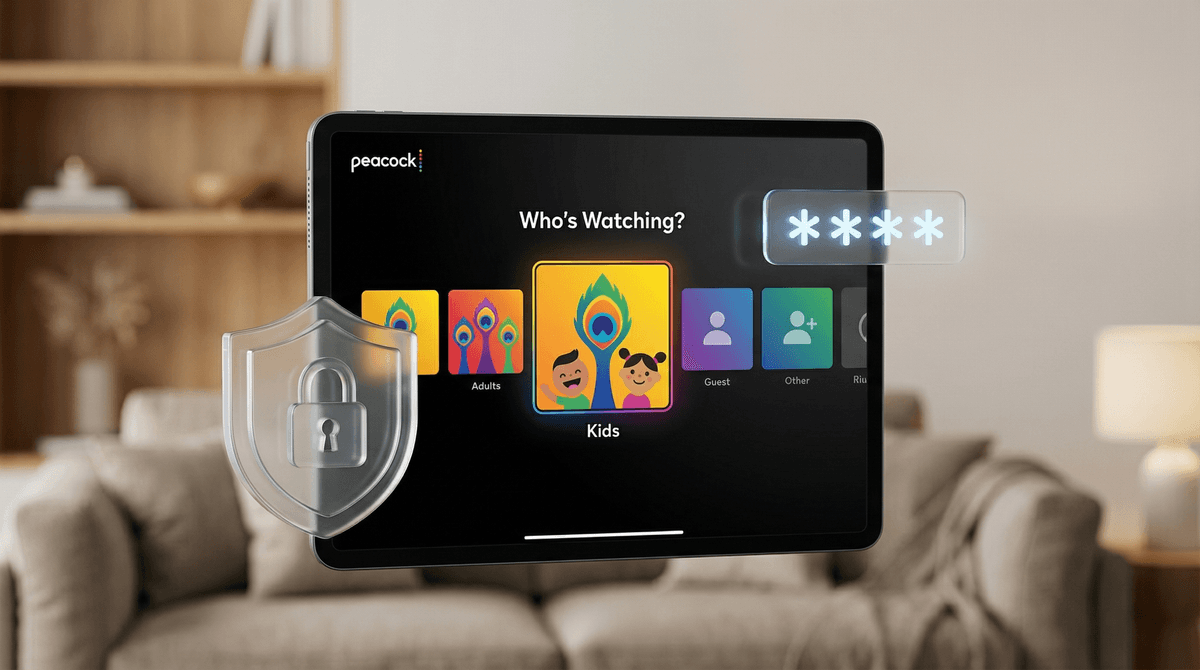
Kids Mode creates a separate profile that only shows content rated TV-Y, TV-Y7, TV-G, G, and PG. It's a walled garden approach—kids can't accidentally click out into the main library. The interface is colorful and simplified, though honestly, it feels a bit dated compared to what Netflix and Disney+ offer.
PIN Protection lets you require a 4-digit code before accessing content above a certain rating. You can set this at PG, PG-13, TV-14, R, or TV-MA. This is crucial because Kids Mode disappears once your child is using a regular profile.
Profile Management allows you to create separate profiles for each family member, which is standard but important. Each profile can have its own maturity settings.
The biggest issue with Peacock is that Kids Mode is not the default. When you first sign up, you have to manually create a Kids profile. If you don't, your child is browsing the full adult catalog, which includes R-rated horror movies, true crime documentaries, and plenty of TV-MA content.
Even worse, the home screen algorithm is aggressive. It will prominently feature whatever's trending or new, regardless of rating. I've seen the homepage lead with horror movies, intense thrillers, and shows with mature themes. There's no "family-friendly homepage" option for regular profiles.
The search function also doesn't respect profile settings unless you're in Kids Mode. A curious 10-year-old searching for "scary movies" will find them, PIN or no PIN, until they actually try to play something.
Let's talk about what's actually available for kids:
The Solid Stuff:
- DreamWorks Animation library is legitimately good. Trollhunters, Spirit Riding Free, and the Boss Baby series are all decent.
- Illumination movies are fun if mindless. My take? The Secret Life of Pets is entertaining, Despicable Me is charming, but these aren't exactly enriching content.
- Some genuinely great family movies rotate through: [E.T.](https://screenwiseapp.com/media/e-t-the-extra-terrestrial-movie, Back to the Future, classic Amblin stuff.
The Questionable Stuff:
- The content library for kids is thin compared to competitors. You'll burn through the good stuff quickly.
- There's a weird amount of low-budget, direct-to-video quality content that looks kid-friendly but is just... not good. Think bargain-bin animation that teaches nothing and entertains minimally.
- Some PG and PG-13 content that makes it into Kids Mode feels borderline. The Jurassic World movies are PG-13 and genuinely intense for younger kids.
Ages 3-7: Only use Kids Mode, and honestly, even then, supervise. The content skews older than what you'd find on PBS Kids or Disney Junior. Better alternatives for this age: Disney+, PBS Kids, or Apple TV+'s kids section.
Ages 8-12: Kids Mode works fine, but they'll likely complain it's "babyish" and want access to more content. This is where you need to have a conversation about appropriate content and set up a regular profile with a strong PIN and maturity limits. Be prepared to spot-check their watch history.
Ages 13+: Regular profile with PIN protection at your comfort level. At this age, it's less about blocking and more about ongoing conversations about media literacy . That said, Peacock has some genuinely mature content (looking at you, true crime section), so know what's in your house.
The Ad Situation: Even with Peacock Premium, you'll see ads unless you spring for Premium Plus. For kids' content, this means commercials for other Peacock shows (often not kid-appropriate), movie trailers (same issue), and general advertising. The free tier has even more ads, including for products. If you're trying to limit commercial exposure, this is a problem.
Autoplay Is Aggressive: By default, Peacock autoplays trailers when you hover over content and automatically starts the next episode. For kids, this means less intentional viewing and more passive consumption. You can turn off autoplay in settings, and I strongly recommend it.
Download Limitations: Unlike Netflix or Disney+, Peacock's download feature is limited and glitchy. If you're counting on downloads for car trips or flights, you'll be frustrated.
The Sports Wildcard: If you have Peacock for sports (Premier League, WWE, Sunday Night Football), be aware that kids can easily stumble into live sports content, which includes beer commercials, gambling ads, and sometimes intense violence (hello, WWE). Sports content doesn't respect Kids Mode boundaries well.
Content Rotation: Movies and shows disappear from Peacock regularly as licensing deals expire. That favorite movie your kid watched last month might be gone next month. This is more frustrating on Peacock than other platforms because the kids' library is already small.
If you're committed to using Peacock with kids, here's your setup checklist:
-
Create a Kids Profile immediately after signing up. Make this the default profile that opens when the app launches.
-
Set up a strong 4-digit PIN that your kids don't know. Don't use 1234 or your birth year.
-
Configure maturity ratings on any non-Kids profiles. For elementary schoolers, cap it at PG. For middle schoolers, consider PG-13/TV-14 but plan to monitor.
-
Turn off autoplay in Settings > Preferences. This goes for both videos and previews.
-
Review the watch history weekly, especially if your kid is using a regular profile. Peacock makes this easy—just go to Account > Watch History.
-
Have the conversation about what's okay to watch and what's not. Make it clear that trying to access mature content is a breach of trust that will result in consequences.
-
Consider device-level restrictions too. If your kid is watching on an iPad, use Screen Time to limit app usage and prevent profile switching.
Real talk: unless you specifically need Peacock for The Office rewatches or Premier League soccer, there are better streaming options for families:
-
Disney+: The gold standard for kid-safe streaming. Better parental controls, vastly superior kids' library, and the interface actually assumes families will use it.
-
Apple TV+: Smaller library but exceptionally high quality. Shows like Ghostwriter and Stillwater are genuinely excellent. The parental controls are intuitive.
-
Netflix: Still the most robust kids' section with the best algorithm for age-appropriate recommendations. The parental controls are more granular than Peacock's.
-
PBS Kids: Free, ad-free, and entirely educational content. For younger kids, this is unbeatable.
Peacock can work for families, but it requires active parenting and setup. It's not a "set it and forget it" platform like Disney+ or PBS Kids. The Kids Mode is functional but limited. The regular interface is not kid-safe without significant configuration.
If you already have Peacock for adult content and want to let your kids access some of the family movies and shows, go for it—but do the setup work first. If you're considering subscribing primarily for kids' content, I'd honestly recommend spending that money on Disney+ or keeping your Netflix subscription instead.
The platform feels like it was designed for adults first, with kids' features added as an afterthought. That's fine, but it means the burden is on parents to create a safe viewing environment. If you're up for that, great. If you want something more turnkey, look elsewhere.
-
Already have Peacock? Stop reading and go set up that Kids Profile and PIN right now. Seriously, pause and do it.
-
Considering subscribing? Start with the free trial, set up the parental controls, and see if the kids' content library is actually enough for your family. My guess? You'll be underwhelmed.
-
Looking for specific recommendations? Check out our guides to best streaming services for families, alternatives to Netflix, and how to talk to kids about screen time.
-
Want to compare streaming platforms? Our streaming service comparison tool
can help you figure out which platforms actually match your family's needs and values.
The streaming landscape is overwhelming, and not every platform is designed with families in mind. Peacock is a perfectly fine service, but for kids specifically, it's middle-of-the-pack at best. Make informed choices, set up the protections, and don't feel guilty if you decide it's not worth the hassle.