

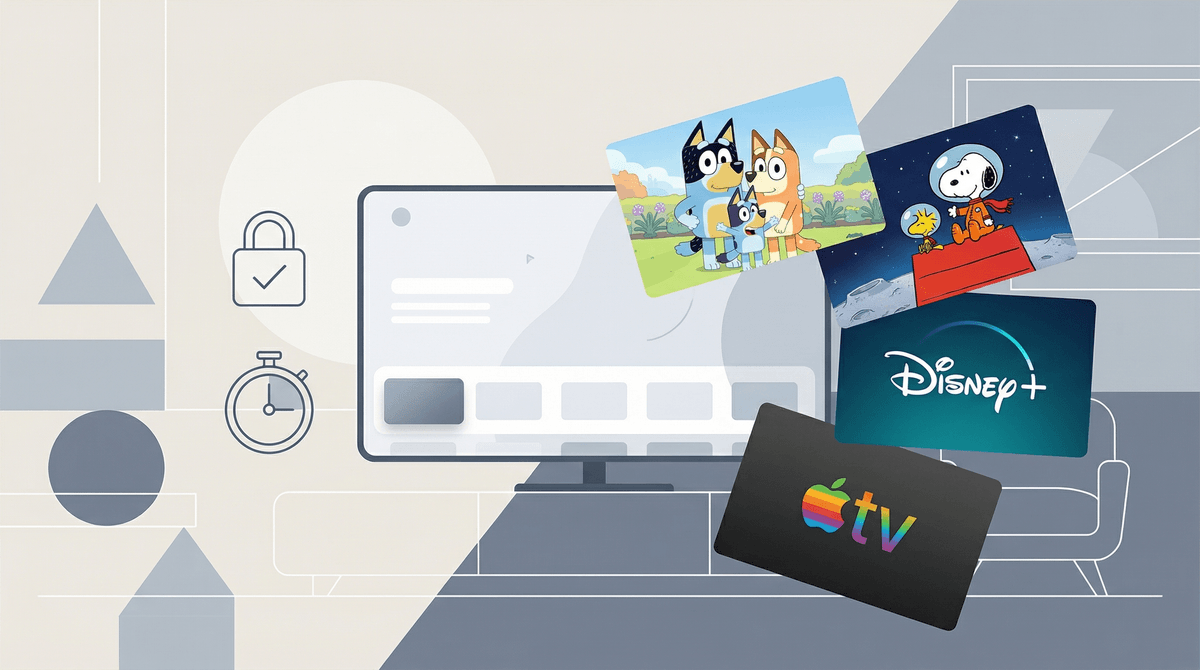
Let's clear up some confusion right away: "Apple TV" means two different things, and as a parent trying to navigate kids' screen time, you need to know the difference.
Apple TV the device is that little black box that plugs into your TV and turns it into a smart TV. Apple TV+ is the streaming service (like Netflix or Disney+) with original shows and movies. But here's what actually matters for your family: if you have an Apple TV device, your kids can access basically every streaming app — Netflix, Disney+, YouTube, Prime Video, and yes, Apple TV+ too.
This guide is about managing the whole ecosystem: how to make sure your kids aren't watching YouTube at 2am, why the parental controls actually work pretty well (rare!), and how to navigate the overwhelming sea of streaming options without losing your mind.
Look, I'm not here to sell you an Apple product, but the Apple TV interface is genuinely more parent-friendly than most smart TV systems. Here's why:
The parental controls are comprehensive and don't suck. You can restrict content by rating, require a PIN for purchases, limit app access, and even set screen time limits. Unlike some platforms where parental controls feel like an afterthought bolted on by interns, Apple actually thought this through.
One remote, many apps. Instead of juggling between your TV's interface, a Roku stick, and three different remotes, everything lives in one place. Your kid can't "accidentally" switch inputs to the unmonitored YouTube app on your TV's built-in system.
SharePlay and family sharing work seamlessly. If you're splitting custody or have grandparents who want to watch shows "together" with the kids remotely, this actually works without a computer science degree.
Your Apple TV can run basically every major streaming app, which means you need a game plan. Here's what most families are dealing with:
The "safe" zone: Disney+, Apple TV+, PBS Kids. These are pretty locked down by default. Disney+ has excellent kids profiles, PBS Kids is ad-free and educational, and Apple TV+ has a small but solid kids section with shows like Snoopy in Space and Ghostwriter.
The "it depends" zone: Netflix, Prime Video, HBO Max. These have both amazing kids content and stuff that will give your 8-year-old nightmares. Netflix's kids profiles are solid, but Prime Video's parental controls are honestly a mess. You need to set up viewing restrictions AND kids profiles AND be vigilant about what shows up in "continue watching."
The "proceed with extreme caution" zone: YouTube. Even YouTube Kids has issues with algorithm-recommended weirdness. If you're going to allow YouTube, read our guide on YouTube vs. YouTube Kids first, and honestly, consider just... not having it on the Apple TV at all. Phones and tablets give you more control.
Here's your step-by-step setup (do this before handing your kid the remote):
1. Create separate user profiles. Go to Settings > Users and Accounts > Add New User. Give each kid their own profile. This keeps their "continue watching" separate and lets you set individual restrictions.
2. Turn on restrictions. Settings > General > Restrictions. You'll set a 4-digit PIN (don't use 1234, your 10-year-old isn't stupid). From here you can:
- Restrict content by rating (G, PG, PG-13, etc.)
- Block specific apps entirely
- Require password for purchases and rentals
- Disable AirPlay if you don't want them casting random YouTube videos from their iPad
3. Set up Screen Time. Settings > Screen Time. You can set daily limits, downtime schedules (no TV after 8pm!), and app-specific limits. This syncs with your kid's other Apple devices if you use Family Sharing, which is either convenient or Big Brother depending on your parenting philosophy.
4. Configure each streaming app's parental controls separately. Yes, this is annoying. Yes, you have to do it. Apple's system-level controls are good, but Netflix's kids profile settings, Disney+'s PIN requirements, and Prime Video's viewing restrictions all need individual setup.
Let's be honest about how this plays out:
The PIN code will be discovered. Kids are persistent little hackers. Either change it monthly, or accept that the restrictions are more about creating friction than creating an impenetrable wall. Sometimes friction is enough.
Siblings will share profiles to get around restrictions. If your 12-year-old's profile can watch PG-13 and your 8-year-old's can't, guess whose profile the 8-year-old will use? Either accept this or get more creative with physical supervision.
The real battle is volume, not content. Most parents I talk to aren't worried their kid will stumble onto inappropriate content on Disney+ — they're worried their kid will watch 6 hours of Bluey on a Saturday. The parental controls can help with this (Screen Time limits!), but ultimately you need family rules, not just technical solutions.
Ages 2-5: Honestly, you don't need Apple TV. You need like three specific shows on repeat. Daniel Tiger, Bluey, Sesame Street. Use Screen Time limits religiously. At this age, co-viewing is your friend — sit with them, talk about what's happening, press pause to discuss feelings.
Ages 6-9: This is when kids start having opinions about what they want to watch. Apple TV's interface is simple enough for them to navigate with supervision. Set up their own profile, restrict to TV-Y and TV-G content, and introduce them to the concept of "screen time budgets." Shows like The Magic School Bus Rides Again and Avatar: The Last Airbender are great for this age.
Ages 10-13: They want more autonomy, and honestly, they can handle it with guardrails. Expand to PG and some PG-13 content based on maturity. Have conversations about what makes something "too scary" or "too mature." This is also when you'll start negotiating about YouTube access — consider whether that's a battle worth fighting .
.
Ages 14+: At this point, parental controls are more about teaching responsibility than preventing access. They can probably find whatever they want on their phone anyway. Focus on media literacy conversations, not technical restrictions.
Apple TV is one of the better platforms for managing kids' streaming, but it's not magic. The parental controls are solid, the interface is clean, and the Screen Time features actually work. But technology is only part of the equation.
Your actual job is threefold:
- Set up the technical guardrails (profiles, restrictions, Screen Time limits)
- Establish family rules about when, where, and how much screen time happens
- Stay engaged with what your kids are watching — not as a cop, but as a human who's interested in their interests
The streaming landscape is overwhelming, but you don't have to figure it all out at once. Start with one or two streaming services, set up proper restrictions, and expand from there as you get comfortable.
- If you haven't already: Set up user profiles and restrictions on your Apple TV today (seriously, it takes 15 minutes)
- Pick one streaming service to be your family's primary source and get really good at its parental controls
- Have a family meeting about screen time expectations — kids respond better to rules they helped create
- Check out our guides on specific streaming services and shows: Netflix parental controls, Disney+ for families, and age-appropriate shows by grade
You've got this. And remember: every parent is making this up as we go. Anyone who tells you they have it all figured out is lying.