

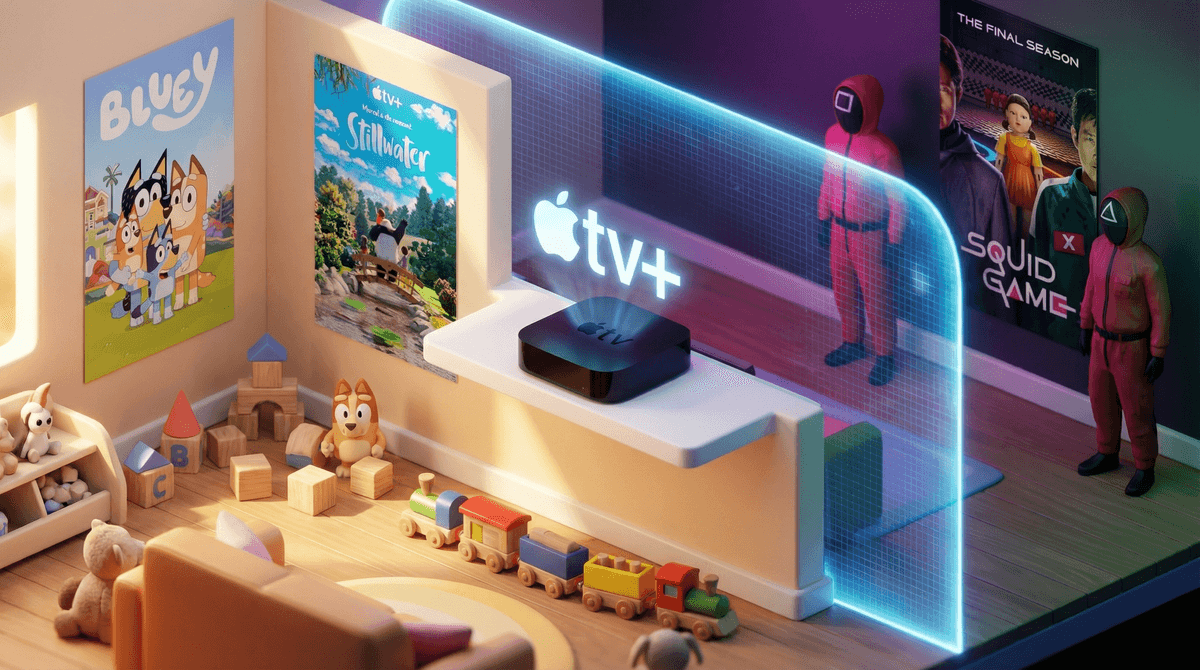
Apple TV is Apple's streaming device and app ecosystem—think of it as the gateway to Netflix, Disney+, Apple TV+, and basically every streaming service your kids have ever begged you to subscribe to. But here's what makes it different from Roku or Fire TV: Apple TV has genuinely robust parental controls built into its DNA.
If you're already in the Apple ecosystem (iPhones, iPads, etc.), Apple TV slots in seamlessly with Screen Time settings and Family Sharing. If you're not? It still offers some of the most granular content restrictions available on any streaming platform. The catch is you actually have to set it up—because out of the box, it's a free-for-all.
Look, streaming services are the new cable, except instead of 200 channels of questionable content, you have infinite content across a dozen platforms. And unlike the old days when you could just block MTV, now your 8-year-old can accidentally stumble from Bluey to Squid Game in three clicks.
Apple TV's strength is that it lets you:
- Create individual profiles with age-appropriate content filters
- Lock down purchases (because $4.99 movie rentals add up fast)
- Restrict apps entirely (goodbye YouTube rabbit holes at 10pm)
- Share settings across devices if you're using Family Sharing
The alternative? Constant negotiation over what's "too scary" or finding your credit card charged for every Marvel movie ever made.
Step 1: Turn on Family Sharing (If You Haven't Already)
If you have multiple kids at different ages, Family Sharing is your friend. Go to Settings > Users and Accounts > Add New User and create profiles for each family member.
For kids under 13, you can create a child account through your iPhone's Settings app (Settings > Family > Add Family Member). This automatically enables Ask to Buy, so they can't rent Deadpool without your approval.
Step 2: Configure Restrictions by Profile
Here's where it gets good. For each profile, you can set:
Content Ratings: Go to Settings > General > Restrictions and enable them. Then set:
- Movies: Choose from G, PG, PG-13, R, etc.
- TV Shows: Y, Y7, G, PG, 14, MA
- Apps: 4+, 9+, 12+, 17+
For younger kids (ages 5-8), stick with G/PG movies and Y/Y7 shows. For tweens (9-12), PG/PG-13 and G/PG shows usually work. Teens can probably handle PG-13/some R-rated content, but you know your kid.
App Restrictions: You can completely block specific apps like YouTube, Netflix, or even Apple TV+ if you want. This is clutch for bedtime when kids suddenly "need" to watch one more episode.
Purchase Restrictions: Under Settings > Users and Accounts > [Profile] > Purchase Sharing, you can require a password for all purchases or turn off buying entirely.
Step 3: Use Screen Time (If You're All-In on Apple)
If your family uses iPhones and iPads, you can manage Apple TV through Screen Time settings on your phone. This means:
- Setting daily time limits for streaming
- Scheduling Downtime (no TV after 8pm, for example)
- Blocking specific apps remotely
It's not perfect—kids are resourceful—but it's better than yelling "turn off the TV!" from another room.
Here's the thing: Apple TV's restrictions only go so far. Each streaming app (Netflix, Disney+, Hulu) has its own parental controls, and you need to configure those separately.
- Netflix: Create a Kids profile with a PIN-protected adult profile. Learn how to lock down Netflix properly.
- Disney+: Set up Junior Mode or pin-protect profiles rated TV-14 and above.
- YouTube: Honestly, just block it or switch to YouTube Kids, which is still imperfect but better than the main app.
The Apple TV restrictions work as a baseline—they'll stop a 7-year-old from accessing R-rated movies—but each app is its own ecosystem.
Ages 5-8: Keep it simple. Create a profile with G/PG movies and Y/Y7 shows only. Stick to Disney+, Apple TV+ (Snoopy in Space, Stillwater), and Netflix Kids profiles. Block YouTube entirely.
Ages 9-12: This is peak negotiation age. PG-13 movies and PG shows are usually safe, but preview anything with a TV-14 rating—there's a huge range between The Mandalorian and Stranger Things. Enable Ask to Buy so they can't rent movies without approval.
Ages 13+: Teens will figure out workarounds, so focus on communication over restrictions. You can still set content limits (no R-rated movies without discussion), but consider time limits and Downtime more important than ratings. Also, monitor purchases—teens love renting movies "by accident."
It's not foolproof: If your kids share a profile or know your password, restrictions are meaningless. You have to actually enforce separate profiles.
App-by-app setup is tedious: Setting up parental controls on Apple TV, then Netflix, then Disney+, then Hulu, then HBO Max... it's a lot. Budget 30-60 minutes to do it right.
Kids will test boundaries: They'll ask to watch something "just a little" too old, or claim "everyone at school has seen it." That's parenting, not a tech problem.
Streaming costs add up: This isn't an Apple TV issue, but if you're subscribing to five services to keep everyone happy, you're spending $60+ a month. Maybe it's time to rotate subscriptions?
Apple TV isn't magic, but it's one of the better streaming setups for families who want control without constant supervision. The key is actually configuring it—not just plugging it in and hoping for the best.
If you're in the Apple ecosystem, it's a no-brainer. If you're not, it's still worth considering for the parental controls alone, especially if you have multiple kids at different ages.
- Set up profiles for each family member with age-appropriate restrictions.
- Configure parental controls in each streaming app (Netflix, Disney+, etc.).
- Enable Ask to Buy for kids under 13 (or older if you want purchase approval).
- Test it: Log into your kid's profile and see what they can actually access. You'll probably find gaps.
- Have the conversation: Talk to your kids about why certain content is restricted. Rules without context just breed resentment.
And if you're wondering whether your family's streaming habits are normal compared to other families, Screenwise can help you figure that out. Because sometimes it helps to know you're not the only one negotiating over Demon Slayer at 7am.