

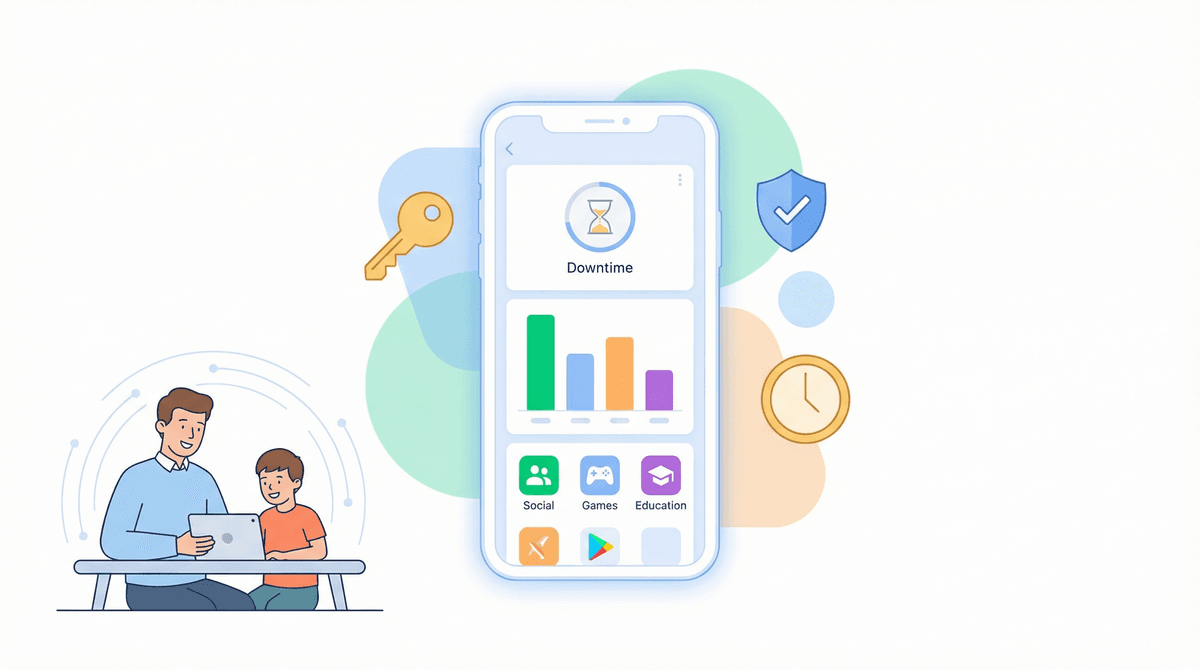
Apple Screen Time: Tips and Tricks for Parents
TL;DR: Apple's Screen Time is powerful but confusing. Here's what actually works: Start with Downtime (not app limits), use Communication Limits to control who your kid can text, enable Content & Privacy Restrictions before handing over any device, and check the weekly report on Sundays. The most underused feature? One-Time App Limits for those "just 15 more minutes" negotiations.
Apple's Screen Time tool has been around since iOS 12, and yet most parents are either ignoring it completely or using maybe 10% of what it can do. I get it—the interface is buried in Settings, the terminology is confusing ("Downtime" vs "App Limits" vs "Screen Time Passcode"), and honestly, it feels like homework.
But here's the thing: Screen Time is actually pretty sophisticated once you understand how the pieces fit together. It's not perfect (we'll get to the workarounds kids have discovered), but it's free, it's built-in, and when configured properly, it can save you from a lot of daily battles.
Screen Time has four main tools, and understanding the difference between them is crucial:
- Downtime - Blocks almost everything except calls and apps you specifically allow
- App Limits - Sets time limits on categories or specific apps
- Communication Limits - Controls who your kid can call/text/FaceTime
- Content & Privacy Restrictions - The big one that controls app downloads, explicit content, location sharing, and more
Most parents start with App Limits because that's what sounds most useful. But Downtime is actually the foundation you want to build on.
Downtime is your "the day is over" tool. When Downtime is active, the device becomes basically a brick except for:
- Phone calls
- Messages (from approved contacts if you set Communication Limits)
- Apps you specifically whitelist as "Always Allowed"
Set Downtime for bedtime and you've just eliminated 90% of the "one more video" negotiations. Here's how to make it work:
Go to Settings > Screen Time > Downtime
Turn it on and set your schedule. For elementary kids, 8pm-7am is pretty standard. For middle schoolers, you might do 9pm or 10pm depending on homework needs.
Critical step: Tap "Always Allowed" and choose what still works during Downtime. Most parents allow:
- Messages (but see Communication Limits below)
- Phone
- Clock (for alarms)
- Maybe Books or Kindle if you want reading to always be available
Pro tip: Don't allow Safari or YouTube during Downtime unless you want to completely defeat the purpose.
App Limits let you set time budgets for categories (Social, Games, Entertainment) or specific apps. When time runs out, the app gets locked unless your kid requests more time.
The catch: Kids can just tap "Ignore Limit" if you haven't set a Screen Time Passcode (more on that below). So App Limits without a passcode are basically just guilt-inducing notifications.
Best practices:
- Start with category limits (Social: 1 hour, Games: 1 hour) rather than trying to micromanage every app
- Use the "Customize Days" feature—weekends can have different limits than weekdays
- For younger kids (under 10), be more specific. Limit YouTube separately from other entertainment because it's the black hole
The One-Time Limit trick: This is the most underused feature. When your kid asks for "just 15 more minutes" of Minecraft, you can grant a one-time extension without changing the whole limit. Go to Settings > Screen Time > See All Activity > tap the app > Add Limit > One More Minute/15 Minutes/One Hour.
This feature controls who your kid can communicate with during Screen Time and during Downtime. It's essential for younger kids and often overlooked.
Settings > Screen Time > Communication Limits
You have three options:
- Everyone - They can call/text anyone (not great for elementary kids)
- Contacts Only - Only people in their Contacts app (better)
- Specific Contacts - Only people you've approved (best for younger kids)
The genius move: Set "During Downtime" to be more restrictive than "During Screen Time." Maybe they can text friends during the day, but during Downtime (bedtime), they can only reach parents/family.
Important: This requires your kid to have their own iCloud account and for you to set up Family Sharing. It won't work if they're just using your Apple ID.
This is the section that should be called "Parental Controls" because that's what it actually is. Everything from preventing app downloads to blocking explicit music lives here.
Settings > Screen Time > Content & Privacy Restrictions
Turn this ON before you hand any device to a kid. Here's what to configure:
iTunes & App Store Purchases:
- Installing Apps: Don't Allow (or Require Approval)
- Deleting Apps: Don't Allow (prevents them from deleting Screen Time or other monitoring apps)
- In-App Purchases: Don't Allow (this alone will save you hundreds of dollars in Roblox Robux)
Allowed Apps: Uncheck apps you don't want them accessing at all. Safari is the big one—if you disable Safari, you close a major workaround for accessing content. But you'll need to provide an alternative browser that has better parental controls, or just accept that they'll use apps only.
Content Restrictions:
- Apps: Set to the appropriate age (4+, 9+, 12+, 17+)
- Web Content: Choose "Limit Adult Websites" or "Allowed Websites Only" for younger kids
- Siri: Turn off "Explicit Language" and "Web Search Results"
Privacy Settings:
- Location Services: Review which apps can access location
- Contacts, Photos, Microphone: Set to "Don't Allow Changes" so they can't grant access without your passcode
When you enable Screen Time, iOS will prompt you to set a Screen Time Passcode. Do not use your regular device passcode. Kids will figure out your device passcode eventually (they watch you type it), but your Screen Time passcode should be different and secret.
If you forget it, you'll need to erase the device and restore from backup, so write it down somewhere secure.
Screen Time gets way more powerful when you set up Family Sharing. This lets you:
- Manage your kid's Screen Time settings from your own phone
- Approve or deny app download requests remotely
- See their Screen Time reports
- Share subscriptions (Apple Music, Apple TV+, iCloud storage)
Settings > [Your Name] > Family Sharing > Add Family Member
Your kid needs their own Apple ID (you can create one for kids under 13 through Family Sharing). Once they're added, you can tap their name in Family Sharing and configure Screen Time for them without needing their device.
The game-changer: When they request more time or want to download an app, you get a notification on your phone and can approve/deny remotely. No more "can I have your phone to ask for more time."
Every Sunday, you'll get a Screen Time summary. Here's what to look for:
Daily Average: Is it going up or down? Trends matter more than individual days.
Most Used Apps: No surprises? If a new app suddenly appears in the top 5, investigate. Kids are creative about finding new ways to consume content.
Pickups: How many times they picked up the device. 100+ pickups a day is a red flag for phone addiction, even if total screen time seems reasonable.
Notifications: High notification counts mean you should review which apps are allowed to send notifications. Every notification is a pull back to the screen.
Let's be real: kids are incredibly motivated to find loopholes. Here are the common ones:
"I need to text you about homework": They message friends during Downtime by claiming it's you. Solution: Use Communication Limits to restrict to specific contacts during Downtime.
Deleting and reinstalling apps: Resets app limits. Solution: Disable "Deleting Apps" in Content & Privacy Restrictions.
Changing the time zone or date: Used to mess with time limits. Solution: In Content & Privacy Restrictions > Location Services > System Services > turn off "Setting Time Zone."
Using Safari to access YouTube/games: If they can't use the app, they'll use the website. Solution: Disable Safari entirely or use Content Restrictions > Web Content > Allowed Websites Only.
"I need it for school": The eternal excuse. For legitimate school apps (Google Classroom, Canvas), add them to "Always Allowed" so they work during Downtime. But be skeptical about claims that they need Discord for math homework.
Elementary (Ages 5-10):
- Downtime: 8pm-7am
- App Limits: 1 hour total screen time on weekdays, 2 hours weekends
- Communication Limits: Specific Contacts only (family)
- Content Restrictions: 9+ apps, Allowed Websites Only
- Always Allowed: Books, educational apps only
Middle School (Ages 11-13):
- Downtime: 9pm-7am (10pm for 8th grade)
- App Limits: 2 hours social/entertainment on weekdays, 3 hours weekends
- Communication Limits: Contacts Only
- Content Restrictions: 12+ apps, Limit Adult Websites
- Always Allowed: Messages, educational apps, reading apps
High School (Ages 14+): This is where Screen Time becomes more about transparency and conversation than strict control. Many high schoolers need devices for homework, social coordination, and legitimate communication.
Consider shifting to:
- Downtime for sleep only (11pm-6am)
- Fewer app limits, more weekly report reviews together
- Communication Limits off (but location sharing on)
- Content Restrictions at 17+ but with conversations about what they're accessing
Screen Time is good at time limits and content filtering, but it's not a complete solution:
It doesn't monitor content within apps: Screen Time can limit Instagram to 30 minutes, but it can't see what your kid is viewing on Instagram. For that, you need to either spot-check regularly or use third-party monitoring software.
It doesn't work across all devices: Screen Time is Apple-only. If your kid has an Android tablet or Windows PC, you'll need separate tools. Google Family Link is the Android equivalent.
It can't prevent screenshot sharing: Kids can screenshot anything and send it through messages. This is where ongoing conversations about digital citizenship matter more than technical controls.
It doesn't block everything during Downtime: Music, Podcasts, and Books are always accessible even during Downtime unless you specifically remove them from Always Allowed. This is actually a feature (audiobooks at bedtime are fine), but know that Spotify and Apple Music will work.
Make this a weekly habit:
-
Check the weekly report together: Pull it up on Sunday morning and review it with your kid. "Looks like you were on TikTok 8 hours this week—does that feel right to you?"
-
Adjust limits based on what you see: If they're hitting their limit every single day and asking for extensions, maybe the limit is too low. If they're not coming close, maybe you can relax it.
-
Look for new apps: Any apps you don't recognize? Ask about them. Kids download stuff constantly.
-
Review most-used categories: If "Entertainment" is dominating and "Creativity" or "Education" is at zero, that's a conversation starter.
-
Check pickups and notifications: High numbers here mean the phone is becoming compulsive, not just recreational.
Screen Time works best when it's part of a broader approach to digital wellness, not a substitute for conversation and modeling healthy habits yourself. The goal isn't to create an impenetrable fortress (kids will always find workarounds), but to create enough friction that mindless scrolling becomes harder and intentional use becomes the default.
Start simple: Set up Downtime for bedtime, enable Content & Privacy Restrictions, and require approval for app downloads. Those three things alone will prevent most problems. Then add App Limits and Communication Limits as needed based on your kid's age and what you're seeing in the weekly reports.
And remember: the Screen Time Passcode is your friend, but the weekly review conversation is your secret weapon. Tech tools set boundaries, but relationships build wisdom.
Next Steps:
- Set up Family Sharing if you haven't already
- Configure Downtime and Content & Privacy Restrictions today
- Schedule your first Sunday Screen Time review
- Have a conversation with your kid about why these limits exist (not as punishment, but as training wheels for healthy habits)
Want to dive deeper into specific apps and games your kid is using? Check out our guide to Roblox parental controls or learn about YouTube vs YouTube Kids to understand what your Screen Time settings should actually be protecting against.