

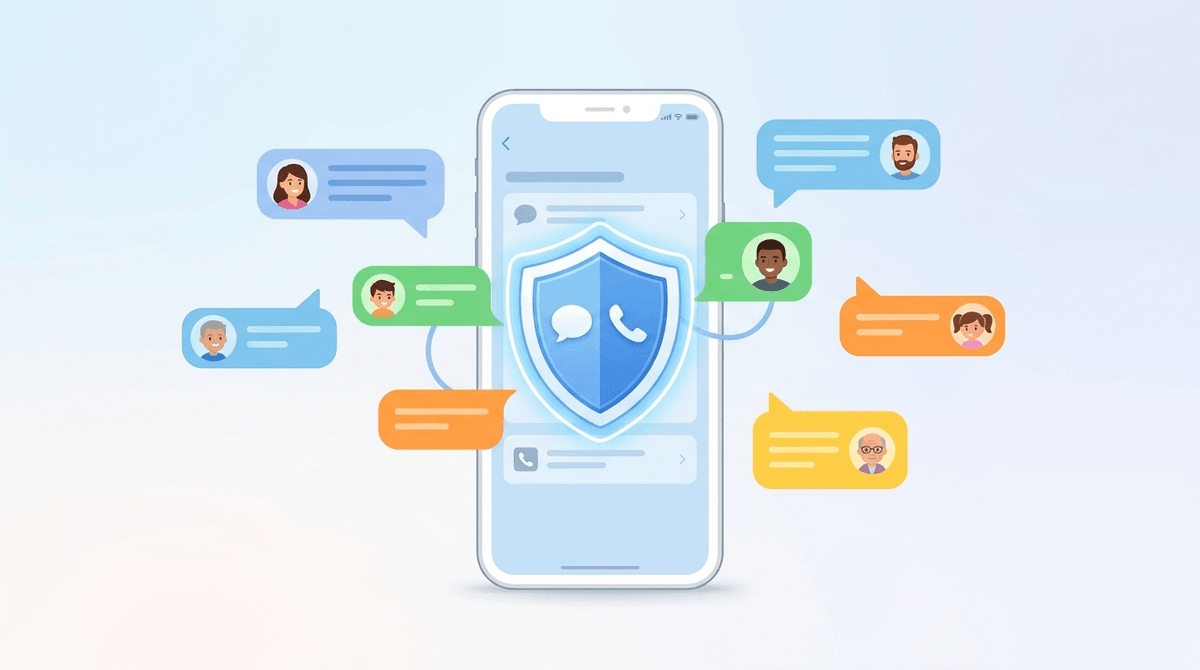
TL;DR: Apple’s Communication Limits (found within Screen Time settings) allow you to curate exactly who your child can talk to via Phone, Messages, and FaceTime. You can set "Everyone" or "Contacts Only" for both allowed screen time and downtime, and even require parental approval before they can add a new contact—essentially an "Ask to Buy" but for friends.
Quick Resources:
Think of Communication Limits as the digital version of "don't talk to strangers," but with teeth. It’s a native iOS feature that gives you a "bouncer" at the door of your child’s iPhone or iPad.
Instead of just hoping your sixth grader isn't being added to a massive, chaotic group chat full of "Ohio" memes and Skibidi Toilet references by people they don't know, you can hard-code the rules. You decide if they can talk to anyone, only people in their contacts, or only specific people during "Downtime."
The most powerful part? You can manage their contact list from your phone. If they want to add a new friend from the soccer team, you can set it up so you get a notification to approve that contact before the first "wsp" (what's up) is ever sent.
If you haven't experienced the specific brand of chaos that is a middle school group chat, consider yourself lucky. It starts innocently with homework questions and ends with 400 notifications in twenty minutes, half of which are inside jokes that make zero sense, and the other half are potential social landmines.
Communication Limits matter because:
- Safety: It blocks "Unknown" numbers from reaching your kid. No spam, no wrong numbers, no "hey girl" messages from strangers.
- Sanity: It prevents them from being sucked into massive group threads with people who aren't in their contact list.
- Sleep: You can restrict communication to just "Mom and Dad" during late-night hours without taking the phone away entirely (though taking it away is still a solid move).
Ask our chatbot for a script to talk to your kids about phone boundaries
You find these settings under Settings > Screen Time > Communication Limits. There are two main states:
1. During Allowed Screen Time
You can set this to Contacts Only. This is the gold standard for kids under 14. If a number isn't in their address book, the call or text simply doesn't go through. If they try to add a contact, you (the family organizer) have to approve it.
2. During Downtime
This is where you get surgical. You can select Specific Contacts. Maybe during "Downtime" (like 8:00 PM to 7:00 AM), they can only reach you, their co-parent, and Grandma. Everyone else—including their best friend who wants to send "rizz" tutorials at midnight—is blocked until morning.
Elementary School (Ages 6-10)
At this age, if they have a device at all, it’s usually for Messenger Kids or maybe a shared iPad. If they have an iPhone, Communication Limits should be set to Contacts Only at all times. You should be the only one who can add contacts. At this stage, there is zero reason for an "Unknown" number to ever hit their screen.
Middle School (Ages 11-13)
This is the danger zone. This is when kids start feeling the "FOMO" (Fear Of Missing Out) and want to be in every group chat imaginable.
- The Move: Keep it to Contacts Only.
- The Conversation: Explain that this isn't about spying; it's about protecting them from the "brain rot" of 50-person group chats.
- The Strategy: Use the "Manage [Child]'s Contacts" feature. It allows you to see who they are adding so you can vet the "new kid from school" before they start exchanging Discord handles.
High School (Ages 14-18)
By now, they need more autonomy. You might move the "Allowed Screen Time" limit to Everyone so they can receive calls from a boss, a coach, or a college recruiter whose number isn't saved. However, keeping Specific Contacts for "Downtime" is still a great way to ensure they actually sleep instead of debating the latest TikTok drama at 3 AM.
Here is where I have to be the bearer of bad news. Apple’s Communication Limits are great, but they aren't magic.
They only work for Apple's native apps.
If your kid is using WhatsApp, Snapchat, Instagram, or Discord, Apple’s Communication Limits will not stop them from talking to strangers or staying up all night in a group chat. Those apps have their own internal contact systems.
To truly lock things down, you have to pair Communication Limits with App Limits. If you tell the phone that Snapchat shuts off at 9 PM, then the communication stops because the app itself is locked. But if you're looking for "Ask to Buy" style contact approval for TikTok DMs? It doesn't exist.
Parents often worry: "What if there’s an emergency and they need to call someone not in their contacts?" Apple has thought of this. If a child calls an emergency service (like 911), communication limits are temporarily disabled for 24 hours to ensure they can receive return calls from emergency responders. You don't have to worry about the "bouncer" blocking a life-saving phone call.
Setting these limits isn't a "set it and forget it" solution. It’s a framework for a conversation.
When your kid asks, "Why can't I text Brayden?" and you realize Brayden isn't in their contacts, use that as a moment to ask who Brayden is. Is he a school friend? A kid from Roblox? Knowing the "who" is more important than the setting itself.
Also, be aware of "Contact Group" glitches. Sometimes, if you use third-party contact syncing (like Google Contacts), Apple’s Screen Time can get a little wonky. It works best if everyone is using iCloud for their contact storage.
Apple’s Communication Limits are one of the most underrated tools in the parental arsenal. They provide a necessary filter in a world where kids are often given a "firehose" of digital social interaction before they have the emotional maturity to handle it.
It’s not about being a "helicopter parent." It’s about being a "curator." You wouldn't let a random stranger walk into your living room and start a conversation with your ten-year-old; there's no reason to let them do it in their pocket.
Next Steps:
- Open Settings on your child's phone (or your own if you use Family Sharing).
- Navigate to Screen Time > Communication Limits.
- Set "During Screen Time" to Contacts Only.
- Set "During Downtime" to Specific Contacts (Mom, Dad, etc.).
- Toggle on "Manage [Child]'s Contacts" to require your approval for new additions.
- Talk to your kid. Tell them the "bouncer" is on duty so they don't have to worry about weirdos or 200-person group chats.