

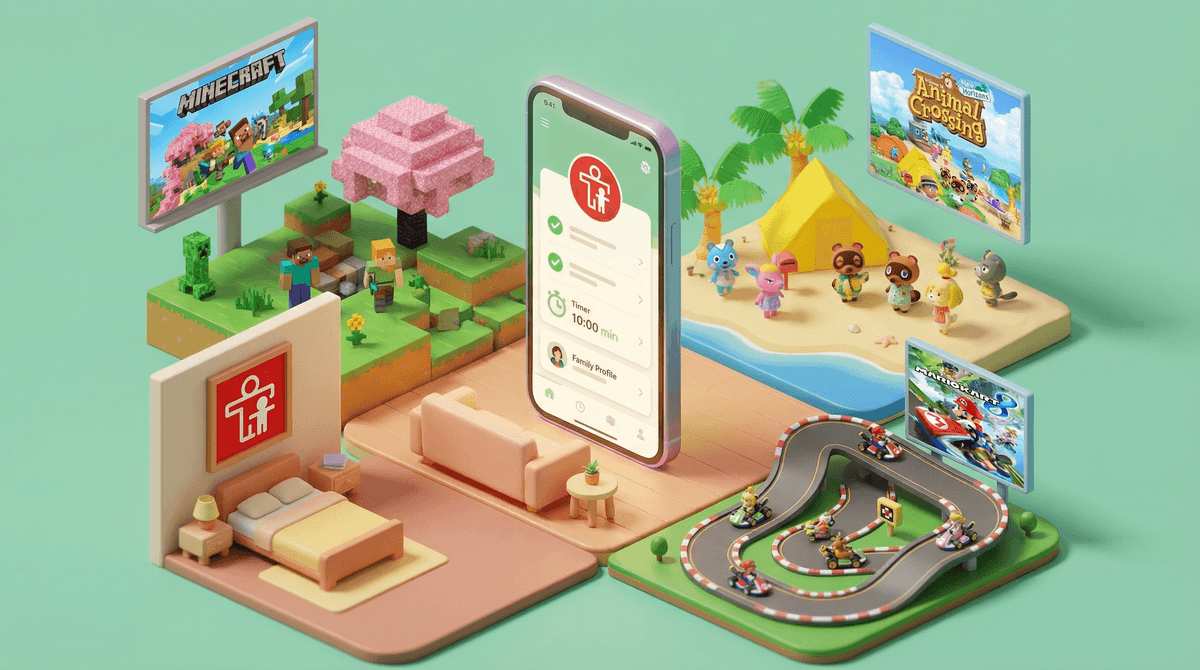
The Nintendo Switch has surprisingly robust parental controls—like, actually good ones that work. You can set time limits, restrict content by age rating, monitor what your kids are playing, and even pause gameplay remotely from your phone. It's basically a digital leash, but the kind that keeps everyone sane instead of starting World War III at bedtime.
The controls work through two systems: settings directly on the console itself, and a free smartphone app called Nintendo Switch Parental Controls that gives you way more features and flexibility. The app is honestly where the magic happens—you can get daily reports, set playtime limits down to the minute, and send a "time to wrap it up" notification that gives kids a 5-minute warning before the console suspends their game.
Here's the thing: these controls aren't about being the villain. They're about creating structure so you're not constantly negotiating, bribing, or threatening to throw the Switch in the garbage (we've all been there). When the console itself enforces the rules, you get to stay the good guy.
The Switch is everywhere. In 2024, it's the most popular gaming console for families, and for good reason—it's got Minecraft, Mario Kart, Animal Crossing, and a library that actually has games appropriate for kids under 13. But that portability is a double-edged sword. Kids can take it to their room, play under the covers, sneak in "just one more level" at 11 PM on a school night.
Without controls, you're stuck as the screen time enforcer, which is exhausting. With controls, the system does the heavy lifting. You set boundaries once, and they hold—no arguments, no "but I'm almost done with this level," no drama.
Plus, the Switch has online features, chat capabilities (limited, but they exist), and access to the Nintendo eShop where kids can rack up charges faster than you can say "digital purchase." Setting up parental controls isn't helicopter parenting—it's basic digital household management.
You can set up basic restrictions directly on the Switch without the app. Here's how:
Go to System Settings → Parental Controls → Parental Controls Settings
From here, you can:
- Restrict software by age rating (ESRB ratings like E, E10+, T, M)
- Restrict posting to social media (yes, the Switch can post screenshots to social media)
- Restrict communication with others (blocks adding friends, sending messages)
- Restrict free-to-start games (blocks downloading free games without permission)
- Restrict Nintendo eShop purchases (requires a PIN for any purchase)
- Display software ratings info (shows a pop-up with the game's rating when launching)
You'll set a 4-digit PIN that's required to change these settings or to override restrictions. Do not make it 1234 or your kid's birthday. Kids are smarter than that.
This console-only approach works fine if you want basic content filtering and purchase protection. But if you want time limits, play activity tracking, or remote control? You need the app.
Download the Nintendo Switch Parental Controls app (iOS/Android) and link it to your console by scanning a QR code. Takes about 2 minutes.
Once connected, you unlock:
Daily Play Time Limits
Set how long your kid can play each day. You can set different limits for weekdays vs. weekends, and you can set limits for the entire console or per user profile (if you have multiple kids sharing one Switch).
When time's up, the game suspends. Not pauses—suspends. The screen shows a message that playtime is over. Your kid can beg the console all they want; it won't budge. (You can remotely grant bonus time from the app if you're feeling generous or if they're mid-boss battle and you're not a monster.)
Bedtime Alarm
Set a time when the Switch can't be used at all—like 8 PM to 7 AM. The console becomes a brick during those hours. This is clutch for kids who "forget" it's bedtime or who try to sneak in early morning gaming before school.
Play Activity Reports
The app shows you exactly what your kid played, for how long, and when. It's not creepy surveillance—it's data. You'll see if they're spending 4 hours a day on Fortnite or if they're actually playing that educational game you bought. (Spoiler: they're not.)
Content Restrictions (Same as Console, But Easier)
You can adjust all the same content filters from the app—age ratings, social media, communication, eShop. But the app interface is way more intuitive than navigating the console menus.
Suspend Play Remotely
If your kid ignores the "5 minutes left" warning, you can tap a button in the app and instantly suspend their game. It's the nuclear option, but sometimes you need it.
Ages 5-8: Focus on time limits (30-60 min/day) and content restrictions (E for Everyone only). These kids don't need online features or eShop access. Keep it simple: play time, then done.
Ages 9-12: You can loosen content restrictions to E10+ if appropriate for your family. Consider allowing limited online play in games like Splatoon 3 or Mario Kart (both have minimal chat/interaction). Time limits of 60-90 min/day are common in this age group. Monitor their play activity weekly—not to punish, but to stay aware of what they're into.
Ages 13+: At this point, you're shifting from control to conversation. Many families ease up on time limits (or switch to a weekly budget instead of daily) and allow T-rated games if the content aligns with family values. Keep eShop restrictions unless you trust them with a prepaid card. The play activity reports become less about policing and more about staying connected to their interests.
The PIN is everything. If your kid figures out your PIN, all bets are off. Don't write it on a sticky note near the TV. Don't use the same PIN you use for your phone. And for the love of god, don't tell them "just this once" and then type it in while they watch.
Time limits apply to the console, not the user. If you have multiple kids sharing one Switch, the time limit is shared. If Kid A plays for 30 minutes, Kid B only gets 30 minutes left (assuming you set a 60-minute daily limit). This causes sibling drama. The workaround is to set up separate user profiles and use the app to set per-user limits, but it's clunky. Learn more about managing multiple kids on one Switch .
.
The 5-minute warning is your friend. Kids lose their minds when games shut off mid-level. The warning notification gives them time to save, finish a round, or at least mentally prepare. Use it. It's the difference between a peaceful transition and a meltdown.
You can temporarily lift restrictions. If your kid is playing with a friend who's over, or if it's a rainy Saturday and you want to give them extra time, you can suspend the time limits from the app. Flexibility is fine. Consistency is better, but life happens.
The app only works when the Switch is online. If your kid plays in airplane mode or offline, the app can't track activity or enforce limits in real-time. The console will still enforce restrictions once it reconnects, but there's a loophole here for savvy kids. If offline play is a concern, you can restrict it via the console settings.
This doesn't replace conversation. Parental controls are a tool, not a parenting philosophy. You still need to talk to your kids about why limits exist, what healthy gaming looks like, and how to self-regulate. The controls buy you time and reduce friction, but they're not raising your kids for you.
Setting limits too strict right out of the gate. If you go from zero structure to "30 minutes a day, E-rated games only, no online, no eShop," your kid will revolt. Start with reasonable limits and adjust based on behavior and your family's needs.
Not explaining the rules. If you just activate parental controls without telling your kid, they'll feel blindsided and betrayed. Sit down, explain what you're setting up and why, and involve them in the conversation. "We're going to try 60 minutes a day on weekdays, 90 on weekends. If that's working well, we can revisit in a month."
Forgetting to check play activity. The app sends you summary notifications, but if you never look at them, you're missing the point. Spend 2 minutes a week reviewing what they played. It's a window into their world.
Using the controls as punishment. Don't weaponize the app. If your kid misbehaves, address the behavior directly—don't suddenly drop their screen time to zero or lock them out of the Switch entirely via parental controls. That just breeds resentment and teaches them that rules are arbitrary.
Nintendo Switch parental controls are legitimately good. They're easy to set up, they work, and they let you create boundaries without becoming the bad guy. The app is free, the features are comprehensive, and once you've got it dialed in, it runs on autopilot.
Start with the app (not just the console settings), set time limits that match your family's rhythm, restrict content based on your kid's age and maturity, and check in on play activity regularly. You're not spying—you're parenting.
And if your kid complains that "none of my friends have these restrictions," cool. You're not parenting their friends.
- Download the Nintendo Switch Parental Controls app (it's free on iOS and Android)
- Link it to your console (scan the QR code in System Settings → Parental Controls)
- Set daily time limits (start with 60 min/day and adjust from there)
- Restrict content by age rating (E or E10+ for younger kids)
- Turn on the bedtime alarm (no gaming after 8 PM, or whatever makes sense for your family)
- Check play activity once a week (just to stay in the loop)
Need help figuring out if a specific game is appropriate? Check out our guide to age-appropriate Switch games or ask us about a specific title.
You've got this.