

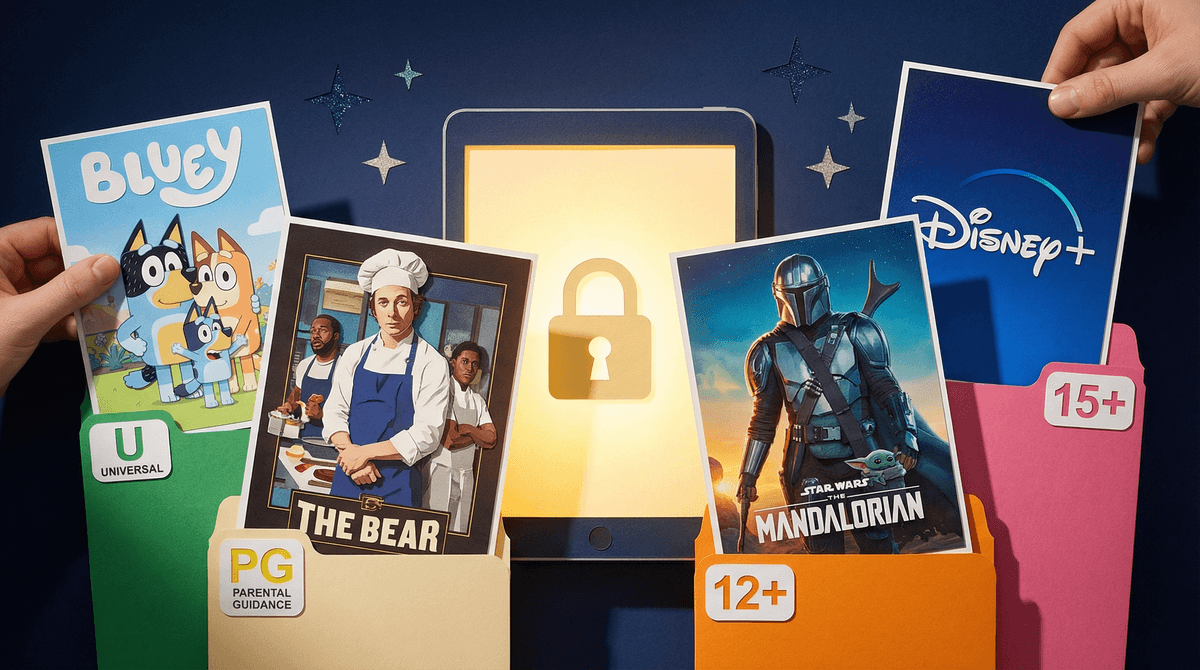
Disney+ is the streaming home of Disney, Pixar, Marvel, Star Wars, and National Geographic content. It's marketed as the "family-friendly" streaming service, and while that's mostly true, here's the thing: Disney+ has way more mature content than most parents realize.
Sure, you've got your classic Disney animated films and Bluey episodes. But you've also got the entire Marvel Cinematic Universe (including some pretty intense violence), all the Star Wars content (hello, Andor), and shows like The Bear and Grey's Anatomy in some regions. Plus, National Geographic documentaries can get surprisingly graphic when they're showing, you know, actual nature.
The good news? Disney+ actually has pretty solid parental controls. The better news? They're reasonably straightforward to set up. Let me walk you through it.
Disney+ handles age-appropriateness through two main approaches: Kids Profiles and content ratings filters. Here's what you need to know:
Kids Profiles are locked to content rated TV-7FV and G. That's it. This means your 6-year-old gets access to classic Disney movies, Disney Junior shows, and age-appropriate Pixar films. They won't see Marvel movies, most Star Wars content, or anything remotely intense.
Regular profiles can be customized with content ratings filters, which is where things get more interesting for older kids.
- Open Disney+ and go to your profile icon
- Select "Edit Profiles"
- Click "Add Profile"
- Toggle on "Kids Profile"
- Add a name and avatar
Done. Seriously, that's it. Once you create a Kids Profile, it's automatically restricted to G and TV-7FV content. Your kid can't accidentally stumble into Deadpool territory (yes, Deadpool is on Disney+ now in some regions—wild times).
For kids who've aged out of the strict Kids Profile but aren't ready for everything, you'll want to set up a regular profile with content ratings restrictions:
- Go to your profile and select "Edit Profiles"
- Choose the profile you want to restrict
- Select "Content Rating"
- Choose your rating level:
- TV-7FV and G (same as Kids Profile)
- TV-PG and PG (adds stuff like The Mandalorian, most Disney Channel shows, milder Marvel content)
- TV-14 and PG-13 (most Marvel movies, Star Wars series, more intense content)
- TV-MA and R (everything, including shows like The Bear)
Here's my honest take: Most elementary schoolers do fine with TV-PG/PG, which opens up a lot more content without getting into the really intense stuff. Middle schoolers can usually handle TV-14/PG-13, though you'll want to spot-check specific Marvel movies because some are way more violent than others.
Here's where most parents drop the ball: you need to set up a PIN to lock profile switching and purchases. Otherwise, your kid can just... switch to your profile and watch whatever they want.
To set up PIN protection:
- Go to your profile icon and select "Account"
- Under "Parental Controls," select "Profile PIN"
- Create a 4-digit PIN
- Choose what to lock:
- Profile access (prevents switching to other profiles)
- Content above a certain rating
- Purchases
Pro tip: Lock profile switching. Kids are resourceful, and "I'll just watch on Mom's profile" is a very common workaround if you don't.
While we're here, let's talk about autoplay. Disney+ defaults to automatically playing the next episode, which is how your kid ends up watching 47 episodes of Phineas and Ferb in one sitting.
To turn off autoplay:
- Go to your profile icon
- Select "App Settings"
- Toggle off "Autoplay"
This won't solve screen time issues entirely, but it at least requires your kid to actively choose to keep watching rather than passively consuming content for hours.
GroupWatch is Disney+'s feature that lets up to seven people watch together remotely. It's actually pretty great for long-distance family movie nights, but here's what you need to know: GroupWatch respects the content rating of the most restricted profile in the group.
So if your 8-year-old with a Kids Profile joins a GroupWatch session, everyone is limited to G and TV-7FV content. This is actually a nice safety feature—no risk of Grandma accidentally screening Deadpool for the elementary school crowd.
Even with perfect parental controls, you're going to hit the "but everyone in my class has seen The Avengers" conversation. Here's the thing: parental controls are tools, not substitutes for actual parenting.
Some strategies that actually work:
- Co-watch first: Watch the questionable content yourself or with your kid the first time. A PG-13 Marvel movie hits different when you're there to process the intense scenes together.
- Use the ratings as a starting point, not gospel: Some PG movies are more intense than some PG-13 movies. Common Sense Media
 has more detailed breakdowns if you want specifics.
 - Explain your reasoning: "Not yet, because the violence is too intense" lands better than "because I said so."
Disney+ parental controls are actually pretty good—if you use them. Set up Kids Profiles for younger kids, use content ratings restrictions for older ones, and for the love of all that is holy, set up a PIN to lock profile switching.
But remember: no parental control system is perfect. Your 10-year-old's friend will show them clips from movies you've blocked. They'll see trailers for shows you don't want them watching. The controls buy you time and create boundaries, but they don't replace conversations about why some content isn't appropriate yet.
- Right now: Go set up those PINs if you haven't already. Seriously, close this tab and do it.
- This week: Review what content ratings make sense for each kid's profile. What worked last year might need updating.
- This month: Actually watch one of the shows or movies your kid is into. You'll understand their world better, and you'll know if your content settings are working.
Need help figuring out if a specific Disney+ show is appropriate for your kid? See if specific Disney+ content is appropriate or check out our guide to Marvel movies by age.