

The Ultimate Guide to Alexa Parental Controls and Amazon Kids
Amazon's Alexa can be genuinely useful for kids—setting timers for homework, playing music, asking random science questions at dinner—but out of the box, it's basically an open door to the entire internet with a voice interface. The good news? Amazon Kids+ turns Alexa into a surprisingly solid kid-safe device with content filters, time limits, and actually useful parental controls.
Here's what you need to know:
- Amazon Kids+ subscription ($5.99/month or $79/year for Prime members) is basically required for meaningful parental controls
- You can set daily time limits, filter explicit content, and review what your kids ask Alexa
- FreeTime on Alexa (the kid mode) blocks purchasing, calling unknown numbers, and accessing skills you haven't approved
- The system works best for ages 5-12—younger kids get frustrated, older kids find workarounds
Let's dig into how to actually set this up so Alexa becomes helpful instead of chaotic.
Amazon Kids+ is a subscription service that transforms your Echo device into a kid-friendly assistant. Think of it as the difference between handing your kid your unlocked phone versus giving them a device with actual guardrails.
With Amazon Kids+, you get:
- Ad-free music, audiobooks, and Audible books curated for kids
- Approved Alexa Skills (the voice app equivalent) vetted for age-appropriateness
- Explicit content filtering for music and other audio content
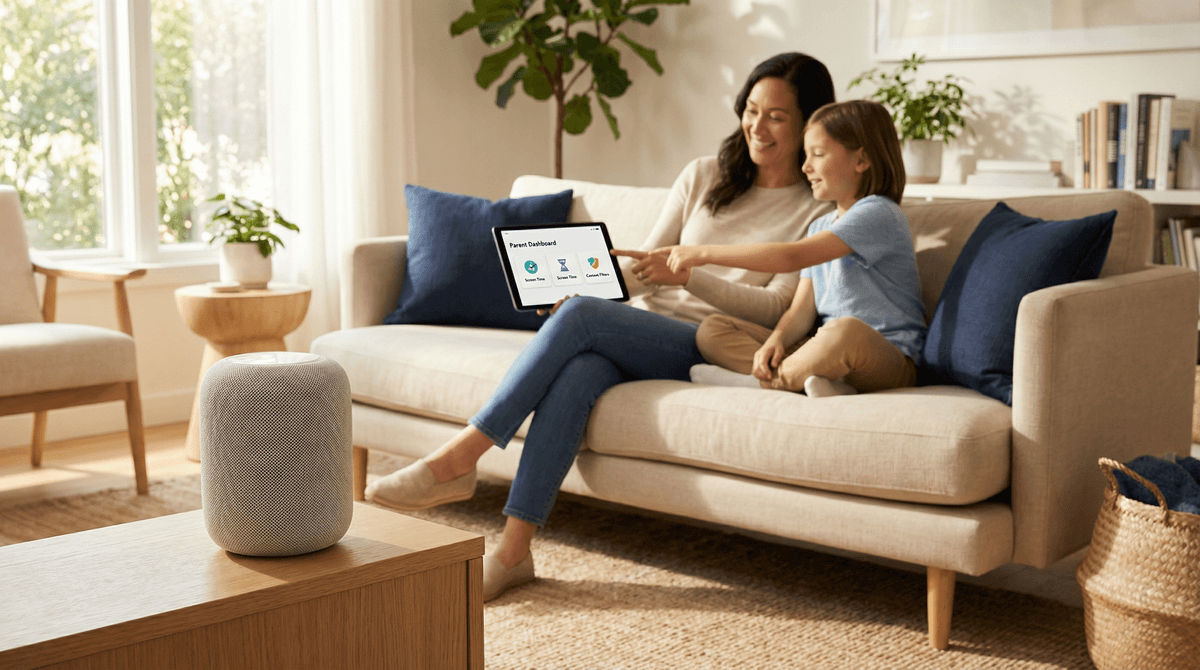
- Parent Dashboard to see what your kids are asking and listening to
- Time limits so "Alexa, play Baby Shark" doesn't become an all-day event
Without it? Your kid can ask Alexa to play literally anything on Amazon Music (hello, explicit rap lyrics), order items with voice purchasing enabled, or access any of the thousands of random Alexa Skills that may or may not be appropriate.
Here's the actual setup process—it takes about 10 minutes:
Step 1: Subscribe to Amazon Kids+
Head to the Amazon Parent Dashboard (amazon.com/ftu/home) or do it through the Alexa app. You'll need an existing Amazon Household set up with child profiles. If you haven't created child profiles yet, you'll do that here too.
Cost breakdown:
- $5.99/month for Prime members (first child)
- $79/year for Prime members (saves you about $12/year)
- Add up to 3 additional children for $2.99/month each
- Non-Prime members pay $11.99/month
Step 2: Enable Amazon Kids on Your Echo Device
In the Alexa app:
- Go to Devices → Select your Echo device
- Scroll down to Amazon Kids
- Toggle it on and assign it to your child's profile
- Choose whether this Echo is dedicated to your child (always in kid mode) or shared (switches between adult and kid mode)
Pro tip: If you have multiple Echo devices, you can set up one as dedicated kid mode (maybe in their bedroom) and keep the kitchen one as shared. Shared mode requires you to say "Alexa, switch to [child's name]'s profile" to activate parental controls.
Step 3: Customize Content Filters and Time Limits
This is where you actually make it useful:
Content Filters:
- Turn on Explicit Language Filter (blocks songs and content with explicit tags)
- Review and approve Alexa Skills individually—by default, kids can't add new skills without permission
- Enable Voice Purchasing Password so your kid can't accidentally order 47 boxes of Oreos
Time Limits: In the Parent Dashboard, you can set:
- Daily time limits (e.g., 1 hour of music/entertainment per day)
- Bedtime hours (Alexa stops responding to entertainment requests after 8pm)
- Different limits for weekdays vs. weekends
The time limits apply to entertainment content (music, audiobooks, games) but NOT to educational content, timers, alarms, or questions. So your kid can still ask "Alexa, how do frogs breathe?" at 9pm, but they can't play music.
Step 4: Review the Parent Dashboard Regularly
The Parent Dashboard (accessible via web or Alexa app) shows you:
- What your child asked Alexa (yes, all of it—prepare for weird questions)
- How much time they've used on different content types
- Which skills they've accessed
- Activity by day/week
It's not creepy surveillance—it's more like seeing their browser history. You'll mostly learn that your kid asks Alexa to tell jokes approximately 400 times per day.
The good stuff:
- Amazon Kids+ actually works pretty well for the 8-12 age range. The content library is solid, the filters catch most problematic stuff, and the time limits are enforceable.
- The activity dashboard is genuinely useful for understanding what your kid is into. You might discover they're obsessed with a podcast about space or asking Alexa how to spell words for their writing.
- Educational content doesn't count against time limits, which is a smart design choice. Kids can ask homework questions or listen to Brains On! without burning through their entertainment time.
The limitations:
- Younger kids (under 6) struggle with voice interfaces. They can't always phrase questions clearly, and Alexa misunderstands them constantly. It's frustrating for everyone.
- Older kids (13+) will find workarounds. If they have access to a non-kid Echo device elsewhere in the house, they'll use that one. Or they'll just use their phone.
- The subscription is essentially mandatory. Without Amazon Kids+, the parental controls are minimal. You can disable voice purchasing and explicit filters, but you lose time limits, activity monitoring, and the curated content library.
- Music selection can be hit-or-miss. The kid-friendly music library is decent but not comprehensive. Your kid might ask for a specific song and get "I can't find that in Amazon Kids+."
Ages 5-7:
- Best for simple requests: "Alexa, play Encanto soundtrack" or "Alexa, set a 5-minute timer"
- Frustration level is high when Alexa doesn't understand them
- They'll ask the same questions repeatedly (it's like a verbal fidget toy)
- Keep the Echo in a common area so you can help troubleshoot
Ages 8-12:
- Sweet spot for Amazon Kids+. They can navigate the system, understand time limits, and use it independently.
- Great for: homework help, listening to audiobooks, playing age-appropriate music, setting their own routines
- They'll test boundaries (asking for explicit songs to see if the filter catches it), but the system holds up pretty well
- Consider letting them request new Skills with your approval—builds digital literacy
Ages 13+:
- Most teens want the full Alexa experience, not the kids version
- Consider transitioning to the adult Alexa with house rules instead of Amazon Kids+
- You can still disable voice purchasing and set some boundaries without the full kid mode
- At this age, it's more about conversations than technical restrictions
If you're deciding between voice assistants for kids:
Google Home with Family Link offers similar parental controls but requires more manual setup. The content filtering isn't as robust as Amazon's, but if you're already in the Google ecosystem, it's worth considering.
Apple HomePod has limited parental controls and no dedicated kids mode. It's the least kid-friendly of the major voice assistants.
No voice assistant is also a completely valid choice. If the idea of your kid talking to a device all day feels weird, that's fair. Traditional timers, music players, and encyclopedias still work great.
"Can my kid call people with Alexa?" In Amazon Kids mode, your child can only call contacts you've approved. They can't call random numbers or drop in on other Echo devices without permission. You set this up in the Parent Dashboard under Communication settings.
"What if my kid asks Alexa inappropriate questions?" Alexa's kid mode has content filters that block explicit responses, but it's not perfect. You'll see all questions in the Parent Dashboard, so you can address anything concerning. Honestly, most "inappropriate" questions are just kids testing boundaries ("Alexa, what's a bad word?").
"Do time limits actually work?" Yes, but with caveats. When time is up, Alexa will say something like "You've reached your time limit for today" and stop responding to entertainment requests. However, kids can still use Alexa for educational content, timers, and approved communication. It's not a hard shutdown.
"Can they access YouTube or videos?" Echo Show devices (the ones with screens) can access video content, but in Amazon Kids mode, it's limited to approved content from Amazon Kids+. YouTube isn't available in kid mode, which is honestly a feature, not a bug.
"Is this just training my kid to be a consumer?"
This is a fair concern. Voice shopping and instant gratification are baked into Alexa's design. The voice purchasing controls help, but you're still introducing your kid to an Amazon-centric ecosystem. Have conversations about how companies use voice data and why Alexa suggests certain products.
Let's be real: Amazon is collecting data on what your kid asks Alexa. They say it's to improve the service and provide personalized recommendations, which is true, but it's also building a profile of your child's interests and habits.
What you can do:
- Review and delete voice recordings regularly in the Alexa app (Settings → Alexa Privacy → Review Voice History)
- Disable personalized ads in your Amazon account settings
- Don't use Alexa for sensitive conversations—assume everything said near the device could be recorded
- Teach your kids about voice privacy—this is a good opportunity to discuss how voice assistants work and what data means
If you're uncomfortable with any data collection, Amazon Kids+ probably isn't for you. The parental controls require cloud processing and data storage to function.
Amazon Kids+ transforms Alexa from "open internet with a voice interface" into a legitimately useful, reasonably safe tool for kids. The parental controls actually work, the content library is solid, and the activity monitoring gives you useful insights without being overly invasive.
It's worth the subscription if:
- You already have Echo devices in your home
- Your kids are in the 8-12 age range
- You want enforceable time limits and content filters
- You're willing to spend 10 minutes setting it up properly
Skip it if:
- Your kids are under 5 (too frustrating) or over 13 (too restrictive)
- You're uncomfortable with voice data collection
- You don't want another subscription service
- You'd rather just not have voice assistants in kid spaces
The system isn't perfect—no parental control is—but it's one of the better implementations of kid-safe voice technology. Just remember: the controls only work if you actually set them up. Don't assume the Echo device is safe for kids out of the box.
- Set up Amazon Household with child profiles (if you haven't already)
- Subscribe to Amazon Kids+ and enable it on your Echo devices
- Customize content filters and time limits based on your family's needs
- Review the Parent Dashboard after the first week to see what your kids are actually using
- Have a conversation with your kids about how Alexa works, what the time limits are, and why certain content is filtered
And if you're looking for other ways to make your smart home more kid-friendly, check out our guides on setting up YouTube parental controls and kid-safe podcasts that work great with Alexa.