

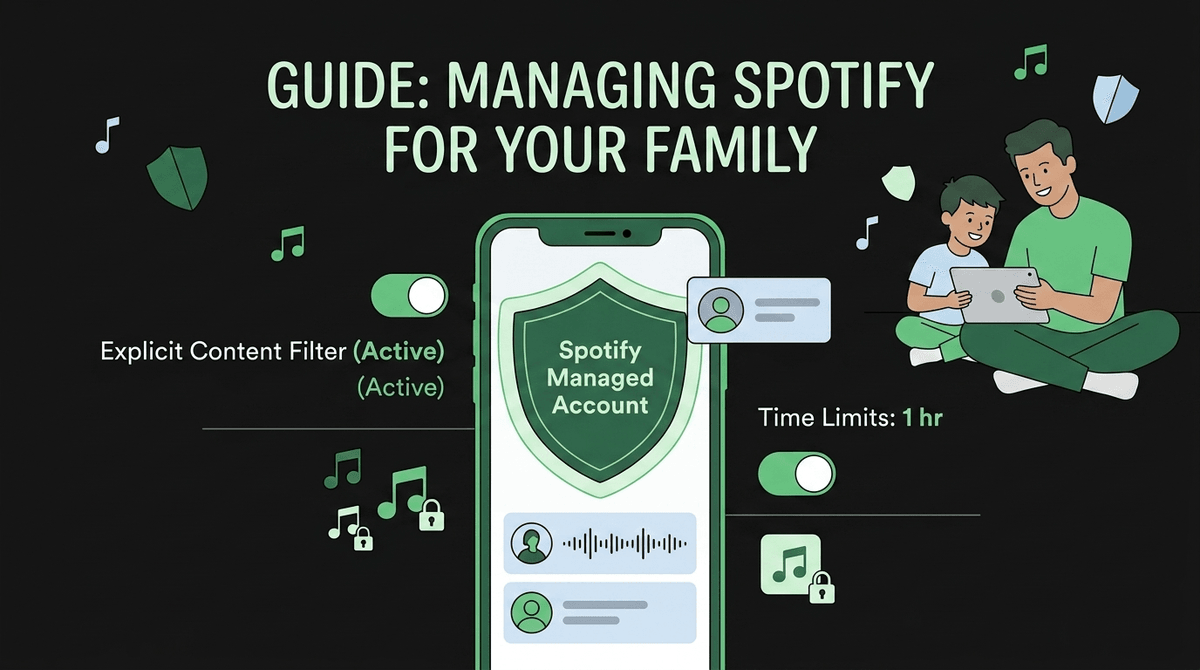
Beyond Baby Shock: Navigating Spotify's New Managed Accounts
TL;DR: Spotify finally rolled out proper parental controls in 2026 with Managed Accounts that let you block explicit content, filter specific artists, and—hallelujah—keep Baby Shark out of your Discover Weekly. Here's how to set it up and actually use it.
For years, Spotify's parental controls were basically "turn on the explicit content filter and hope for the best." That filter was laughably easy for kids to bypass, and it did nothing to prevent the algorithm from recommending increasingly questionable content based on what your kid was listening to.
The new Managed Accounts system (announced in early 2026) is a legitimate game-changer. Parents can now create supervised accounts for kids under 13 that actually work like parental controls should—with content filtering, artist blocking, and separate recommendation algorithms that won't contaminate your own music taste.
Here's the thing about music streaming: it's one of those digital spaces where kids can have a ton of independence without the same safety concerns as social media or gaming platforms. According to our Screenwise community data, 70% of families are giving kids some level of unsupervised screen time, and music is often where that starts.
But that independence comes with trade-offs. The explicit content filter has always been spotty at best, catching obvious profanity but missing sexual content, drug references, and violent lyrics that slip through. Plus, Spotify's algorithm is aggressive—listen to one song and you'll get 50 similar recommendations, which can quickly spiral into territory you didn't expect.
Step 1: Create the Account
From your Spotify Premium Family plan (yes, you need Premium for this), go to Account Settings → Family → Add Family Member → Create Managed Account. You'll set up a username and password for your kid.
Step 2: Configure Content Filters
This is where the 2026 updates shine:
- Explicit Content Filter: Turn this on. It's not perfect, but it's better than it used to be.
- Artist Blocking: You can now block specific artists entirely. This is huge for parents who don't want their kids listening to certain musicians, regardless of whether individual songs are marked explicit.
- Genre Restrictions: New feature lets you limit certain genres (like "Explicit Hip Hop" or "Death Metal") while still allowing other genres.
Step 3: Customize Recommendations
The biggest improvement is that Managed Accounts now have their own recommendation engine. Your kid's Baby Shark obsession won't show up in your Release Radar anymore, and—more importantly—their algorithm won't push them toward increasingly edgy content just because they listened to one popular song.
You can set the recommendation intensity to:
- Conservative: Only suggests music similar to what they've already played
- Moderate: Standard Spotify recommendations with content filters applied
- Exploratory: Wider recommendations but still within your content boundaries
Let's be real about what these controls can and can't do.
What works well:
- Blocking songs with explicit tags (profanity, sexual content markers)
- Preventing access to specific artists you've blacklisted
- Keeping your personal playlists and recommendations separate
- Limiting playlist sharing and social features
What's still imperfect:
- Clean versions of songs can still have problematic themes
- User-generated playlists might slip through filters
- Podcast content isn't as tightly controlled
- Kids can still search for and find content that's technically not "explicit" but maybe not age-appropriate
Ages 6-9: Managed Accounts are perfect here. Use Conservative recommendations, block explicit content, and consider creating curated playlists for them rather than letting them search freely. Most kids this age are happy with soundtracks from movies they love and kid-focused artists.
Ages 10-12: This is where it gets trickier. Kids are developing their own music taste and want independence. Use Moderate recommendations and have conversations about why certain artists or songs might not align with your family values. The artist blocking feature is clutch here—you can give them freedom while still maintaining boundaries.
Ages 13+: At this point, you're probably transitioning to a regular account. But the Managed Account can be a stepping stone—turn off some restrictions gradually while keeping others in place. Use it as a teaching tool about media literacy and making intentional choices.
Even with all these controls, Spotify's algorithm is designed to maximize engagement. That means it's always trying to find the next song that will keep your kid listening. For our Screenwise families where kids average 4.2 hours of total screen time daily, music often doesn't count toward that limit—but maybe it should.
Music streaming can be genuinely background and healthy (doing homework, playing, relaxing), or it can become another attention-draining habit. Pay attention to whether your kid is actively choosing music or just letting autoplay run for hours.
The "Clean Version" Trap: Just because a song is the clean version doesn't mean it's appropriate. The clean version of a song about drug dealing is still about drug dealing—they just took out the F-bombs.
Podcast Chaos: Spotify's podcast controls are way less sophisticated than music controls. If your kid has a Managed Account, consider whether you want podcasts enabled at all. There's a toggle for this in settings.
Sharing Features: Managed Accounts can't share playlists publicly or follow other users, which is actually a feature, not a bug. No need to worry about your 8-year-old getting into Spotify social drama.
The Family Plan Requirement: You need Spotify Premium Family ($16.99/month) to create Managed Accounts. If you're on Individual Premium, you'll need to upgrade. For families already using Spotify, this is usually worth it.
Not sold on Spotify? Fair enough. Here are other options:
- YouTube Music: Has supervised accounts through Google Family Link, but honestly, the controls are less robust than Spotify's new system.
- Apple Music: Family Sharing with Screen Time restrictions works well, especially if you're already in the Apple ecosystem. Learn more about Apple Music parental controls.
- Amazon Music: Included with Prime, has basic parental controls, but the recommendation algorithm isn't as good (which might actually be a plus for parental control purposes).
- Physical Music: Yeah, I said it. A kid with a bluetooth speaker and a curated playlist downloaded to a device without internet can be a beautiful thing.
This is where every family is different. Some parents are fine with their 12-year-old listening to explicit hip-hop. Others want to avoid anything with profanity until high school. Some families care more about sexual content, others about violence, others about materialism or misogyny.
The Managed Account tools give you the ability to enforce your family's values without having to be the constant bad guy. But you still need to know what your values are and be able to articulate them to your kid.
Having conversations about why certain music doesn't align with your family's values is way more effective than just blocking things and hoping they don't notice. Use the artist blocking feature as a conversation starter: "I'm blocking this artist because..." is a lot more educational than silent censorship.
Spotify's 2026 Managed Accounts are legitimately good—probably the best parental controls in music streaming right now. They're not perfect, and they won't solve every problem, but they give you actual tools instead of just wishful thinking.
Set them up, have the conversations, and remember that music is one of the lower-stakes areas of digital parenting. Your kid listening to a questionable song isn't going to ruin their life. But having systems in place that respect your family's boundaries while giving them age-appropriate independence? That's worth the 15 minutes it takes to configure.
- If you have Spotify Premium Family, set up Managed Accounts
 for your kids today
 - Create a few curated playlists as starting points for younger kids
- Have a conversation with older kids about why certain content isn't allowed and what they can do if they want to challenge those boundaries
- Check in monthly—look at what they're listening to and adjust restrictions as needed
- Find age-appropriate music choices if you need help curating content
And hey, enjoy getting your Discover Weekly back. You deserve recommendations that aren't 50% Kidz Bop.