

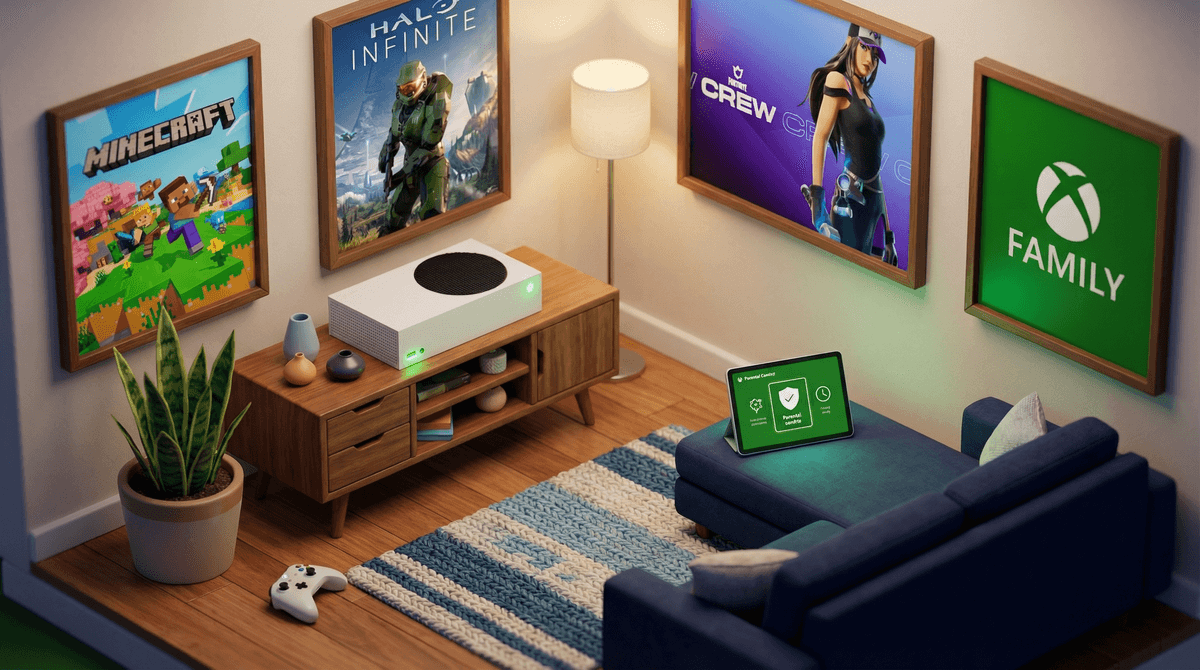
So the Xbox finally made its way into your home—whether it was a birthday gift, holiday present, or you finally caved after months of begging. First off: you're not alone. About 55% of families in our community have gaming consoles, and the Xbox is one of the big three (alongside PlayStation and Nintendo Switch).
Xbox is Microsoft's gaming console, and the current generation—Xbox Series X and Series S—offers everything from kid-friendly games like Minecraft to intense shooters that are absolutely not for kids. It connects to your TV, hooks up to the internet, and opens the door to gaming, streaming, voice chat, and online multiplayer experiences.
The good news? Xbox actually has some of the best parental controls in the gaming world. The potentially overwhelming news? There are a lot of settings to configure, and if you skip this step, your kid could be chatting with strangers, racking up charges, or playing games way above their maturity level before you've even figured out where the power button is.
Kids are drawn to Xbox for a few key reasons:
The games. Xbox has an incredible library spanning everything from creative building games to sports titles to adventure games. Fortnite, Roblox, Rocket League—all the games their friends are playing are here.
Playing with friends. Online multiplayer is the main event for most kids. Gaming isn't just about the game anymore—it's about hanging out, strategizing, and feeling connected to their friend group.
Game Pass. Xbox Game Pass is like Netflix for games—one subscription gives access to hundreds of titles. For kids, this feels like unlimited possibilities. For parents, it can actually be cost-effective compared to buying individual games at $60-70 each.
I cannot stress this enough: configure the parental controls before your child touches the controller. It takes maybe 20 minutes, and it will save you from so many headaches down the road.
Here's your day-one setup checklist:
Create a Child Account
Don't let your kid use your adult Microsoft account. Create a child account through the Xbox Family Settings app (yes, download this on your phone right now). This gives you control over:
- Screen time limits
- Content restrictions by age rating
- Who they can communicate with
- Purchase approvals
Set Content Filters
Xbox uses the ESRB rating system (learn about game ratings here ). You can block games above a certain rating. For most elementary-aged kids, sticking with E (Everyone) and E10+ is reasonable. Middle schoolers might be ready for T (Teen) rated games, but this really depends on your family values and your specific kid.
Manage Communication Settings
This is critical. By default, kids can receive messages and chat with anyone online. You can set this to:
- Friends only
- Block all communication
- Require approval for new friends
For younger kids (under 10), I'd recommend friends-only or blocked communication. For older kids, friends-only is usually the sweet spot.
Require Purchase Approval
Turn on "Ask to buy" so your kid can't accidentally (or "accidentally") spend money on games, in-game purchases, or subscriptions. Trust me on this one.
Set Screen Time Limits
The Xbox Family Settings app lets you set daily time limits and even schedule when the console can be used. Given that kids in our community average about 4 hours of screen time on weekdays and 5 hours on weekends, you'll want to be intentional about how much of that you're comfortable allocating to gaming.
Not all games are created equal, and the Xbox store can be overwhelming. Here's a quick framework:
Safe bets for younger kids (ages 6-10):
- Minecraft (creative, building, problem-solving)
- Stardew Valley (farming sim, surprisingly zen)
- Rocket League (soccer with cars, minimal chat needed)
- LEGO games (co-op friendly, humor-filled)
Popular with tweens/teens (ages 11+):
- Fortnite (yes, it's still everywhere)
- Roblox (platform with thousands of user-created games)
- Apex Legends (team-based shooter, T-rated)
- Sports games like FIFA or NBA 2K
Games to research carefully: Anything rated M (Mature 17+) like Call of Duty, Grand Theft Auto, or Halo Infinite. These aren't automatically off-limits for older teens, but know what you're getting into.
Xbox has multiple ways money can leave your account:
- Game purchases ($20-$70 per game)
- Xbox Game Pass ($10-$17/month subscription)
- In-game purchases (skins, battle passes, V-Bucks, Robux)
- Xbox Live Gold/Game Pass Ultimate (required for online multiplayer)
Have a conversation early about how game purchases work in your family. Some parents give a monthly gaming budget. Others require kids to use their own money. Many do a hybrid—we'll pay for Game Pass, but in-game cosmetics are on you.
Understanding how in-game purchases work can help you navigate the inevitable "everyone has this skin except me" conversations.
With 55% of families in our community actively gaming, you're definitely not alone in navigating this. Here are some practices that seem to work:
Location matters. Keep the Xbox in a common area, not a bedroom. This naturally limits late-night gaming and helps you stay aware of what's being played.
Balance is key. Gaming isn't inherently bad, but it shouldn't crowd out physical activity, family time, homework, or sleep. If your kid is averaging 4+ hours of screen time daily, make sure gaming isn't consuming all of it.
Play together sometimes. Even if you're terrible at video games (relatable), playing alongside your kid—or at least watching them play—helps you understand what they're into and opens up natural conversation.
Talk about online interactions. Kids will encounter trash talk, competitiveness, and occasionally truly inappropriate behavior online. Have ongoing conversations about what to do if someone makes them uncomfortable, how to be a good sport, and when to mute/block/report.
Getting an Xbox doesn't have to mean losing control of your family's digital life. With the right setup from day one, it can actually be a really positive addition—a way for kids to connect with friends, develop problem-solving skills, and yes, have fun.
The key is being intentional. Set up those parental controls. Have conversations about time limits and spending. Stay curious about what they're playing. And remember: you're allowed to adjust the rules as you go. What works for a 7-year-old won't work for a 13-year-old, and that's completely normal.
- Download the Xbox Family Settings app on your phone right now
- Create a child account for your kid (not a generic profile on your account)
- Set content filters, communication limits, and purchase approvals before the first play session
- Have a conversation about your family's gaming expectations—time limits, game choices, and spending rules
- Check in regularly on what they're playing and who they're playing with
You've got this. And when you inevitably have questions about whether Among Us is appropriate or why your kid needs Robux again, that's what we're here for.