

TL;DR: The "I have 2 minutes" version If you’re drowning in requests for V-Bucks or tired of yelling "turn it off" into the void, here is your 2025 PlayStation survival kit:
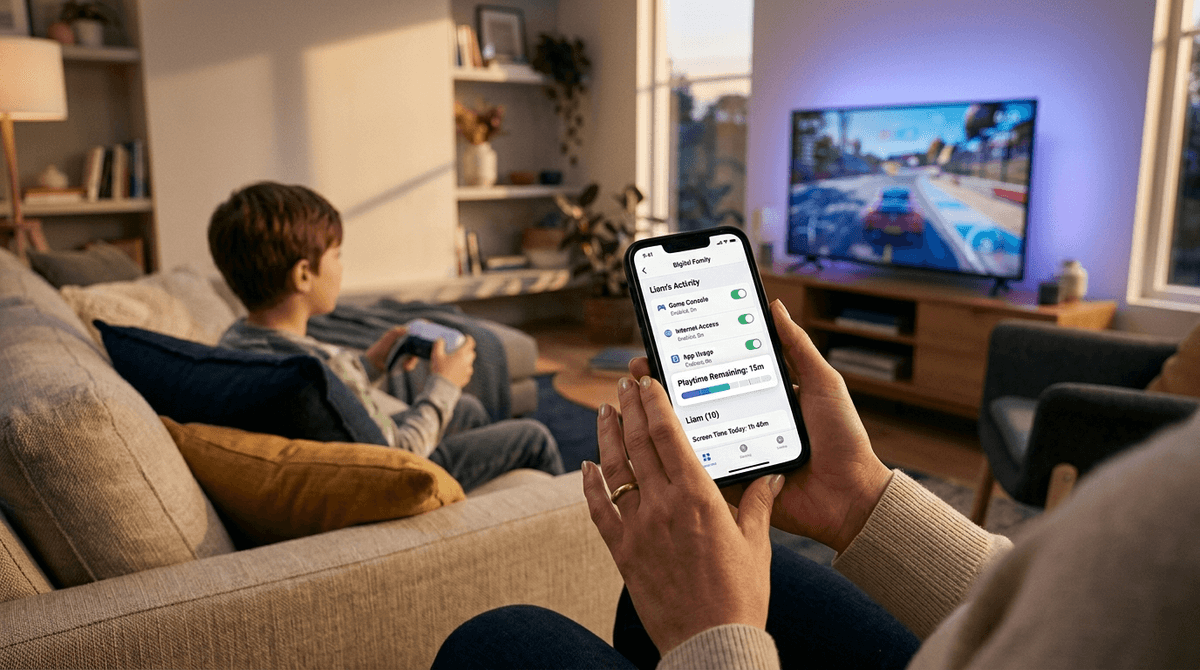
- Download the PlayStation App on your phone. It’s the remote control for your kid’s digital life.
- Set the Spending Limit to $0.00. Do not rely on "asking for permission"—just lock the vault.
- Use the "Playtime" Hard Stop. You can set the console to literally log them out when time is up. No more "one more match" lies.
- Restrict Communication to "Friends Only." The public lobbies in games like Fortnite or Call of Duty are basically the "Ohio" of the internet—weird, toxic, and full of people you don’t want your kid talking to.
We’ve all been there. You bought the PlayStation 5 because you wanted them to play Astro Bot or maybe some Sackboy: A Big Adventure, but suddenly your living room sounds like a chaotic auction house for Roblox skins and FC 25 player packs.
In 2026, a gaming console isn't just a toy; it’s a social media platform, a shopping mall, and a 24/7 chat room. According to recent Screenwise community data, about 74% of middle schoolers use a console as their primary way to "hang out" with friends after school. If you don't have the controls set up, you aren't just letting them play a game—you're letting them wander a digital city alone at night.
The goal here isn't to be the fun-police. It’s to be the "Digital Architect." You build the house, you set the boundaries, and they get to play safely inside it.
Forget navigating the clunky menus on the actual TV while your kid hovers over your shoulder. The PlayStation App (available on iOS and Android) is where the real power lies.
Once you’ve set yourself up as the "Family Manager" and created a "Child Account" for your kid (never, ever let them use your adult account—it bypasses every safety feature we're about to talk about), you can manage everything from your phone while you're at work or making dinner.
The most common "emergency" parents report is a surprise $200 charge for "FC Points" or "V-Bucks." Modern games are designed with "dark patterns"—psychological tricks that make kids feel like they need that new skin or player to stay relevant. It’s not just a game; it’s digital status.
The Fix:
- In the App, go to Family Management > [Child’s Name] > Individual Settings.
- Set the Monthly Spending Limit to $0.00.
- Even if they have a gift card balance, this prevents them from pulling from your saved credit card.
If they want something, they have to come to you, show you what it is, and you can decide if that Fortnite emote is actually worth five bucks (it rarely is, but hey, it's your call).
PlayStation’s playtime controls are surprisingly granular. You can set different limits for weekdays and weekends.
The Pro Move: Set the "End of Playtime" action to "Log Out of PS5." Most parents just set a "Notify" alert, which the kid promptly ignores. When the console actually logs them out, the "bad guy" is the machine, not you. It provides a natural boundary.
- Grades K-5: We recommend a hard stop. Their impulse control isn't there yet.
- Grades 6-8: Use the "Notify" setting first to see if they can manage their own exit. It’s a great "digital citizenship" test. If they fail, go back to the hard stop.
If your kid is playing Roblox or Minecraft on PlayStation, they are interacting with people. In 2026, "stranger danger" isn't someone in a van; it's a 25-year-old in a Discord-linked voice chat.
The Fix:
- Go to Privacy Settings on the child account.
- Set "Who can interact with you" to "Friends Only."
- This ensures that only people you (or they) have specifically added can voice chat or message them.
If your kid says this is "mid" or "cringe," remind them that public lobbies are where the most toxic "brain rot" happens. Keeping it to friends keeps the vibes high and the bullying low.
Not every PlayStation game is created equal. Here’s how to think about the library:
Astro Bot (Ages 6+)
This is the gold standard for 2026. It’s pure joy, incredibly creative, and has zero "predatory" monetization. It’s the kind of game that actually makes kids better at problem-solving without the stress of competitive play.
Minecraft (Ages 8+)
Great for creativity, but be wary of the "Marketplace." On PlayStation, it’s very easy to start clicking on paid skins and worlds. Keep those spending limits at zero.
Fortnite (Ages 10+)
The social hub. If your kid is in 5th grade or higher, they are likely feeling the pressure to be on here. The "LEGO Fortnite" mode is a much gentler entry point than the Battle Royale.
Roblox (Ages 10+)
Honestly? The PlayStation version of Roblox is a bit of a mess. It’s hard to navigate and the chat is difficult to monitor. If they must play, ensure the "Account Restrictions" are turned on within the Roblox app itself, not just the PlayStation settings.
The Web Browser
Did you know the PS5 has a hidden web browser? While it’s not front-and-center like on a PC, kids can find ways to access it through links in messages. Next Step: In the Parental Controls, ensure "Web Browsing" is set to "Restricted."
YouTube and Twitch
The PlayStation is a great streaming box, but the YouTube app on console doesn't always respect the "YouTube Kids" settings you have on their tablet. If they have the YouTube app on their PlayStation, they have access to the full, unfiltered version of the site unless you block the app entirely.
Instead of saying, "I'm locking down your PlayStation because I don't trust you," try this:
"Hey, I set up some boundaries on the PlayStation. I want you to have fun, but I also want to make sure our bank account stays safe and you aren't getting harassed by random people online. We'll start with these settings, and as you show me you can handle the 'Friends Only' chat and the time limits, we can talk about giving you more freedom."
This moves the conversation from Control to Trust.
The 2025 PlayStation ecosystem is powerful, but it’s built to keep kids engaged (and spending) for as long as possible. By taking 15 minutes to set up the PlayStation App and locking down Spending and Communication, you’re moving from a reactive "IT Department" parent to an intentional "Digital Coach."
You aren't being "extra"—you're just being Screenwise.
- Audit the Friends List: Sit down with your kid this weekend and ask, "Who are these people?" If they don't know them in real life, hit delete.
- Check the Wise Scores: Before buying that next "must-have" game, search for it on Screenwise to see if it’s actually age-appropriate or just a glorified slot machine.
- Set a "Tech-Free" Zone: Ensure the PlayStation stays in a common area. Once the console goes into a bedroom, your ability to monitor "the vibes" drops to zero.
Ask our chatbot for a personalized gaming contract for your family