

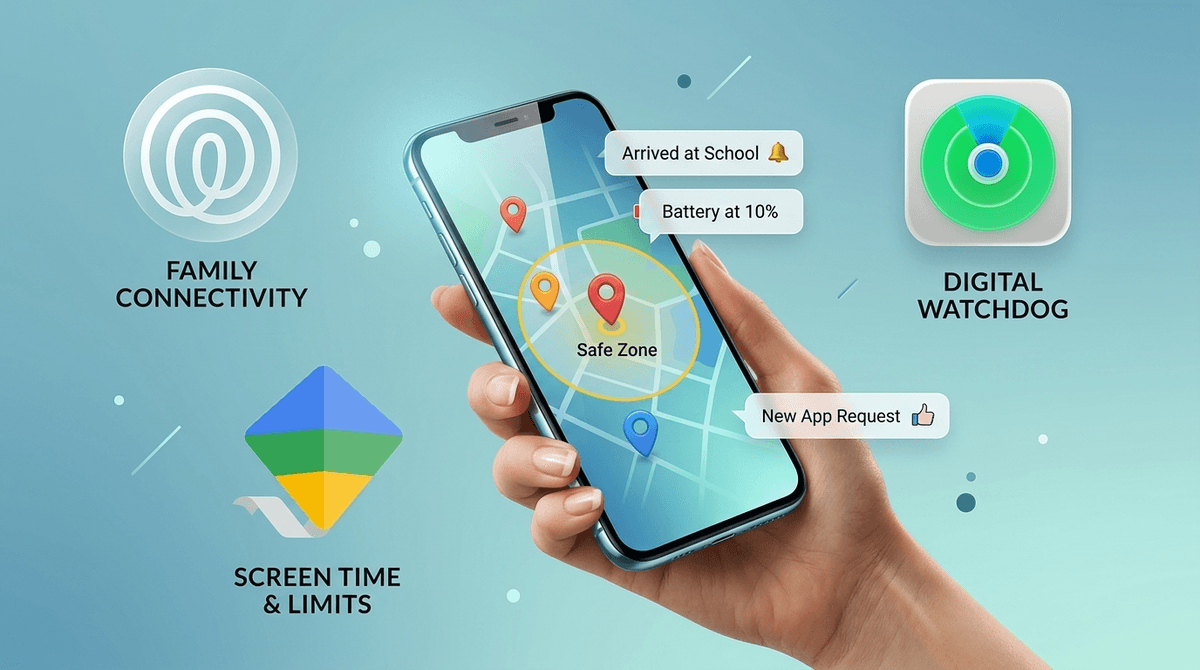
TL;DR: If you just want the "best" answer: Use Find My (Apple) or Google Family Link (Android) for basic, free location tracking. If you want "hardcore" safety with crash detection and driving stats, Life360 is the gold standard, despite its battery-drain reputation. If you’re trying to monitor what they’re doing on the phone while also seeing where they are, Bark is your best bet.
Check out our guide on the best safety apps for 2026
There is a specific kind of internal hum that starts the moment your kid leaves the house without you. It doesn’t matter if they’re walking to a neighbor’s house or taking the bus to middle school for the first time—that hum is a mix of "I'm so proud of their independence" and "What if they get kidnapped by a rogue Cybertruck?"
In the old days (like, 2010), we just had to hope they found a payphone or actually remembered to "text when you get there." Now, we have the "digital tether." We live in an era where we can see exactly how many miles per hour our teenager is driving and whether they actually made it to soccer practice or if they’re currently at a Taco Bell three towns over.
But here’s the thing: just because we can track them doesn’t always mean we should do it the same way for every kid. There’s a fine line between keeping them safe and being "Ohio" (which, for the uninitiated, is Gen Alpha for "weird/cringe/trash").
At their core, these apps use the GPS chip in a smartphone to relay a person's coordinates to a private group (usually called a "Circle" or "Family"). They range from "where are you?" tools to full-blown digital bodyguards that monitor driving speed, battery life, and even "hard braking" events.
For some parents, this is the only way they can sleep at night. For others, it feels like a breach of the "sacred trust" of growing up. Most of us land somewhere in the middle: we want to know they’re safe, but we don’t need to see them moving in real-time like we're directing a drone strike.
Kids don't usually "love" being tracked, but they do love the freedom that comes with it. I’ve found that many kids are willing to accept Life360 on their phones if it means they’re allowed to go to the mall without a parent hovering twenty feet behind them. It’s a trade-off.
For parents, it’s about the "peace of mind" tax. We pay with our privacy (and sometimes a monthly subscription fee) to stop the intrusive thoughts.
This is the big one. If you talk to any parent at pickup, they’re probably using this. It’s incredibly robust. It tells you when they leave school, when they get home, and if their phone is about to die (so you know why they aren't answering).
- The Good: The driving safety features are legit. If your teen is a new driver, knowing they aren't texting while driving is worth the price of admission.
- The Bad: It is a notorious battery hog. Also, Life360 had a massive controversy a few years ago regarding selling location data to third parties. They’ve cleaned up their act significantly since then, but it’s worth noting if you’re a privacy purist.
- The "No-BS" Review: It’s the best for "flight tracking" your family, but it can feel a bit over-the-top for younger kids who don't leave a three-block radius.
If your family is all-in on iPhones, this is the "invisible" choice. It’s already there. It’s free. It doesn't sell your data.
- The Good: It’s built into the OS, so it’s very stable. You can also track AirTags for backpacks or bikes within the same map.
- The Bad: It’s pretty bare-bones. No driving stats, no "check-in" buttons, and if your kid has a friend with an Android, they’re a ghost on this map.
This is the Android version of the digital leash. It’s great for managing screen time (locking the phone at 9 PM), but the location tracking is also solid.
- The Good: It’s free and deeply integrated with the phone’s "brain."
- The Bad: The UI is a bit clunky, and kids hate this app because it’s the one that literally shuts their phone down when their time is up. It’s the "uncool" parent of apps.
Bark is different. It’s not just a map; it’s an AI-powered watchdog. It scans texts, emails, and social media for signs of bullying, depression, or "spicy" content.
- The Good: It gives you location alerts ("Johnny arrived at school") while also telling you if Johnny is being bullied on Discord.
- The Bad: It’s a subscription, and setting it up can be a technical headache depending on the device.
- The "No-BS" Review: If you are worried about content as much as location, Bark is the winner.
Wait, isn't this a debit card? Yes, but Greenlight has evolved into a "family safety" hub. Their higher-tier plans include location sharing and SOS alerts.
- The Good: One app for chores, money, and safety.
- The Bad: If you don't use the banking features, it's an expensive way to track a location.

How you use these apps should change as your kid grows. If you’re still "hard-tracking" a 17-year-old the same way you tracked them at 10, you’re asking for them to leave their phone in a mailbox while they go do whatever they’re going to do.
- Ages 8-11: Use Find My or Google Family Link. At this age, it’s mostly about making sure they didn’t leave their phone at the park or seeing that they made it to their friend's house two streets over.
- Ages 12-15: This is the Bark or Life360 era. They’re starting to range further afield. You want "Place Alerts" so you get a ping when they arrive at practice so you don't have to text them (and they don't have to look "uncool" answering you).
- Ages 16-18: Focus on the driving safety features of Life360. Make it about the car, not the person. "I don't care where you are, I care that you're not going 90 mph on the highway."
You need to know that kids are smart. If they think you’re being "Skibidi" (there it is again) about their privacy, they will find ways around it.
- Burner Phones: Not likely for most, but it happens.
- Location Spoofing: There are apps that tell the GPS they are at the library when they are actually at a party.
- The "Leave the Phone" Maneuver: The classic. They leave the phone at a "safe" location and go elsewhere.
This is why transparency is more important than the app itself. If they feel like the app is a safety tool you’re using together, they’re less likely to try to hack it. If they feel like it’s a surveillance tool you’re using against them, they’ll break it.
Don't just install Life360 and tell them "this is how it is now." That’s a great way to start a multi-year cold war.
Try this: "Hey, now that you're biking to the park with your friends, I want to make sure I can help if something happens—like a flat tire or if you get lost. We’re going to use this app so I can see you’re okay without having to call and bug you every twenty minutes. I’m not going to sit and watch the dot move all day, but I want to know you’re safe."
And then—and this is the hard part—actually don't sit and watch the dot move all day.
Location-sharing apps aren't "brain rot" and they aren't "surveillance state" tools—unless you make them that way. They are digital safety nets.
If you want the most "set it and forget it" experience, go with Find My. If you have a teenager with a lead foot, get Life360. If you’re worried about what they’re seeing on TikTok as much as where they’re going, get Bark.
Just remember: no app is a replacement for a kid who knows they can call you if things go sideways, no matter what the map says.
- Audit your needs: Do you need driving stats or just a "where are they" pin?
- Check the battery: If your kid’s phone is always dead, Life360 might make it worse.
- Have the talk: Explain the "why" before you hit "install."
- Set boundaries: Decide when you’ll check and when you won’t. (Hint: Checking while they’re at a sleepover to see if they’re actually sleeping is the "Ohio" move. Don't do it.)
Check out our full guide on setting up family digital boundaries