

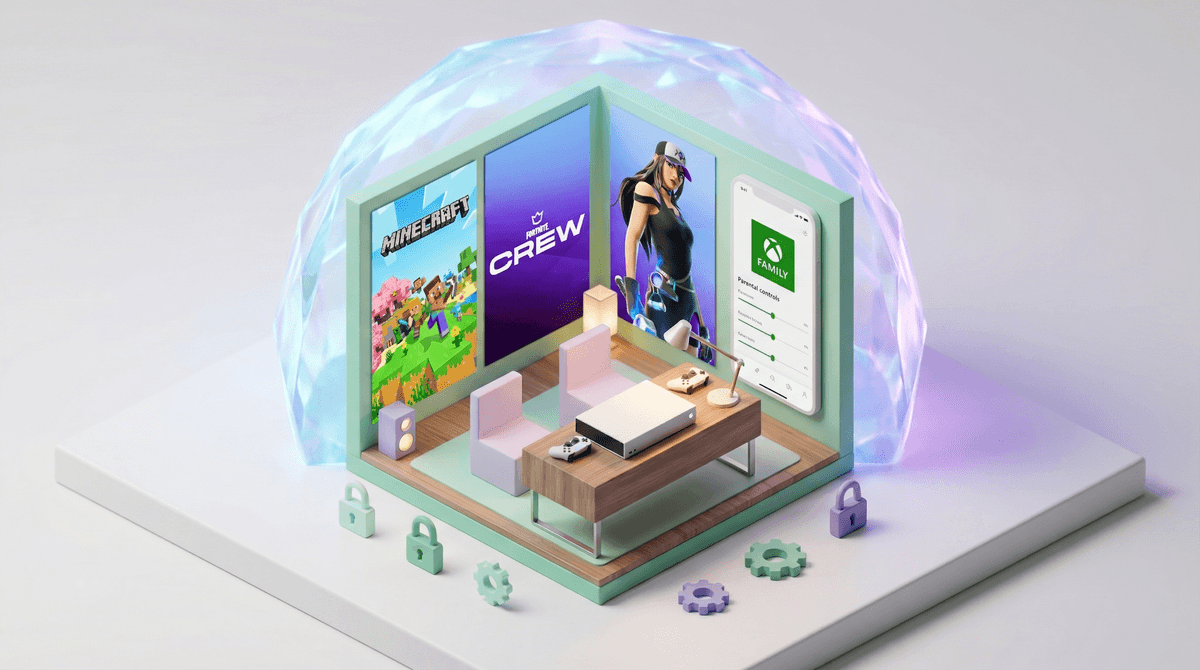
Xbox privacy settings are the controls that determine who can see your child's profile, contact them, and interact with them while they're gaming. Think of them as the digital equivalent of deciding who can come over to play — except instead of neighborhood kids ringing your doorbell, it's potentially anyone on the internet.
By default, Xbox settings are... let's just say optimistic about humanity. Microsoft assumes everyone online is friendly and well-intentioned, which, if you've spent more than five minutes on the internet, you know is adorably naive. The good news? You can lock things down pretty thoroughly once you know where to look.
Here's the thing: Xbox isn't just a gaming console anymore. It's a full social platform where kids can voice chat with strangers, receive messages, share screenshots, and even stream gameplay. Your kid might think they're just playing Fortnite or Minecraft, but they're also potentially exposed to:
- Random friend requests from adults pretending to be kids
- Voice chat with strangers who may use inappropriate language or worse
- Direct messages that can contain anything from spam to grooming attempts
- Data collection about their gaming habits, purchases, and online behavior
The average age kids get their first gaming console is around 8-10 years old, and by middle school, over 60% of kids have access to online multiplayer gaming. That's a lot of young people navigating social situations they're not developmentally ready for.
Okay, let's actually do this. You'll need to access the Xbox Family Settings either through the Xbox console itself or the Xbox Family Settings app (which honestly is easier — download it on your phone).
Option 1: Using the Xbox Family Settings App (Recommended)
- Download the Xbox Family Settings app (iOS or Android)
- Sign in with your Microsoft account (the parent/organizer account)
- Select your child's profile from the family group
- Navigate to each section below and adjust settings
Option 2: On the Xbox Console
- Press the Xbox button to open the guide
- Go to Profile & system > Settings > Account > Family settings
- Select your child's account
- Choose Privacy & online safety > Xbox privacy
The Settings You Need to Change
Here's what to actually lock down:
Privacy Settings:
- "Others can communicate with voice, text, or invites" → Set to "Block" or "Friends only"
- "You can create and join clubs" → Set to "Block" (clubs are basically unmoderated group chats)
- "Others can see your game and app history" → Set to "Block" or "Friends only"
- "Others can see if you're online" → Set to "Friends only"
Communication & Multiplayer:
- "You can join multiplayer games" → This is tricky. If you set to "Block," they can't play online with friends. Consider "Friends only" or use this as leverage for good behavior
- "You can communicate outside of Xbox with voice & text" → Set to "Block" (this prevents cross-platform chat with PC/mobile players)
Content Restrictions:
- Set appropriate age ratings for games, apps, and media (E for Everyone, E10+, T for Teen, M for Mature)
- "See content other people make" → Consider blocking or limiting this to prevent exposure to user-generated content
Screen Time (Bonus):
- While you're here, you can set daily time limits and specific hours when the Xbox can be used
- You can also require approval for purchases (please do this unless you enjoy surprise $50 V-Bucks charges)
Here's where it gets socially complicated. If you lock everything down to "Friends only," your kid can still interact with anyone they've added as a friend. Which means you need to have the friend approval conversation.
Some families require kids to ask permission before adding Xbox friends. Others periodically review the friends list together. There's no perfect system, but the key is knowing who your kid is actually playing with.
A useful question: "Is this someone you know in real life, or someone you met online?" Kids who met someone in a Roblox game and now want to play Xbox together deserve extra scrutiny.
Let's be real — locking down Xbox privacy settings will make your kid's gaming experience less convenient. They might not be able to join certain game modes, participate in tournaments, or easily connect with new gaming friends.
This is where you need to know your kid and your family values. Some questions to consider:
- How mature is your child? A 15-year-old who's been gaming online for years is different from an 8-year-old just starting out
- What games are they playing? Competitive games like Fortnite have different social dynamics than cooperative games like Minecraft
- Are they playing with IRL friends or strangers? Private parties with school friends are lower risk than public lobbies
- How do they handle conflict? If they struggle with peer pressure in person, they'll struggle more online
You can also start restrictive and gradually loosen settings as your child demonstrates maturity and good judgment. It's easier to give privileges than take them away.
No amount of privacy settings will protect your kid if they don't understand why these guardrails exist. Have actual conversations about:
- Why strangers online might not be who they say they are
- What to do if someone makes them uncomfortable (leave immediately, tell you, block them)
- Why it's never okay to share personal information (real name, school, location, phone number)
- How online "friends" are different from real friends
And please, make it clear that they won't get in trouble for telling you about weird interactions. Kids stay silent about online problems because they're afraid you'll take away their gaming privileges. Create a culture where they can report creepy behavior without fear.
Xbox privacy settings are tedious to configure, easy to overlook, and absolutely worth the 20 minutes it takes to lock them down properly. Your kid will probably complain that their friends don't have these restrictions (they're probably right). Do it anyway.
The default settings are designed for Microsoft's convenience, not your child's safety. Take control of who can contact your kid, what content they can access, and how much data they're sharing.
And remember: these settings aren't set-and-forget. Microsoft updates things, your kid will get older and need more freedom, and new features will emerge that require new decisions. Check in every few months.
- Download the Xbox Family Settings app right now (seriously, do it before you forget)
- Review and adjust the settings listed above for each child's account
- Have a conversation with your kid about why these settings exist and what behavior you expect
- Set a calendar reminder to review settings again in 3-6 months
Need help with other gaming platforms? Check out our guides on PlayStation parental controls and Nintendo Switch safety settings.
Want to understand more about online gaming culture and why kids are so drawn to multiplayer games? Let's talk about it .
.