

Disney Plus Parental Controls: How to Actually Use Them
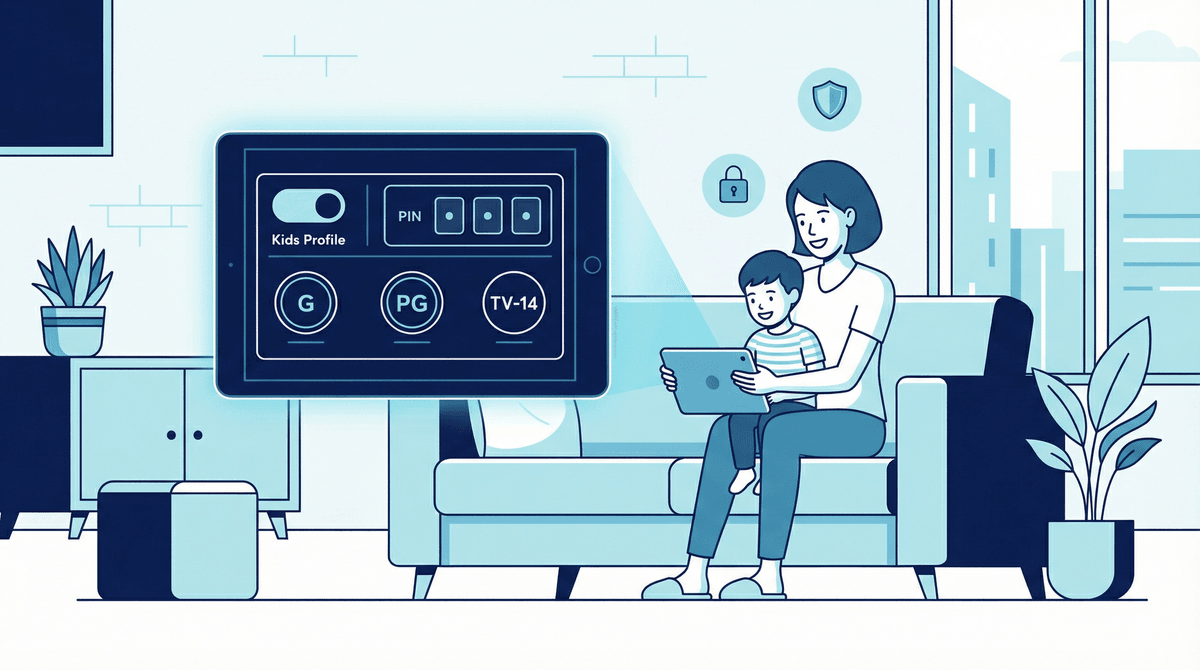
Disney+ has solid parental controls, but they're not exactly intuitive. Here's what actually works: Kids Profiles (auto-filtered to TV-7FV and below), rating limits on regular profiles (set max ratings per profile), and PIN protection (require a code before watching mature content or switching profiles). The controls are profile-based, not device-based, so once you set them up, they work everywhere your family logs in.
Disney+ has become the streaming home for families—it's got everything from classic Disney movies to Marvel to Star Wars to National Geographic. But here's the thing: not everything on Disney+ is appropriate for kids, and the platform knows it. That's why they've built in parental controls that actually work pretty well... once you figure out where they are.
Let's walk through exactly how to set up Disney+ so your 6-year-old isn't accidentally stumbling into Deadpool or your teen isn't bingeing The Bear at 2am on a school night.
The good news: Disney+ uses profile-based parental controls, which means once you configure a profile for your kid, those settings follow them on any device—TV, tablet, phone, whatever. You're not setting up controls on each individual screen.
The less good news: The interface for managing these controls is buried in settings, and Disney+ doesn't exactly walk you through setup during onboarding. You need to know what you're looking for.
Also worth noting: Disney+ parental controls are profile-based, not time-based. You can't set screen time limits or schedule when Disney+ is available through the app itself. For that, you'll need device-level parental controls (iOS Screen Time or Android Family Link) or a router-level solution.
1. Kids Profiles (Ages 7 and Under)
This is your first line of defense and honestly the easiest option if you have younger kids.
How to set it up:
- Go to your Disney+ account (on web or app)
- Select "Edit Profiles"
- Create a new profile or edit an existing one
- Toggle on "Kids Profile"
What it does:
- Automatically filters content to TV-7FV and G-rated movies
- Removes the ability to adjust ratings
- Hides mature content entirely—it won't even show up in search
- Creates a simplified, kid-friendly interface with bigger tiles and easier navigation
Best for: Kids ages 7 and under who need a completely curated experience. Think Bluey, Encanto, The Lion King, and classic Disney Channel shows.
The catch: Kids Profiles are pretty restrictive. Once your kid hits 8 or 9 and wants to watch something like The Mandalorian or Percy Jackson, you'll need to graduate them to a regular profile with custom rating limits.
2. Rating Limits on Regular Profiles (Ages 8+)
For older kids who've outgrown the Kids Profile but still need guardrails, you can set maximum content ratings on regular profiles.
How to set it up:
- Go to your profile settings
- Select "Edit Profiles"
- Choose the kid's profile
- Scroll to "Parental Controls"
- Enter your account password
- Select a content rating limit
Your rating options:
- TV-7FV / G: Same as Kids Profile
- TV-PG / PG: Adds shows like Gravity Falls, The Owl House, most Marvel shows
- TV-14 / PG-13: Opens up The Mandalorian, Moon Knight, most Star Wars content
- TV-MA / R: Everything, including Deadpool, The Bear, mature documentaries
Best for: Kids ages 8-14 who can handle more mature themes but still need content boundaries. This is where most families land once kids are in elementary/middle school.
Pro tip: You can set different rating limits for different kids' profiles. Your 10-year-old might be at PG/TV-PG while your 14-year-old gets PG-13/TV-14. Tailor it to your family's values and each kid's maturity level.
3. PIN Protection (The Real Enforcement)
Here's the thing about rating limits: they're useless if your kid can just switch to your profile or create a new one. That's where PIN protection comes in.
How to set it up:
- Go to your account settings
- Select "Profile PIN"
- Choose which profiles require a PIN to access
- Set a 4-digit PIN (and don't make it 1234, come on)
What to protect:
- Your main profile (so kids can't switch to the unrestricted adult profile)
- Profile settings (so kids can't change their own rating limits)
- Content rated above their limit (adds an extra layer—even if they find a way to mature content, they need the PIN to play it)
Best for: Any family with kids who've figured out how to navigate around restrictions (so... most families with kids over 8).
The reality check: Your kids will absolutely ask for the PIN to watch something. This is actually a feature, not a bug—it creates a natural conversation point where you can decide together if Spider-Man: No Way Home is appropriate for movie night.
Ages 3-7: Stick with Kids Profiles. The content is genuinely age-appropriate, and the simplified interface makes it easy for younger kids to navigate independently. They'll have access to Disney Junior shows, Pixar movies, and classic Disney content.
Ages 8-10: Graduate to a regular profile with PG/TV-PG limits. This opens up Phineas and Ferb, Big Hero 6, and other content that's still kid-friendly but has more complex storytelling. Definitely use PIN protection at this age.
Ages 11-13: Consider moving to PG-13/TV-14, depending on your family's comfort level. This is where you get access to most Marvel content, Star Wars shows like Ahsoka, and more sophisticated storytelling. PIN protection is essential here—preteens are tech-savvy enough to find workarounds.
Ages 14+: This is highly family-dependent. Some families keep teens at PG-13/TV-14, others open up to R/TV-MA with ongoing conversations about content. Either way, PIN protection on your profile prevents unrestricted access while still allowing for "ask first" flexibility.
The "Kids" label is misleading: Disney+ uses "Kids Profile" to mean content for ages 7 and under, which is confusing because most of us think of "kids" as anyone under 13 or even 18. Don't assume a Kids Profile works for your 10-year-old—it won't include most of what they want to watch.
Rating limits aren't perfect: Disney+ relies on standard TV and movie ratings, which can be inconsistent. A TV-PG show might have mild language or scary themes that you're not comfortable with. The controls give you guardrails, but you still need to preview content or check reviews for specific shows.
Profile switching is the weak point: Even with PIN protection, kids can watch together on a sibling's profile or share PINs with friends. The technology can only do so much—you need ongoing conversations about why boundaries exist and what's appropriate for different ages.
Disney+ doesn't track watch history per profile separately in a parent-friendly way: Unlike Netflix's robust viewing activity reports, Disney+ doesn't make it easy to see exactly what your kid watched and when. You can check the "Continue Watching" row on their profile, but there's no comprehensive viewing log. If monitoring watch history is important to you, you'll need to check in regularly or use device-level parental controls that log app usage.
The "Add Profile" button is always visible: Kids can create new profiles anytime, and those profiles default to unrestricted. Make sure you have a PIN on profile creation/editing, or you'll find random profiles appearing with names like "Guest" or "hehehe."
"My kid keeps watching YouTube clips on Disney+ and I can't figure out how to block them": Disney+ doesn't have user-generated content like YouTube—everything is produced or licensed by Disney. If your kid is watching YouTube, they're using a different app. Check out our guide on YouTube vs. YouTube Kids for help there.
"My kids share an iPad and keep switching to each other's profiles": Set up PIN protection on each profile. Yes, they'll need to enter the PIN every time they switch, but that's the point—it creates intentional friction and prevents the "I accidentally watched my brother's profile" excuse.
"My teen found a workaround and watched something they shouldn't have": This is less about technology and more about trust and consequences. Have a conversation about why boundaries exist, what the natural consequence is (maybe losing Disney+ access for a week?), and what needs to happen to rebuild trust. The parental controls are tools, not babysitters.
"I want to watch a mature movie but my kid is in the room": Use your own PIN-protected profile and physically control the remote/device. Disney+ can't detect who's actually in the room—the responsibility for co-viewing decisions is on you.
Disney+ parental controls are actually pretty solid once you understand how they work. The profile-based system means you set it up once and it follows your kids across devices. Kids Profiles work great for younger children, rating limits give you flexibility for older kids, and PIN protection adds the enforcement layer you need.
But here's the real talk: no parental control system is perfect. Technology can create boundaries and friction, but it can't replace ongoing conversations about media literacy, why certain content isn't appropriate yet, and how to make good choices when you're not around.
Set up the controls, check in regularly, and be willing to adjust as your kids grow. What works for your family at 8 won't work at 12, and that's okay.
-
Audit your current profiles: Log into Disney+ and check what profiles exist, whether Kids Profiles are set up correctly, and if rating limits match your kids' ages.
-
Set up PIN protection: Don't skip this step. Protect your profile, profile settings, and mature content with a 4-digit PIN.
-
Have the conversation: Let your kids know you're setting up parental controls, explain why, and make it clear that asking to watch something above their rating limit is always an option—you're not trying to be the content police, you're trying to make sure they're watching age-appropriate stuff.
-
Check in monthly: Kids grow fast, and so do their media interests. Plan to review and adjust rating limits every few months, especially during summer and school breaks when screen time naturally increases.
Need help with other streaming services? Check out our guides on Netflix parental controls, YouTube Kids setup, or general streaming safety tips.