

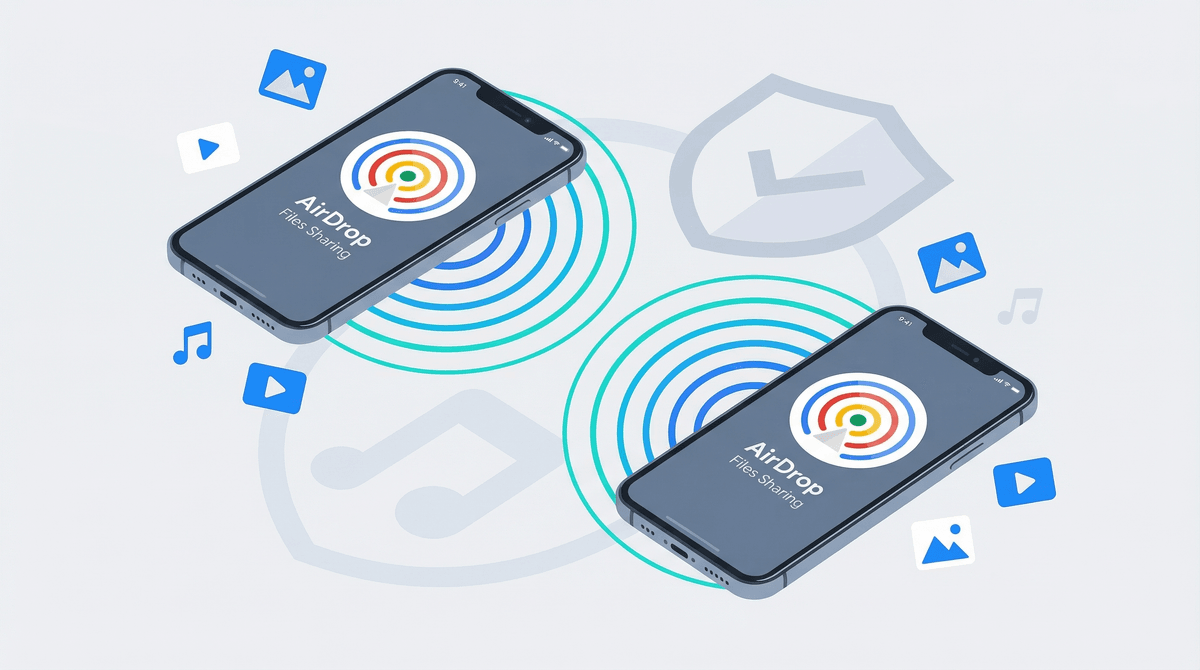
AirDrop is Apple's wireless file-sharing feature that lets iPhone, iPad, and Mac users send photos, videos, documents, and other files to nearby Apple devices. It uses Bluetooth to discover nearby devices and Wi-Fi to transfer files — no internet connection, phone number, or email address needed.
Think of it like a digital hand-off. Your kid can share a photo with their friend standing next to them in about two seconds. No apps, no accounts, no friction. Which is... both amazing and exactly why we need to talk about it.
The feature has been around since 2011, but it's become increasingly central to how kids share content. And here's the thing: AirDrop can be set to receive files from anyone nearby, including complete strangers.
Yeah.
AirDrop is genuinely useful, which is why kids use it constantly:
- It's instant - Sharing 47 photos from the school trip takes seconds, not the "text them one by one" nightmare
- No data usage - Works without cell service or Wi-Fi, perfect for school
- No account needed - Unlike Snapchat or Instagram, there's no profile or friend list
- It just works - The user experience is actually seamless (rare for tech)
Kids use AirDrop to share memes, homework answers, photos from games and events, funny videos, and basically anything digital. In middle and high school, "AirDrop me that" is as common as "text me."
Here's where it gets messy. AirDrop has three settings:
- Receiving Off - Can't receive anything
- Contacts Only - Can only receive from people in your contacts
- Everyone - Can receive from any Apple device within about 30 feet
When set to "Everyone," your kid's device shows up by name to anyone nearby who opens their AirDrop menu. And anyone can attempt to send them anything.
This has created several concerning behaviors:
Cyberflashing: Strangers sending unsolicited explicit images to people in public spaces. This is a real thing that happens on buses, in malls, at concerts, and yes, at schools. It's gross, it's traumatizing, and in some places it's now illegal.
AirDrop bullying: Kids sending mean memes, embarrassing photos, or cruel messages to classmates during school. The sender's name shows up, but kids have figured out they can change their device name to anything (or someone else's name) before sending.
Privacy exposure: When set to "Everyone," your device name is visible. If it's set to something like "Emma's iPhone" or "Jake Johnson," strangers now know your name.
Unwanted content: Even without malicious intent, kids receive random memes, jokes, and content from strangers that might be inappropriate.
Check the setting right now. Seriously, before you finish reading this. On iPhone: Settings → General → AirDrop. On iPad: same path.
The default setting varies by iOS version, but many kids have switched it to "Everyone" at some point because a friend couldn't send them something and they never switched it back.
"Contacts Only" is the right setting for most kids (and most adults, honestly). It lets them use AirDrop's convenience with people they actually know, while blocking strangers.
Device names matter. Check Settings → General → About → Name. If it says "Emma Rodriguez's iPhone," change it to something generic like "iPhone" or "ER Phone." This is especially important if your kid ever uses "Everyone" mode in public.
The "10 minutes" option: In iOS 16.2 and later, there's an "Everyone for 10 Minutes" option that automatically reverts to "Contacts Only" after 10 minutes. This is actually pretty smart for situations where your kid needs to receive something from someone not in their contacts (like a coach or friend's parent).
AirDrop doesn't require acceptance if the sender is in your contacts. This is important: if someone is in your kid's contacts, files go straight through without the "Accept/Decline" prompt. So if a contact sends something inappropriate, there's no chance to block it.
You can't block specific people from AirDropping to you while keeping "Contacts Only" enabled. It's all or nothing. If there's a contact your kid doesn't want to receive files from, they'd need to either remove that contact or switch to "Receiving Off."
Elementary (ages 5-10): Honestly, most kids this age don't need AirDrop enabled at all. Set it to "Receiving Off" and manually enable it when they need to share something specific with you. They're not coordinating photo shares with friends yet.
Middle School (ages 11-13): This is when AirDrop becomes legitimately useful for school projects and social coordination. Set to "Contacts Only" and have a conversation about what happens if they receive something inappropriate (tell you, don't forward it, etc.). Check the setting monthly because kids change it.
High School (ages 14-18): "Contacts Only" is still the move. Teens should understand why "Everyone" is risky, but they also need to know they can use the 10-minute option if needed for legitimate reasons (getting photos from a school event photographer, etc.).
This isn't a scary lecture situation. It's a "hey, did you know this thing you use has a privacy setting that matters" conversation.
Try something like: "I learned that AirDrop can be set so random people can send you stuff. Can we check your setting together? I want to make sure you're only getting stuff from people you actually know."
If they've already received something inappropriate, respond calmly. It's not their fault. Ask what happened, thank them for telling you, and help them change the setting. If it's serious (explicit content, threatening messages), screenshot it before declining and consider reporting it to school or authorities.
For older kids, you can have a more nuanced conversation: "I know 'Everyone' mode is sometimes useful, but here's why it's risky in public spaces..." Explain cyberflashing directly. Don't dance around it. They should know this is a thing that happens.
AirDrop is a useful feature that kids legitimately need for school and social life. The problem isn't the technology — it's the default settings and lack of awareness about how it works.
Set it to "Contacts Only" today. Put a calendar reminder to check it again in a month. Make sure your kid knows they can always switch to the 10-minute "Everyone" option if they need to receive something from a non-contact, and that it'll automatically switch back.
And honestly? Check your own AirDrop setting too. Most adults have it set to "Everyone" without realizing it.
Want to dig deeper into iPhone privacy settings? Check out our guide to iPhone parental controls for a full walkthrough of what matters and what doesn't.