

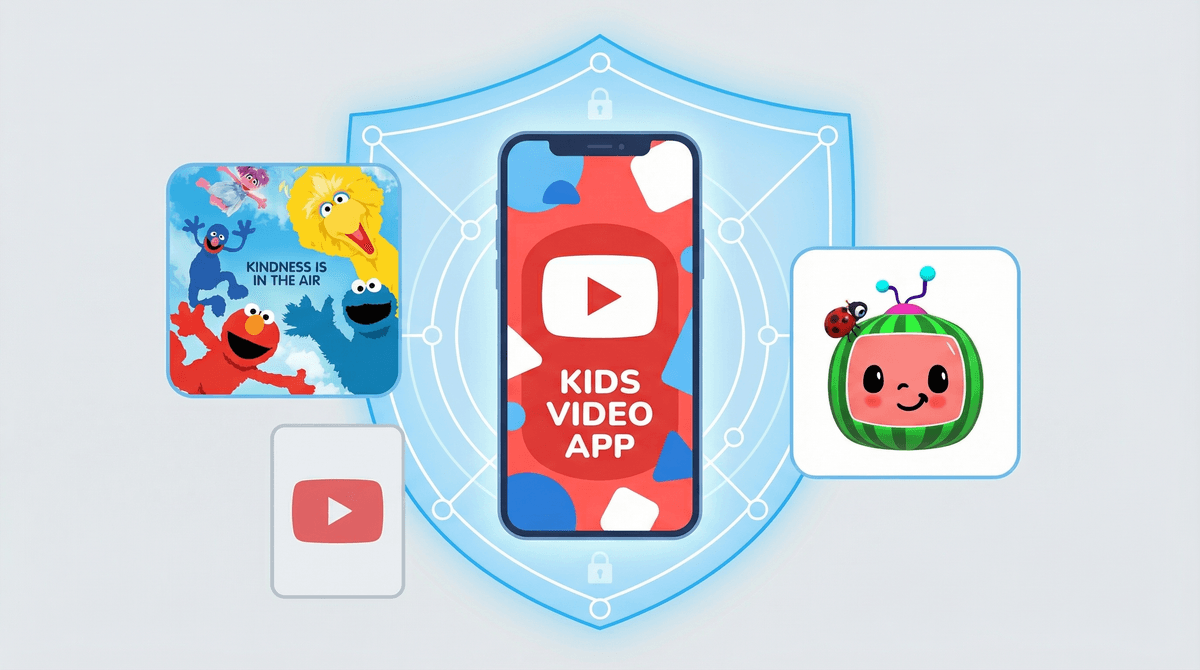
YouTube Kids is Google's attempt at making YouTube safe for children—a separate app with content filters, parental controls, and (theoretically) only kid-appropriate videos. Think of it as YouTube with guardrails, designed for kids 12 and under.
Here's the thing: only about 20% of families in our community are actually using YouTube Kids. Meanwhile, 42% of kids are using regular YouTube solo, and another 38% are using it with supervision. So if you're wondering whether you should even bother with YouTube Kids or just manage regular YouTube carefully, you're asking the right question.
But if you are using YouTube Kids—or considering it—understanding the 2025 parental controls is crucial. Because "kid-safe" doesn't mean "parent-approved," and the default settings definitely aren't what most intentional parents would choose.
Content Levels (The Big One)
YouTube Kids offers three content levels, and this is the most important setting you'll configure:
Preschool (Ages 4 and under): Focuses on creativity, playfulness, learning, and exploration. Think Cocomelon, Sesame Street, and basic educational content.
Younger (Ages 5-8): Adds songs, cartoons, crafts, and a wider variety of topics. This is where you start seeing more gaming content and popular kid YouTubers.
Older (Ages 9-12): Includes music videos, gaming content, vlogs, and pretty much anything YouTube's algorithm deems "family-friendly"—which is... generous in its definition.
The catch? These filters are automated, not human-reviewed. Inappropriate content still slips through. Always.
Search On or Off
This is binary and honestly one of the most consequential decisions:
Search Off: Kids can only watch videos from channels YouTube (or you) have pre-approved. It's more restrictive but dramatically safer.
Search On: Kids can search for anything within their content level. This opens up the platform significantly—and opens up risk.
Most families I talk to start with search off for younger kids and gradually enable it as they get older and demonstrate good judgment. There's no shame in keeping search off indefinitely, though. Your kid doesn't need unfettered access to every Roblox gameplay video to thrive.
Timer and Bedtime Limits
YouTube Kids lets you set a timer that locks the app after a certain amount of viewing time. You can also set it to automatically pause at bedtime.
This is helpful for managing that 4.2 hours of average daily screen time families in our community are dealing with. But here's the reality: timers work great for younger kids who accept limits at face value. Older kids? They'll just switch to regular YouTube on another device.
The timer is a tool, not a solution. It works best as part of a broader family media plan, not as your only boundary.
Approved Content Only Mode
This is the nuclear option, and honestly? It's underrated.
You can set YouTube Kids to only show content from channels you specifically approve. No algorithm recommendations. No autoplay rabbit holes. Just the channels you've vetted.
Yes, it requires upfront work. Yes, your kid will complain their friend watches Ryan's World and why can't they. But if you want actual control over what your child watches, this is it.
Watch History and Pause Watch History
YouTube Kids tracks everything your child watches (unless you pause it). You can review their watch history anytime—and you should, at least occasionally.
Pausing watch history stops YouTube from using viewing data to recommend new content. This can reduce the algorithm's grip on your child's attention, but it also means less personalized (potentially less engaging) recommendations.
Some parents pause history to prevent the algorithm from learning their kid's preferences and creating that dopamine-driven recommendation loop. Learn more about how YouTube's algorithm impacts kids .
.
The Algorithm Still Rules
Even with parental controls, YouTube Kids is designed to maximize watch time. Autoplay is on by default. Recommendations are engineered to keep kids watching. The business model hasn't changed just because the app is "for kids."
Content Filtering Isn't Perfect
Inappropriate content gets through. Weird Elsagate-style videos still pop up occasionally. Unboxing videos and toy commercials masquerading as content are everywhere.
You still need to spot-check what your kids are watching, even with all the controls enabled.
Regular YouTube Is Often the Better Choice for Older Kids
Once kids hit 9 or 10, many parents find that supervised use of regular YouTube with Restricted Mode enabled gives them more control than YouTube Kids. You can use Google Family Link to manage their Google account, set screen time limits, and still review what they're watching.
Read more about YouTube vs. YouTube Kids to figure out which makes sense for your family.
YouTube Kids parental controls in 2026 are better than nothing, but they're not a substitute for active parenting. The app can help create boundaries, but it can't replace your judgment about what's appropriate for your specific child.
Start with the most restrictive settings (Preschool level, search off, approved content only) and gradually loosen them as your child demonstrates they can handle more freedom. Review watch history regularly. Talk to your kids about what they're watching and why they like it.
And remember: 80% of families in our community aren't using YouTube Kids at all. There's no one right answer here. The best digital media plan is the one that actually works for your family, not the one that sounds best in theory.
- Open YouTube Kids settings right now and review your current content level and search settings
- Watch 10 minutes of what your kid watches this week—not to judge, just to understand
- Consider whether approved content only mode might reduce your mental load
- Talk to your kid about why you're setting limits and what they can do when they want to watch something new
Need help thinking through your specific situation? Get help with YouTube Kids parental controls.