

The Ultimate Guide to Roblox Privacy Settings and Parental Controls
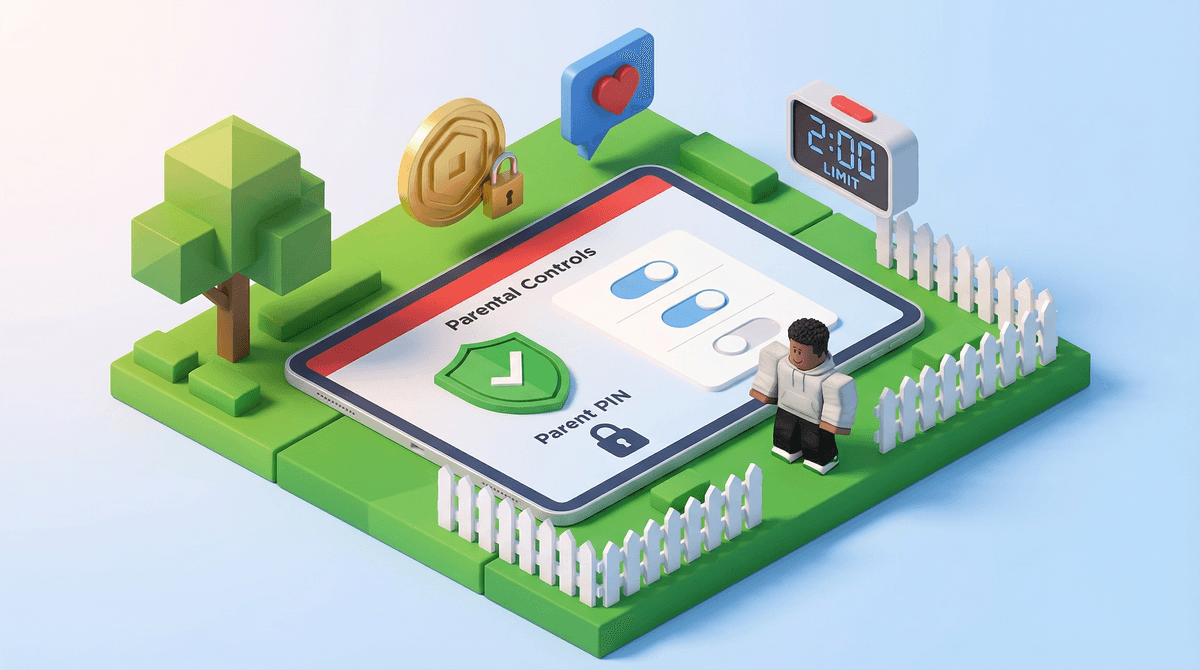
Roblox has surprisingly robust parental controls—if you know where to find them. Here's what you can actually lock down:
- Chat filters (turn off chat entirely for under-13s)
- Spending limits (set monthly Robux caps or require PIN approval)
- Screen time restrictions (daily playtime limits)
- Privacy settings (who can message, who can join games)
- Parent PIN (prevents kids from changing settings)
The catch? These settings are buried across multiple menus, and Roblox doesn't exactly advertise them. Let's fix that.
Look, Roblox isn't going anywhere. Over 70% of kids ages 9-12 play it, and that number climbs even higher for tweens. It's basically the digital playground of this generation.
But here's what keeps parents up at night: Roblox is a social platform disguised as a game. Kids aren't just playing—they're chatting with strangers, spending real money (yes, Robux is real money ), and navigating user-generated content that ranges from genuinely creative to deeply inappropriate.
The good news? You have way more control than you think. The bad news? Roblox makes you work for it.
Before you touch anything else, you need your own parent account. This gives you oversight without needing to log into your kid's account constantly.
Here's how:
- Go to roblox.com/parents (or download the Roblox app)
- Create your own Roblox account (I know, feels weird, but trust me)
- Link your child's account using their username and password
- Set up a Parent PIN immediately (this prevents them from undoing your settings)
Once linked, you can monitor their activity, friend requests, and messages—all from your own dashboard. Think of it like having admin privileges.
1. Locking Down Chat Settings
This is non-negotiable for younger kids. Roblox chat can be a dumpster fire, even with filters.
To restrict chat:
- Log into your parent account
- Go to Settings → Privacy
- Under "Who can chat with me in app," select No one (nuclear option) or Friends (safer middle ground)
- Under "Who can message me," do the same
For kids under 13, Roblox automatically filters chat more aggressively, but you can disable it entirely. For kids 13+, the filters loosen significantly—which is when you really need to pay attention.
Pro tip: Even if you allow chat with friends, periodically check their message history. Roblox saves everything in the app under the chat icon.
2. Spending Limits (Because Robux Adds Up Fast)
If your kid plays Roblox, they're going to beg for Robux. It's the in-game currency that buys avatar items, game passes, and access to premium experiences. And yes, it's designed to feel like Monopoly money—but it's not.
Here's how to set spending limits:
- In Settings → Parental Controls
- Enable Monthly Spend Restrictions (you can cap it at $10, $20, or custom amounts)
- Turn on PIN for Purchases (requires your PIN for every transaction)
- Disable Trading (prevents kids from getting scammed in item trades)
You can also learn more about how Robux works and whether it's worth it.
Reality check: A lot of kids learn basic economics through Roblox—budgeting, saving for items, even creating games to earn Robux. But without guardrails, it's a fast track to your credit card bill exploding.
3. Screen Time Caps
Roblox now lets you set daily playtime limits directly in the app. Hallelujah.
To set it up:
- Go to Parental Controls → Daily Screen Time
- Set a limit (30 minutes, 1 hour, 2 hours, etc.)
- When time's up, Roblox locks them out until the next day
This is huge because it removes you from being the bad guy. The app enforces it, not you.
One caveat: Kids are crafty. If they have access to multiple devices (tablet, phone, computer), they might try to game the system. The timer is account-based, not device-based, so it should work across platforms—but keep an eye out.
Roblox defaults to pretty open settings, which is... not great. Here's what to lock down:
Account Privacy Checklist:
- Who can see my inventory? → Friends or No one
- Who can join me in a game? → Friends or No one (this prevents randoms from following them into games)
- Who can see my profile? → Friends only
- Who can send me friend requests? → No one (if they're young) or Friends of Friends (if they're older and you trust their judgment)
You'll find all of these under Settings → Privacy.
Why this matters: Roblox is a social network. If your kid's profile is public, strangers can see what games they play, what items they own, and when they're online. That's a lot of information for someone with bad intentions.
Not all Roblox games are created equal. Some are cute obstacle courses. Others are... let's just say "not age-appropriate."
Roblox uses an Experience Guidelines system that rates games:
- All Ages (E for Everyone)
- 9+ (mild fantasy violence)
- 13+ (more intense themes, mild language)
- 17+ (realistic violence, crude humor, romantic themes)
To restrict content:
- Go to Parental Controls → Content Restrictions
- Select the maximum age rating your child can access
For kids under 9, stick with All Ages. For tweens, 9+ is reasonable. For teens, you'll need to make a judgment call—but definitely review what 13+ and 17+ actually include.
Hot take: Even with filters, some games slip through. User-generated content is a Wild West. Check what your kid is playing. If they're spending hours in a game, hop in and see what it's about. You might be surprised (in good ways or... not).
Here's the balance: You want to keep your kid safe, but you don't want to hover over their shoulder 24/7.
Smart monitoring strategies:
- Check their Recently Played games once a week (in their profile)
- Review friend requests and who they're chatting with
- Ask them to show you their favorite games (make it a bonding thing, not an interrogation)
- Set up account notifications so you get alerts for friend requests, purchases, etc.
If your kid is under 10, you should probably be in the room when they're playing. If they're 11-13, periodic check-ins are enough. If they're 14+, trust but verify.
And if you're worried about whether Roblox is actually safe for kids, you're not alone. The answer is: it can be, with the right guardrails.
Despite your best efforts, things can still happen. Here's how to respond:
If your child encounters inappropriate content:
- Report it directly in the app (click the three dots on a game or profile → Report Abuse)
- Block the user immediately
- Screenshot evidence if it's serious
If they've been contacted by a stranger:
- Don't panic, but take it seriously
- Review the conversation (Roblox saves all chats)
- Block the user and report them
- Talk to your kid about what happened—calmly, without making them feel like they're in trouble
If they've overspent on Robux:
- You might be able to get a refund if it was accidental (contact Roblox support)
- Use it as a teaching moment about digital spending
- Lock down purchase settings immediately
Roblox isn't inherently dangerous, but it's not a babysitter either. With the right settings, it can be a genuinely creative, social, and even educational space for kids. Without them? It's a free-for-all.
Your action plan:
- Set up a parent account and link your kid's account
- Enable a Parent PIN
- Lock down chat, spending, and screen time
- Adjust privacy settings to Friends-only (or stricter)
- Filter content by age
- Check in regularly—but not obsessively
And remember: no system is foolproof. The best parental control is still you—staying curious, staying involved, and keeping the conversation open.
If you want to dive deeper into whether Roblox is teaching entrepreneurship or just draining your bank account, that's a whole other conversation. But for now, you've got the tools to make Roblox work for your family—not against it.
- Set up your parent account today (seriously, it takes 10 minutes)
- Review your child's current privacy settings (they're probably more open than you think)
- Have a conversation with your kid about why these settings exist (not as punishment, but as guardrails)
- Check out alternatives to Roblox if you're looking for safer creative game options
You've got this.