

The Ultimate Guide to Roblox Parental Controls in 2026
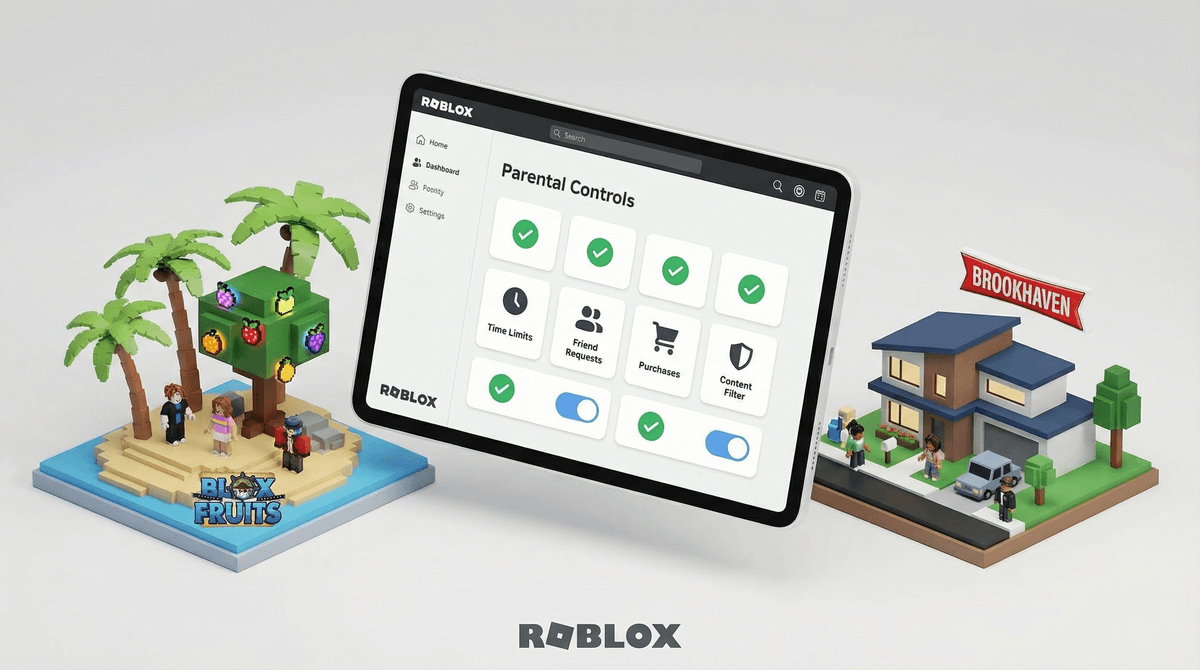
Roblox has significantly upgraded its parental controls, and they're actually worth using now. The new parent account system lets you manage everything from your own phone without logging into your kid's account. Here's what you can control:
- Content filters (from strict to moderate)
- Chat settings (who can message your kid)
- Spending limits (daily and monthly caps on Robux)
- Screen time (built-in time limits)
- Friend requests (who can connect)
- Experience restrictions (age-appropriate games only)
Let's walk through how to set all this up, what each setting actually does, and which ones matter most.
For years, Roblox parental controls were... let's say "basic." You could toggle a few switches in your kid's account settings, but monitoring anything required you to literally log in as them. Not ideal.
In 2024, Roblox rolled out a proper Parent Account system. Now you can:
- Link your kid's account to your own parent account
- Manage all their settings remotely
- Get monthly activity reports
- Approve or deny friend requests
- See exactly what they're spending Robux on
This is a huge improvement. The system isn't perfect (more on that later), but it's finally at the level where you can actually parent without being a helicopter.
Step 1: Create Your Own Roblox Account
Yes, you need your own account. Go to roblox.com and sign up. Use your real email address—this is your command center, not a burner account.
Step 2: Link Your Kid's Account
- Log into your parent account
- Go to Settings → Parental Controls
- Click "Add Child Account"
- You'll get a unique PIN code
- Have your kid log into their account and enter that PIN under Settings → Account Info → Parent Account
The linking process requires both accounts to be active at the same time, so do this together. Once linked, you're in control.
Step 3: Set Up Your Dashboard
Your parent dashboard shows:
- Which experiences (games) they're playing
- How much time they're spending
- Who they're playing with
- Recent chat activity (if enabled)
- Purchase history
Browse around. The interface is actually pretty intuitive.
Content Restrictions
This is the big one. Roblox has millions of user-created experiences, and quality control is... inconsistent. The content filter determines which experiences your kid can access.
Three levels:
- All Ages (Under 9): Heavily curated, very limited selection. Think digital playgrounds and simple obstacle courses.
- 9+: Broader selection, still moderated. Most popular experiences are here.
- 13+: Everything except the truly mature stuff. This is where most middle schoolers land.
Real talk: The "13+" setting still blocks genuinely problematic content, but it allows experiences with mild combat, competitive elements, and more complex social dynamics. If your kid is 10 and all their friends are playing Blox Fruits or Brookhaven, those require 9+ access.
The content filter also affects communication. Younger accounts have stricter chat filters that block more words and phrases (including some absurdly innocent ones—Roblox's filter is notoriously aggressive).
My recommendation: Start one level below your kid's actual age, observe for a month, then adjust. A mature 10-year-old can probably handle 9+ content. An impulsive 13-year-old might need to stay at 9+ a bit longer.
Chat Settings
Four options here:
- No chat: They can't send or receive messages. Period.
- Friends only: They can only chat with approved friends.
- Friends and following: They can chat with friends and people they follow.
- Everyone: Open chat with anyone in an experience.
Do not enable "Everyone" for kids under 13. Just don't. Roblox has moderators and filters, but predatory behavior happens. It's not common, but it's not worth the risk.
For younger kids (under 10), "Friends only" is the sweet spot. They can coordinate with their actual friends without random strangers messaging them.
For older kids (11+), "Friends and following" is reasonable if you're also monitoring their friend list regularly. More on that below.
Friend Requests
You can set friend requests to:
- No one: They can't add friends or be added
- Friends of friends: Only people connected to their existing friends
- Everyone: Anyone can send a request
- Parent approval required: Every friend request comes to you first
"Parent approval required" is fantastic for kids under 10. You'll get a notification on your phone, you can see the person's profile, and you approve or deny. Takes 10 seconds.
For older kids, "Friends of friends" is a good middle ground. It keeps the network somewhat contained without you having to approve every single request.
Spending Controls
This is where Roblox's parental controls really shine. You can set:
- Daily spending limits (e.g., 500 Robux per day)
- Monthly spending limits (e.g., 2,000 Robux per month)
- Purchase approval required (every transaction needs your OK)
You can also see exactly what they're buying—avatar items, game passes, developer products—and from which experiences.
Important: These limits only apply to Robux they already have. If your credit card is saved in their account, they can still buy more Robux up to whatever your card issuer allows. So either:
- Remove your payment method from their account entirely
- Use Roblox gift cards instead
- Enable "PIN required for purchases" (they need a 4-digit PIN you set)
If you want to give your kid some financial autonomy, set a monthly limit (say, $10-20 worth of Robux) and let them manage it. Roblox can actually teach budgeting if you frame it right.
Screen Time Limits
Roblox now has built-in time limits. You can set:
- Daily time limits (e.g., 2 hours per day)
- Time windows (e.g., only between 3pm-8pm)
- Bedtime restrictions (automatically logs them out)
The limits are enforced across all devices—phone, tablet, computer, Xbox. Once they hit the limit, they're locked out until the next day.
The catch: Kids can still browse the Roblox app, watch videos, and mess with their avatar. The time limit only applies to actually playing experiences. So if your goal is to limit total screen time, you'll need to enforce that separately.
But for limiting gaming specifically? It works well.
Let's be honest about the limitations:
1. They don't monitor voice chat. Roblox has spatial voice chat in some experiences (for 13+ accounts with age verification). The parental controls don't give you transcripts or recordings. If your kid has voice chat enabled, you're trusting them to navigate those conversations.
2. They don't catch everything in text chat. The chat filter is aggressive, but kids are creative. They use workarounds, misspellings, and coded language. If you're relying entirely on Roblox's filter to keep your kid safe, you're missing the bigger picture.
3. They don't prevent trading scams. Kids can still trade items with other players. Scams are rampant—"I'll give you a free Dominus if you give me your password!" The parental controls don't protect against social engineering.
4. They don't block all inappropriate content. User-generated content is a moving target. Roblox moderators remove millions of assets every year, but stuff slips through. A game might be fine one day and have inappropriate content uploaded the next.
The controls are tools, not a replacement for actual parenting.
Once a month, you'll get an email summary of your kid's activity:
- Total time played
- Top 5 experiences they played
- New friends added
- Robux spent
It's a decent overview, but it's not real-time. If you want to know what they're doing right now, you need to check the parent dashboard directly.
The report is most useful for spotting trends. If they're suddenly playing an experience you've never heard of for 20 hours a week, that's worth a conversation.
Roblox now offers age verification for teens. If your kid is 13+, they can verify their age using a government ID or credit card. Once verified, they get access to:
- Voice chat
- More experiences (some require verified 13+)
- Fewer chat restrictions
Should you enable this?
Depends on your kid. Age verification unlocks more freedom, but also more risk. Voice chat in particular is a big step—they're talking to strangers in real-time, and you have zero oversight.
If your teen is responsible, socially aware, and you've had conversations about online safety, age verification is fine. If they're impulsive or naive, hold off.
You can always enable it later.
Some parents use tools like Bark or Qustodio to monitor Roblox activity. These can:
- Track total screen time across all apps
- Alert you to concerning keywords
- Block Roblox entirely during certain hours
They're useful if you want a more comprehensive approach to digital parenting, but they don't integrate with Roblox's parental controls. You're layering two systems on top of each other.
For most families, Roblox's built-in tools are enough. If you're dealing with a kid who's proven they can't self-regulate, third-party tools might be worth it.
Don't just flip on parental controls without warning. That's a recipe for resentment.
Instead, frame it as a partnership:
"Hey, I'm setting up some guardrails in Roblox—not because I don't trust you, but because the internet is wild and I want to make sure you're safe. Let's go through the settings together. If something feels too restrictive, we can talk about it."
Walk through the settings with them. Explain why you're enabling certain restrictions. Ask for their input.
If they're older (11+), consider negotiating. Maybe they get more chat freedom in exchange for showing you their friend list once a week. Maybe they get a higher spending limit if they earn it by doing chores.
The goal isn't to control them—it's to teach them to navigate digital spaces safely. The controls are training wheels, not a cage.
Roblox's parental controls are finally robust enough to be useful. The parent account system, spending limits, and content filters give you real oversight without being overbearing.
But controls are only part of the equation. You also need:
- Regular conversations about online safety
- A relationship where your kid feels comfortable telling you if something weird happens
- An understanding of what they're actually doing in Roblox (not just "playing games")
Set up the controls, check in monthly, and adjust as your kid matures. That's the formula.
- Create your parent account and link your kid's account today. It takes 10 minutes.
- Set content restrictions one level below their age, then observe.
- Enable spending limits and remove your credit card from their account.
- Turn on friend request approval if they're under 10.
- Review the monthly activity report and have a conversation about what they're playing.
If you want to dig deeper into whether Roblox is even worth the effort, check out our full guide to Roblox. And if you're wondering whether your kid is spending too much time on it, here's how to think about screen time limits.
You've got this.