

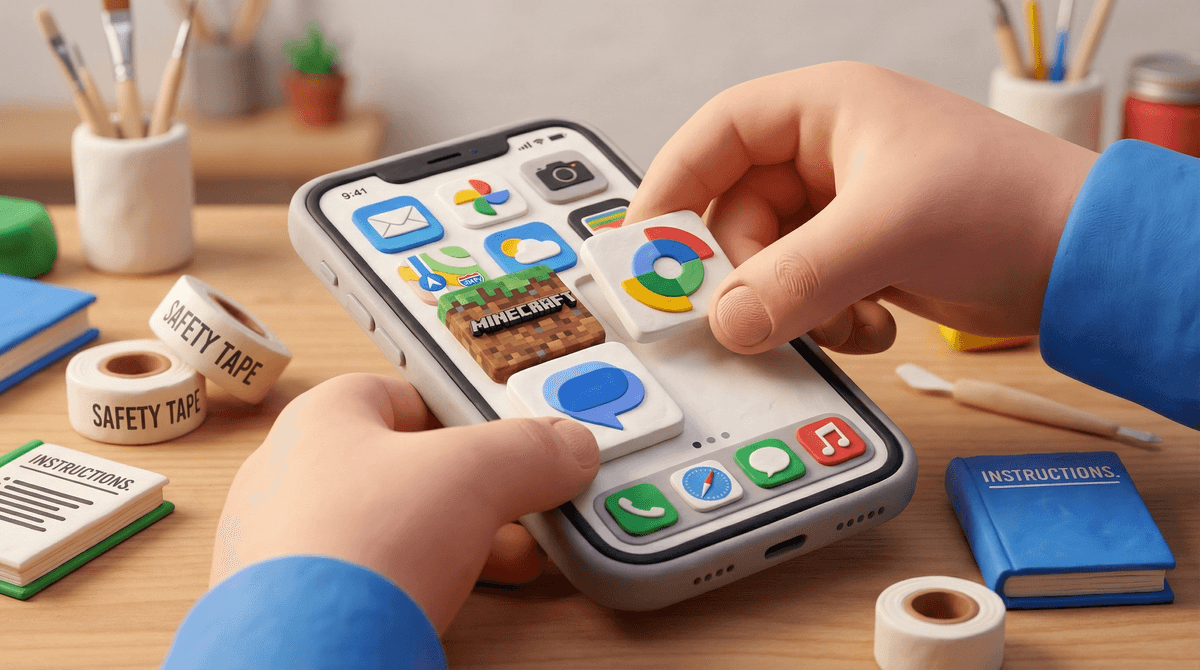
So you're about to hand your kid an iPhone. Maybe it's their first phone ever, maybe they're upgrading from a hand-me-down iPad, or maybe you're finally caving after months of "everyone in my grade has one." Whatever got you here, you're standing at one of those parenting crossroads where the decision is already made, but the how still feels overwhelming.
Here's the thing: the setup matters more than the phone itself. An iPhone with good guardrails can be a legitimately useful tool for a kid—communication, navigation, school stuff, even some creative outlets. An iPhone with no setup is basically handing them a portal to the entire internet with a side of social pressure and a credit card attached.
This isn't about being a helicopter parent or a control freak. It's about being intentional. You wouldn't hand your kid car keys without teaching them to drive first, right? Same energy here.
Do this setup BEFORE you give them the phone. I cannot stress this enough. If you hand over an activated iPhone and then try to add restrictions, you're fighting an uphill battle. Kids are smart, they'll already have their Apple ID, already be downloading apps, and you'll be the bad guy taking things away instead of the reasonable parent setting boundaries from the start.
Here's your pre-game checklist:
Decide on Family Sharing vs. Their Own Apple ID
If your kid is under 13, you have to create their Apple ID through Family Sharing—Apple requires it. But even if they're older, Family Sharing is your friend here. It lets you:
- Approve (or deny) app downloads
- Share subscriptions (Apple Music, iCloud storage, etc.)
- Use Screen Time controls that they can't just disable
- See their location through Find My
To set this up: Go to Settings → [Your Name] → Family Sharing → Add Member → Create an Account for a Child. You'll need to verify you're an adult (credit card on file), and then you create their Apple ID with your email as the guardian contact.
Pro tip: Use an email you actually check. Apple will send notifications there about purchase requests and other important stuff.
Set Up Screen Time DURING Setup
When you're going through the iPhone setup process, it will literally ask you "Is this for a child or adult?" Say child. Then it walks you through Screen Time setup right there. This is the easiest path.
If you're setting up after the fact: Settings → Screen Time → Turn On Screen Time → This is My Child's iPhone.
Here's what to configure:
Downtime: Set hours when only allowed apps work (usually bedtime through morning). Most families do something like 9pm-7am for middle schoolers, 8pm-7am for elementary. The phone still works for calls and whatever apps you whitelist (like Messages), but TikTok won't open at 2am.
App Limits: Daily time limits for categories. This is where you decide if they get 1 hour of social media, 2 hours of games, whatever fits your family. The limits actually work—when time's up, the app grays out. (They can request more time, which sends you a notification, and you can approve or deny from your phone.)
Communication Limits: Control who they can communicate with during screen time vs. downtime. Especially useful for younger kids—you can limit it to contacts only.
Content & Privacy Restrictions: This is the big one. Here's what to lock down:
- App Store purchases: Require approval for all purchases (including free apps)
- Explicit content: Block explicit music, podcasts, books
- Web content: Either limit to approved websites only, or use "Limit Adult Websites" which blocks known bad stuff (not perfect, but decent)
- Siri: Disable web search, explicit language
- Game Center: Turn off multiplayer games and adding friends if they're young
- Location Services: Set apps to "Ask Next Time" or "While Using" instead of "Always"
The Safari vs. No Safari Question
A lot of parents disable Safari entirely and only allow specific apps. This works great for younger kids (under 11-ish) but gets tricky for middle schoolers who actually need to look things up for homework.
Middle ground option: Keep Safari but use Content Restrictions to limit adult websites, and turn off private browsing. Yes, they can still find ways around it, but you're creating friction, and friction matters.

Do not let them download whatever they want on day one. Start minimal. Like, really minimal:
That's it for the first week or two. Let them ask for apps. When they do, you can actually have a conversation about why they want it, what it does, what the age rating is, what their friends are doing on it.
When they inevitably ask for Roblox, Discord, Snapchat, or TikTok, you'll want to read up on each one first. These apps have wildly different safety profiles and age-appropriateness. Here's a guide to the most popular social apps if you need a crash course.
This is the part that actually matters most. Sit down with your kid—yes, literally sit down, not while you're making dinner—and go through the phone together.
Talk about:
- Why you're setting these limits (safety, sleep, balance—not punishment)
- What happens if they break the rules (will you take the phone? For how long?)
- How they can earn more freedom over time (show responsibility, have conversations, be honest when something weird happens online)
- What to do if they see something disturbing, get a weird message, or feel uncomfortable (come to you, no questions asked, no punishment)
Make it clear: You're not spying because you don't trust them. You're supervising because they're learning to navigate something genuinely complicated, and that's literally your job as a parent.
Setting up an iPhone well takes maybe 45 minutes. Not doing it takes... well, a lot more time in the long run when you're dealing with sleep deprivation, expensive in-app purchases, or worse.
Start restrictive, then loosen up. It's way easier to give more freedom than to take it away. And honestly? Most kids feel relieved to have boundaries, even if they won't admit it. The phone is less overwhelming when it's not an all-access pass to everything all at once.
- Before setup day: Decide on your family's Screen Time rules together
- During setup: Use Family Sharing, enable Screen Time, start with minimal apps
- First week: Let them request apps one by one, have actual conversations about each one
- First month: Check in weekly about how it's going, adjust limits as needed
- Ongoing: Revisit the setup every few months as they get older and earn more independence
And hey—if you're feeling lost about what limits make sense for your kid's age, Screenwise can help you figure that out based on what other families in your community are actually doing. Because sometimes it helps to know you're not the only one saying no to TikTok at age 10.
You've got this. The fact that you're reading this guide means you're already doing better than the parents who just toss their kid an activated phone and hope for the best.