

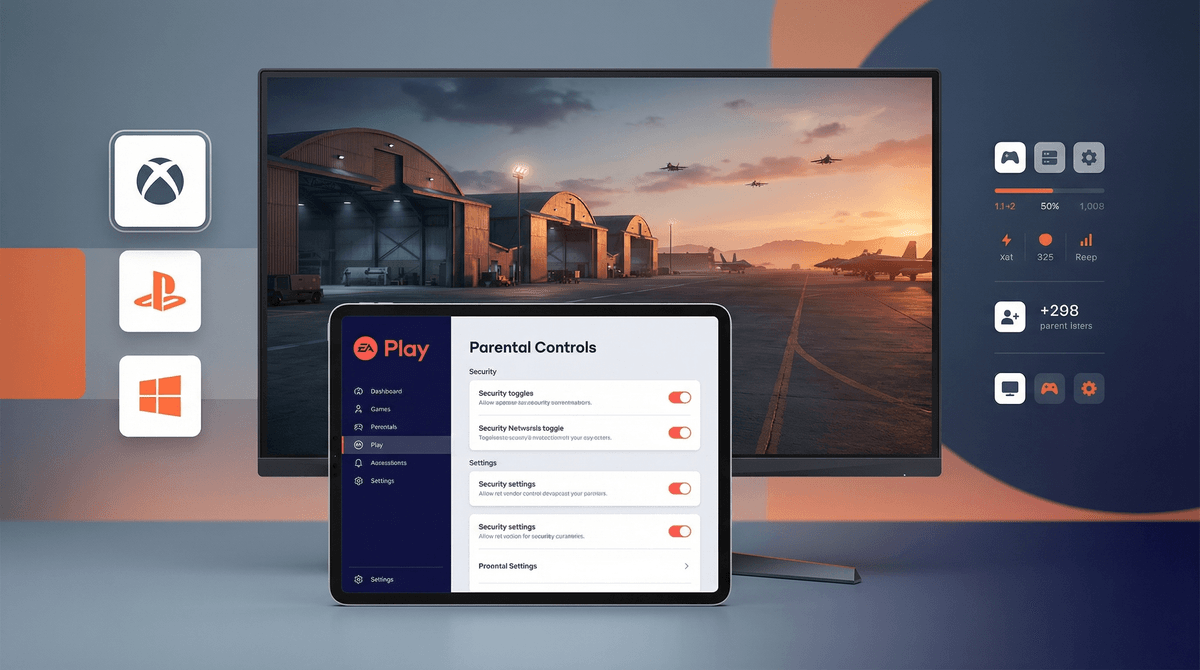
Setting Up EA Play Parental Controls for Battlefield Games
TL;DR: EA's parental controls are split between your platform (Xbox, PlayStation, PC) and EA's own account settings. You'll need to lock down both to actually control spending, playtime, and online chat in Battlefield games. The good news? Once you set it up, it works across all EA titles. The bad news? It's a multi-step process that EA doesn't exactly make intuitive.
Quick links: Fortnite parental controls | Call of Duty parental controls | Best games for teens who love shooters
Before we dive into the how-to, let's be clear about what's at stake with Battlefield specifically:
The M-rating is real. These games feature realistic military violence, blood, strong language, and intense combat scenarios. The ESRB doesn't hand out M-ratings for fun—this is legitimately mature content.
Online multiplayer is the whole point. Unlike story-driven games where you can disable online features without losing much, Battlefield is fundamentally a multiplayer experience. That means voice chat with strangers, text chat, and all the lovely things that come with anonymous online interactions.
Microtransactions exist but aren't predatory. Battlefield games sell cosmetic items and battle passes, but they're not pay-to-win. Still, your credit card can take a hit if you don't lock down purchasing.
Playtime can spiral. Matches are designed to keep you engaged for "just one more round." Combined with progression systems that reward grinding, it's easy for 30 minutes to become 3 hours.
EA's parental controls don't live in one place. You're dealing with:
- Platform-level controls (Xbox, PlayStation, Steam, Epic Games Store)
- EA Account controls (through EA's website)
Both layers matter. Your platform controls screen time, purchases, and communication features. EA's controls manage in-game spending, gameplay time limits, and social features within EA titles.
Skip either layer and you've left a door wide open.
Xbox
Xbox actually has the most robust parental control system for this:
- Go to account.microsoft.com/family and sign in with your parent account
- Add your teen's account to your family group if you haven't already
- Under their profile, set:
- Screen time limits (daily or weekly)
- Content restrictions (confirm M-rated games are allowed or blocked based on your decision)
- Purchase approval (require parent approval for all purchases)
- Communication settings (you can restrict who they can chat with—friends only, everyone, or nobody)
The Xbox system will actually send you a request on your phone when your kid tries to buy something. It's pretty seamless.
PlayStation
PlayStation's controls are less intuitive but still functional:
- Go to Settings > Family and Parental Controls on the console
- Set up your teen as a family member with age restrictions
- Configure:
- Monthly spending limit (set a dollar amount or require approval)
- Communication restrictions (limit who can message them)
- Play time management (set when they can play and for how long)
- Age-appropriate content (confirm M-rated games are accessible)
PlayStation's system is console-based, so if your teen plays on multiple PS5s (say, at a friend's house), some settings may not carry over.
PC (Steam/Epic Games Store/EA App)
PC is the Wild West here. Steam and Epic have minimal parental controls—you're mostly relying on:
- Family View on Steam (limits which games are visible and playable)
- Parental Controls on Epic (requires a PIN for purchases)
- EA App settings (covered in the next section)
For PC, your best bet is honestly having the computer in a shared space and using Windows parental controls for screen time limits. The platform controls are just not that sophisticated.
Now for EA's own system, which applies across all platforms:
- Go to ea.com and sign in to your teen's EA Account (or create one if they don't have it yet)
- Navigate to EA Account Settings > Parental Controls
- You'll need to set up a separate EA Family Account where you're the parent/guardian
- Once linked, you can control:
- Spending limits (set monthly caps on in-game purchases)
- Play time restrictions (daily limits on how long they can play EA games)
- Social features (disable voice chat, text chat, or friend requests)
- User-generated content (block custom emblems and names that other players create)
Critical note: EA's controls require you to verify your identity as the parent via email. Don't skip this step or the settings won't actually enforce.
Let's be real: voice chat in Battlefield is where your teen will encounter the most problematic content. Not the in-game violence—the other players.
You have three options:
- Disable voice chat entirely through EA's parental controls
- Mute all except friends (requires your teen to manually mute in each match, which they probably won't do)
- Have the conversation about what they'll hear and when to report/block players
There's no perfect solution here. Disabling voice chat means your teen can't coordinate with their squad, which is genuinely part of the gameplay experience. But leaving it on means they're exposed to the full spectrum of online gaming culture—which includes racism, homophobia, misogyny, and creative profanity.
Most parents of teens playing M-rated shooters end up somewhere in the middle: voice chat enabled, but with clear expectations about reporting toxic behavior and not engaging with it. Read more about managing online gaming toxicity .
.
If your teen has EA Play (the subscription service), you need to manage this separately:
- EA Play Basic ($4.99/month) gives access to a library of EA games
- EA Play Pro ($14.99/month) includes new releases and premium editions
These subscriptions bill automatically. Set them up through your account with purchase approval required, or use a prepaid debit card with a set balance to cap spending.
The subscription itself doesn't bypass parental controls—all the settings you've configured still apply to games accessed through EA Play.
Is Battlefield appropriate for your teen? That depends entirely on your family's values and your teen's maturity level.
Ages 17+: This is the ESRB recommendation and it's not arbitrary. The game depicts realistic warfare with blood, dismemberment, and strong language.
Ages 14-16: Some parents are comfortable with this age range playing Battlefield, especially if their teen has experience with other shooters like Fortnite or Apex Legends. The difference is realism—Battlefield aims for authenticity in its military depictions, not cartoon violence.
Ages 13 and under: Hard pass for most families. If your middle schooler is begging for Battlefield, consider Splatoon 3 or Valorant as alternatives that scratch the competitive shooter itch without the M-rated content.
The online component adds another layer. Your teen will be playing with and against adults, and the communication reflects that. If they're not ready to navigate adult language and toxic behavior, they're not ready for Battlefield multiplayer.
After you've configured everything, do a test run:
- Try to make a purchase without approval—it should be blocked
- Check voice chat settings in an actual match—make sure it's configured as you intended
- Test playtime limits by playing past the set time—the game should kick them off
- Verify social features by trying to add a random player as a friend—it should require approval or be blocked
Don't assume the settings worked just because you clicked "Save." EA's system has been known to glitch, especially when switching between platforms.
Setting up parental controls for Battlefield isn't a one-and-done task. You're managing multiple systems (platform + EA), multiple risk factors (spending, playtime, communication), and a game that's fundamentally designed for adults.
The bare minimum setup:
- Platform-level purchase approval
- EA Account spending limits
- Voice chat restrictions (at least friends-only)
- Playtime limits that match your family's screen time rules
The ideal setup adds:
- Regular check-ins about what they're experiencing online
- Clear reporting procedures for toxic behavior
- Periodic reviews of their friend list and who they're playing with
- Conversations about the difference between game violence and real-world violence
If this feels like a lot of work for a video game, you're not wrong. But Battlefield is a full-featured online multiplayer experience with real money, real strangers, and real content that's rated M for a reason. The controls exist—you just have to actually use them.
Next steps: Compare Battlefield to other teen shooters | Learn about gaming addiction warning signs | Set up Discord parental controls (because that's where they're coordinating these matches)