

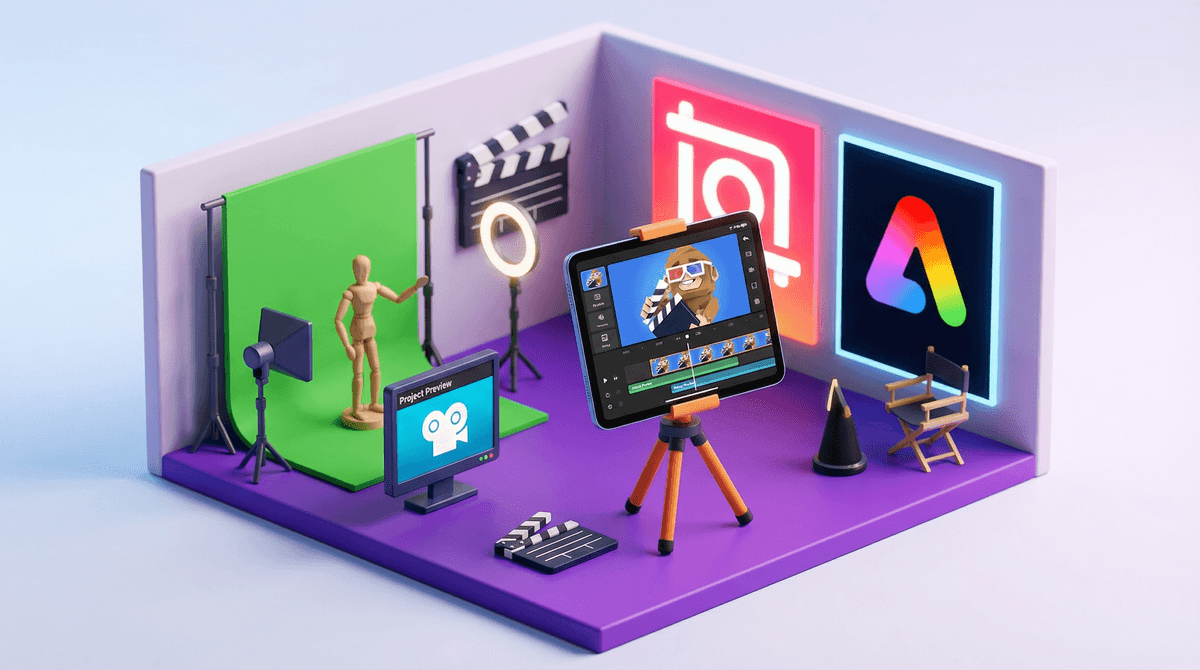
Movie-making apps are creative tools that let kids shoot, edit, and produce their own videos—everything from stop-motion animation to TikTok-style edits to full-blown short films. We're talking apps like iMovie, Stop Motion Studio, CapCut, and Adobe Express Video.
The good news? These apps can genuinely unlock creativity. Kids learn storytelling, problem-solving, sequencing, and even basic coding concepts. The less good news? Some of these "creative tools" come with social features, AI capabilities, and publishing options that range from "totally fine" to "wait, my 8-year-old can post WHERE?"
Kids today are growing up in a world where video is the primary language. They don't just consume content—they want to create it. Whether they're inspired by YouTube creators, want to make their own Minecraft tutorials, or just think it's hilarious to make their stuffed animals fight in stop-motion, these apps tap into something real.
Plus, let's be honest: the barrier to entry is incredibly low now. You don't need a fancy camera or expensive software. Just a tablet, decent lighting, and an idea. The apps themselves have gotten so intuitive that even younger kids can figure out basic editing without much help.
For Younger Kids (Ages 5-9)
Stop Motion Studio is the gold standard here. Kids can create frame-by-frame animation using toys, clay, drawings—whatever. It's genuinely creative without any social component. The free version is solid; the paid version ($5.99) adds green screen and more advanced features. This is the app where kids spend an hour making their LEGOs "talk" and you're like, "Okay, this is actually teaching patience and sequencing."
Toontastic 3D (free, by Google) lets kids create animated cartoons by drawing characters and recording their voices. It's structured around story arcs, which is secretly teaching narrative structure. No social features, no in-app purchases, no weird AI stuff. Just pure creativity.
For Middle Grades (Ages 8-12)
iMovie (free on Apple devices) is where a lot of kids graduate to when they want "real" editing. It's got templates, green screen, soundtracks, and enough features to make something that looks legit without being overwhelming. The safety win here: it's completely offline unless kids choose to export and share elsewhere. You control where the videos go.
Book Creator isn't strictly a video app, but it lets kids combine video clips with text, images, and audio to make multimedia stories. It's particularly great for kids who want to create but find pure video editing intimidating.
For Teens (Ages 13+)
CapCut is the editing app behind basically every viral TikTok. It's free, powerful, and has every trendy effect your teen wants. The catch? It's owned by ByteDance (same as TikTok), collects a fair amount of data, and has some social features. If your teen is using it, learn more about CapCut's data practices and have a conversation about keeping videos private until you've reviewed them together.
Adobe Express Video (formerly Adobe Spark Video) is more polished and professional-feeling. It's great for school projects, presentations, or teens who are genuinely interested in video production as a skill. The free version is solid; the paid version unlocks more assets.
Here's where it gets real: the app itself is only half the equation. The bigger question is what happens AFTER the video is made.
Publishing vs. Creating
Some apps (like Stop Motion Studio and iMovie) are purely creation tools—they don't have built-in sharing features beyond exporting to your camera roll. Others (like CapCut) make it incredibly easy to publish directly to social platforms.
The rule of thumb: For kids under 13, stick with apps that keep everything local. You be the gatekeeper for where videos go. For teens 13+, you can explore apps with social features, but have clear agreements about what gets posted and where.
AI Features
Newer apps are adding AI tools—auto-captions, voice changers, background removal, even AI-generated clips. Some of this is genuinely helpful (auto-captions are great for accessibility). Some of it is... weird. Have a conversation about AI-generated content and what it means to create something "real."
Copyright and Music
Kids LOVE adding popular songs to their videos. Most of these apps have licensed music libraries, which is great. But if your kid is pulling songs from Spotify or YouTube and adding them in? That's a copyright issue if the video gets posted publicly. Most platforms will just mute or take down the video, but it's worth discussing why we don't just take other people's creative work.
Start with creation, not publication. The first goal should be learning to make something cool, not getting views or likes. Keep videos private, share them with family, maybe post to a private YouTube channel where only approved people can view.
Watch their first few projects together. Not to critique, but to show genuine interest and ask questions. "How did you make that transition?" "What was the hardest part?" This builds their confidence and gives you insight into what they're learning.
Storage is going to be an issue. Video files are HUGE. If your kid gets into this, you'll need a plan for managing storage—whether that's cloud backup, external drives, or regular "video purges" where you save the favorites and delete the rest.
Some kids will lose interest fast, others will go deep. Both are fine. If your kid makes one stop-motion video and never touches it again, cool. If they start planning multi-episode series and asking for a ring light, also cool. Follow their lead.
Movie-making apps can be genuinely wonderful tools for creativity, storytelling, and skill-building. The key is matching the app to your kid's age, your family's values around sharing/publishing, and your comfort level with the tech involved.
For younger kids: Stick with Stop Motion Studio or Toontastic 3D—pure creativity, zero social pressure.
For middle grades: iMovie is your friend. It grows with them and keeps everything local.
For teens: CapCut or Adobe Express Video are solid choices, but pair them with clear conversations about privacy, publishing, and digital footprints.
And remember: the goal isn't to raise the next Spielberg (unless that's genuinely their dream). The goal is to give them tools to express themselves, tell stories, and maybe—just maybe—spend their screen time actually creating something instead of just consuming.
- Try before you commit: Download a free app and make a silly video together. See if your kid actually enjoys the process or just likes the idea of it.
- Set up a "family film festival": Make it a thing where everyone shares their creations. Takes the pressure off individual kids and makes it fun.
- Check out alternatives to YouTube for sharing kid videos if your kid wants an audience but you're not ready for public posting.