

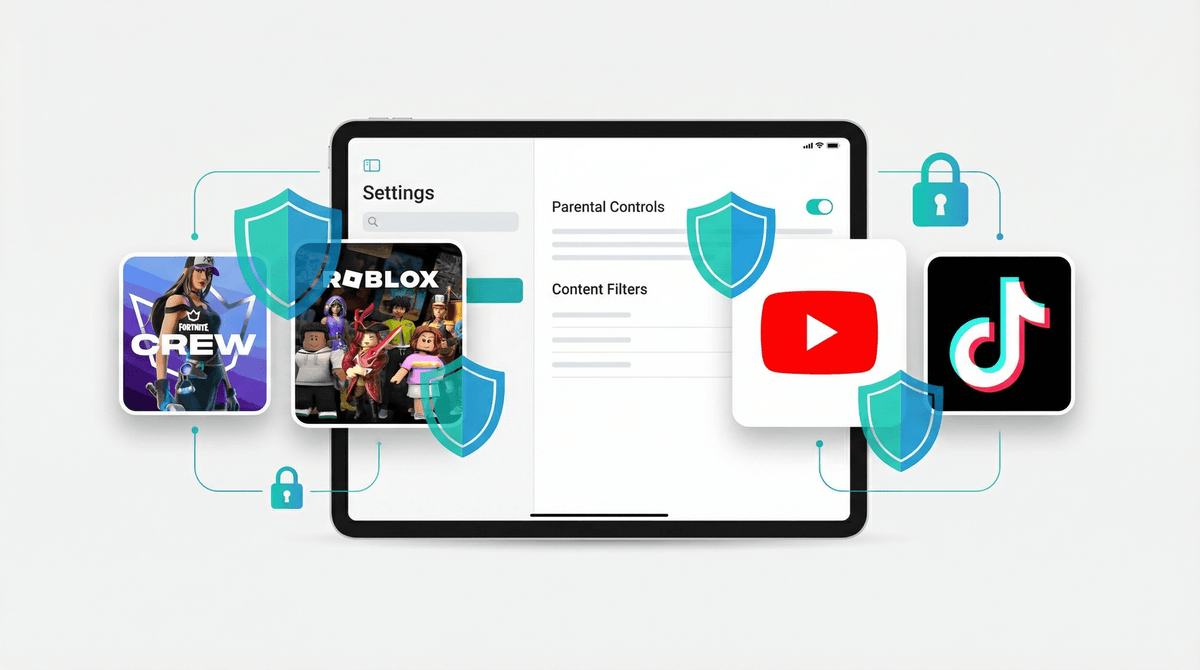
The Complete Guide to Locking Down Your Kid's iPad
Look, handing your kid an iPad without locking it down first is like giving them the keys to a car and saying "figure it out!" Sure, they might stay in the driveway. But they also might end up three states over with $500 in Robux charges on your credit card.
The good news? Apple's parental controls are actually pretty robust once you know where everything is. The bad news? They're scattered across like seventeen different settings menus, use confusing terminology, and one wrong tap can undo everything.
Let's fix that.
Before we dive into the settings, let's be clear about what "locking down" an iPad actually means. You're trying to create guardrails that:
- Prevent unauthorized purchases (because Roblox and Fortnite are basically casinos designed by PhDs in child psychology)
- Limit screen time (so they don't accidentally binge 8 hours of YouTube)
- Block inappropriate content (the internet is a weird place)
- Control what apps they can download (no, they don't need TikTok at age 9)
- Protect their privacy (because tech companies would love to harvest your kid's data)
You're not trying to create a digital prison. You're creating a safer sandbox where they can explore, learn, and yes, play games, without stumbling into the dark corners of the internet or bankrupting you in the process.
Screen Time is Apple's parental control hub. Everything flows from here.
Go to: Settings > Screen Time
If this is your kid's device, tap "Turn On Screen Time" then select "This is My Child's iPad."
This matters because it enables more restrictive controls and prevents your kid from just... turning Screen Time off. (Yes, kids try this. Often successfully.)
Create a Screen Time Passcode
Critical step: Set a Screen Time passcode that's DIFFERENT from your device unlock code. Your kid will eventually figure out your unlock pattern by watching you. Don't use the same code for Screen Time restrictions.
Make it something you'll remember but they won't guess. Not their birthday. Not 1234. Please.
Downtime blocks almost everything except apps you specifically allow (like Phone, Messages, or educational apps). Great for bedtime, homework time, or family dinner.
Go to: Screen Time > Downtime
Set a schedule (like 8pm-7am) and choose "Block at Downtime." Then customize which apps are "Always Allowed" - probably Messages, Phone if they have cellular, and maybe one or two others.
App Limits let you set daily time caps for categories or specific apps.
Go to: Screen Time > App Limits
Here's what actually works: Instead of setting a blanket "2 hours of screen time" limit, get granular:
- Entertainment (YouTube, Netflix, games): 1-2 hours
- Social (if they have any): 30 minutes
- Educational apps: Unlimited or very generous
Kids are way more likely to respect limits that feel fair and specific than arbitrary total screen time caps.
This is where you prevent the truly wild stuff.
Go to: Screen Time > Content & Privacy Restrictions and toggle it ON.
Now you've got a menu of options. Let's go through the important ones:
iTunes & App Store Purchases
- Installing Apps: Set to "Don't Allow" or "Ask"
- Deleting Apps: Set to "Don't Allow" (so they can't delete your monitoring apps or restrictions)
- In-App Purchases: Set to "Don't Allow" (this is the big one - learn more about how Robux is in fact real money
 )
)
Allowed Apps
Toggle OFF any apps you don't want them accessing. Safari is a big one here - if you turn it off, they can't browse the open web (though they can still access web content through apps).
Consider turning off:
- Safari (use a kid-safe browser instead)
- App Store (if you set Installing Apps to "Don't Allow" above)
- Camera/FaceTime (depending on age)
Content Restrictions
This is where you set age ratings for everything:
Music, Podcasts, News, Workouts: Block explicit content
Movies: Set to PG, PG-13, or whatever matches your family values
TV Shows: Same deal - Y7, TV-PG, TV-14, etc.
Books: You can block explicit content
Apps: Set age rating (4+, 9+, 12+, 17+). This prevents them from downloading apps rated above this age.
Websites: This is huge. You have three options:
- Unrestricted Access (don't do this)
- Limit Adult Websites (Apple's automatic filter - decent but not perfect)
- Allowed Websites Only (lockdown mode - only sites you specifically approve)
For younger kids (under 10), option 3 makes sense. For older kids, option 2 is more realistic.
Siri
- Web Search Content: Block explicit language
- Explicit Language: Turn off (unless you enjoy your 7-year-old asking Siri to define words they heard on the playground)
Game Center
- Multiplayer Games: Consider turning off for younger kids (this blocks them from playing with strangers online)
- Adding Friends: Turn off
- Screen Recording: Consider blocking (prevents them from recording and sharing gameplay)
Go to: Screen Time > Communication Limits
This controls who your kid can communicate with during screen time and downtime.
- During Screen Time: Choose "Contacts Only" or "Everyone" (if they don't have cellular/messages, this might not matter)
- During Downtime: Set to "Specific Contacts" and choose who they can reach during restricted hours (like you, their other parent, grandparents)
Go to: Settings > Privacy & Security
A few key things:
- Location Services: Tap this, scroll down to "Share My Location" and enable it so you can use Find My to locate the iPad if needed
- Tracking: Make sure "Allow Apps to Request to Track" is OFF (this prevents apps from tracking your kid across other apps and websites)
- Analytics & Improvements: Turn off "Share iPad Analytics" and "Share iCloud Analytics"
A few more settings to lock down:
Settings > Face ID & Passcode (or Touch ID)
- Require a passcode they know but can't change
- Turn OFF "Allow Access When Locked" for everything except Emergency SOS
Settings > [Your Kid's Name] > Family Sharing
- Enable "Ask to Buy" so you approve all purchases (even free app downloads if you want)
Settings > Notifications
- Go through each app and limit notifications - kids don't need constant pings from games trying to pull them back in
This Isn't Set-It-and-Forget-It
Your 7-year-old and your 12-year-old need different restrictions. Your kid's needs will change. Plan to review these settings every few months, especially after birthdays or when they level up in responsibility.
They Will Try to Get Around This
Kids are resourceful. They'll figure out workarounds. They'll find the one loophole you didn't think of. They'll ask Siri to text their friend when messaging is locked down. They'll use Safari Reader View to bypass website restrictions.
This is normal. When it happens, close the loophole, have a conversation about why the rule exists, and move on. You're not failing - you're parenting.
Screen Time Reports Are Your Friend
Check the Screen Time report weekly. It shows you exactly what they're using and for how long. You might discover they're spending 3 hours a day on an app you forgot existed, or that they're barely touching that educational app you paid for.
Go to: Screen Time > See All Activity
This data helps you make informed adjustments instead of guessing.
Consider Their Age and Temperament
A super restrictive setup works great for a 6-year-old. For a 13-year-old, it might breed resentment and sneaky behavior. The goal is age-appropriate freedom with safety guardrails, not total lockdown.
Learn more about age-appropriate screen time guidelines if you're not sure where your kid falls.
"My kid figured out the Screen Time passcode" Change it immediately. Use a random number they couldn't guess. Don't use it in front of them.
"They're using their school iPad to access everything" You can't control school devices, but you can set family rules about what's allowed on what device. This is a conversation, not a settings fix.
"The restrictions keep turning themselves off" This usually means they know your passcode, OR you have multiple Apple IDs getting confused. Check Settings > Screen Time and make sure it says "This is My Child's iPad."
"They're playing games in Safari to get around app limits" Turn off Safari entirely, or use "Allowed Websites Only" mode and don't include game sites.
Locking down an iPad takes about 20-30 minutes if you follow this guide. It's not fun. It's not intuitive. But it's absolutely worth doing.
Here's the thing: these settings aren't about not trusting your kid. They're about not trusting the multi-billion-dollar tech companies that have literally designed their products to be as addictive as possible to developing brains. Your kid didn't ask to be born into the era of infinite digital dopamine. The least you can do is put up some guardrails.
And remember - the settings are just the foundation. The real work is ongoing conversations about why these boundaries exist, what healthy tech use looks like, and gradually expanding freedom as they demonstrate responsibility.
- Block out 30 minutes and go through these settings right now
- Write down your Screen Time passcode somewhere secure (not on the iPad)
- Talk to your kid about what you're doing and why (age-appropriately)
- Set a calendar reminder to review Screen Time reports weekly for the first month
- Check out alternatives to YouTube Kids if you're looking for safer video content
You've got this. And hey, if you mess something up, you can always reset and start over. That's the beauty of digital parenting - there's an undo button for almost everything.