

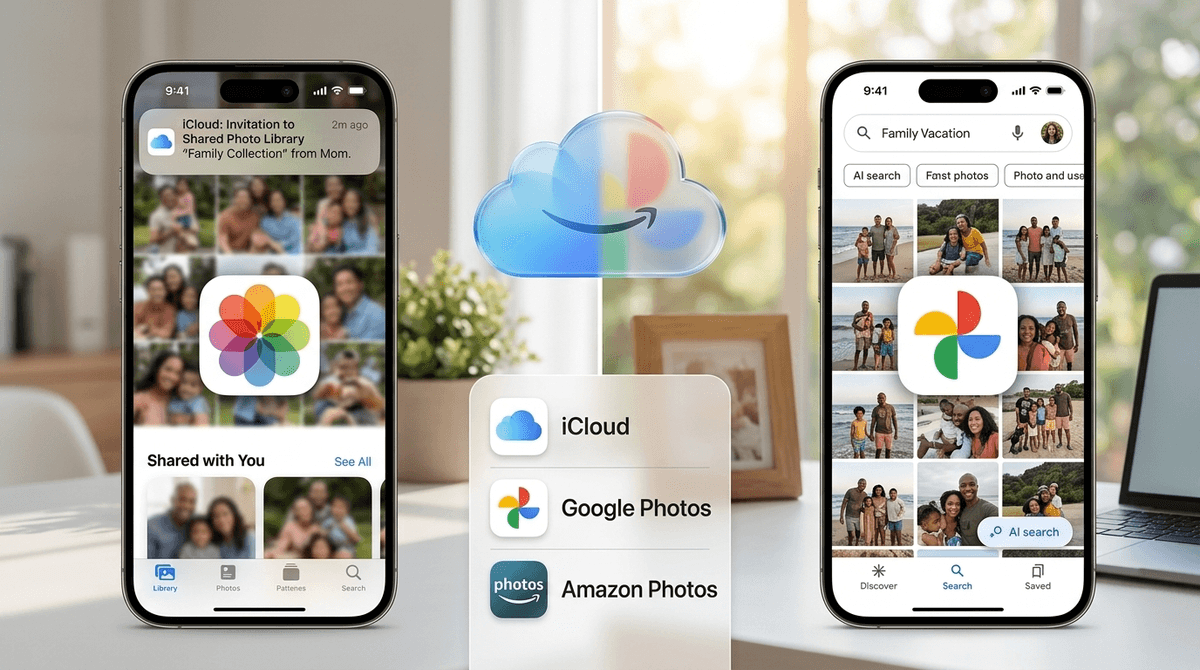
TL;DR: The Quick Verdict
If you are an all-in Apple family (iPhones, iPads, Macs), iCloud is the winner for its seamless "Shared Photo Library" feature that actually works without you having to think about it.
If you have a "mixed" household (some Androids, some iPhones) or you value a search engine that can actually find "that one photo of the kid wearing a dinosaur hat in 2021" in three seconds, Google Photos is your best bet.
- Best for Privacy: iCloud (with Advanced Data Protection)
- Best for Search/AI: Google Photos
- Best for "Set it and Forget it": iCloud
- Best for Free/Cheap Storage: Neither, honestly. The days of free unlimited storage are dead.
Get a step-by-step guide on switching from Google to iCloud
We’ve all been there. You’re trying to capture a video of your kid finally hitting the ball at tee-ball, or maybe you're recording a masterpiece of a "Skibidi Toilet" dance they've been practicing for three hours, and then it happens: Storage Full.
Modern parenting is essentially the job of a high-volume digital archivist. We are taking 4K video of mundane events and 12-burst shots of a single smile. Between the screenshots of school emails, the memes we send to the group chat, and the 4,000 photos of the family dog, our phones are screaming for help.
Choosing between iCloud and Google Photos isn't just about gigabytes; it's about which "tax" you're willing to pay and how much time you want to spend managing your family's digital legacy.
If you use an iPhone, iCloud is already baked into your life. It isn't just an app; it's the nervous system of your device.
The iCloud Shared Photo Library
This is the "killer feature" for parents. Introduced in iOS 16, the iCloud Shared Photo Library allows you to set up a separate library that up to six family members can contribute to.
You can set it to "Auto-Share" when you’re physically near your partner, or use a toggle in the Apple Photos app camera to send a photo straight to the shared bin. No more texting "Hey, can you send me that picture of the kids?" at 11:00 PM. It’s just there.
The Pros
- Deep Integration: It backs up your device settings, messages, and app data alongside your photos.
- Privacy: Apple’s "Advanced Data Protection" offers end-to-end encryption. This means even Apple can't see your photos. If privacy is your #1 concern, this is the gold standard.
- Full Resolution: It keeps your original files safe in the cloud while keeping "optimized" (smaller) versions on your phone to save space.
The Cons
- The "Walled Garden": It is a nightmare to use if you ever decide to switch to an Android or if you want to view your photos on a Windows PC.
- Search is "Mid": While it’s gotten better, Apple’s search isn't as smart as Google’s. It might struggle to find "kid on a slide" compared to Google’s terrifyingly accurate AI.
Google Photos is less of a "storage bin" and more of a "personal librarian." It’s available on everything—iPhones, Androids, and any web browser.
Partner Sharing
Google’s version of the shared library is called Partner Sharing. You can choose to share your entire library with one other person, or only photos containing specific people (like your kids).
The AI is the heavy lifter here. You can tell Google, "Any photo that has 'Leo' in it, automatically share it with my spouse." It works remarkably well, though it’s limited to sharing with only one other partner automatically, whereas iCloud allows a group of six.
The Pros
- Search is God-Tier: You can search for "red shirt," "beach," or even "that time we went to Ohio" (the actual state, not the meme), and it will find it instantly.
- Memories and Collages: Google is much better at resurfacing "On this day" memories and creating little stylized movies that actually make you feel something.
- Cross-Platform: If you have a Google Pixel and your partner has an iPhone, this is the only way to stay sane.
The Cons
- Privacy Trade-offs: Google’s business model is data. While they don't "sell" your photos, they use them to train their AI models. For some parents, that’s a hard "no."
- The App Experience on iPhone: Since it’s not native, you have to occasionally open the Google Photos app to make sure it’s actually backing up. It can’t always run in the background as reliably as iCloud.
We need to talk about the "parenting tax." Both services offer a measly amount of free storage (iCloud gives you 5GB, which is basically three videos of a toddler; Google gives you 15GB shared across Gmail and Google Drive).
Most families will end up on the 2TB plan for either service, which usually runs around $9.99/month.
- Apple One: If you already pay for Apple Music and Apple TV+, bundling them into an Apple One subscription is often cheaper than paying for storage separately.
- Google One: This gives you extra editing features in the app (like "Magic Eraser" to remove that random person in the background of your Disney photo) and VPN features.
A Third Option: Amazon Photos
If you already pay for Amazon Prime, you get unlimited full-resolution photo storage for free. The catch? Video storage is very limited (usually 5GB), and you’ll still have to pay for more if you want to save those school play recordings. It’s a great "backup for your backup," but the app interface is... not great.
Beyond the tech specs, there is a mental health component to photo storage. We are the first generation of parents who have to manage a digital archive that will eventually be handed over to our children.
1. The "Delete" Habit
Just because you have 2TB of space doesn't mean you should fill it. "Digital rot" is real. When your kid turns 13 and wants to see photos of their childhood, they don't want to scroll through 400 blurry shots of a half-eaten grilled cheese. Pro-tip: Spend 5 minutes every Sunday deleting the "junk" from your week. Your future self will thank you.
2. Privacy for the Kids
As kids get older, they deserve digital privacy. If you are using a shared family library, be mindful of when your child gets their own device. At age 10 or 12, they might not want every "cringe" photo they take with their friends to automatically pop up on Dad’s iPad in the kitchen.
3. The "Legacy" Conversation
What happens to these photos if something happens to you?
- Apple has a "Legacy Contact" feature.
- Google has an "Inactive Account Manager." Set these up now. It takes two minutes and ensures your family doesn't lose a decade of memories because of a forgotten password.
When you share a library, you are sharing everything in that folder.
- Location Data: Every photo has a GPS tag. If you share a photo with a "Shared Album" that includes people outside your immediate family (like a soccer team album), they can often see exactly where that photo was taken (i.e., your house).
- The "Hidden" Folder: Both iCloud and Google Photos have ways to lock photos behind a passcode or FaceID. Use this for sensitive documents (like photos of Social Security cards or passports) or "grown-up" photos you don't want the kids seeing when they're playing Roblox on your phone.
There is no "perfect" solution, only the one that causes the least amount of friction in your specific life.
- Go with iCloud if you want the highest level of privacy and everyone in your house has an iPhone. The "Shared Library" feature is a legitimate marriage-saver.
- Go with Google Photos if you are a "mixed" tech household or if you are the kind of person who can never remember what month or year a specific event happened and need the AI to find it for you.
Next Steps for Intentional Parents:
- Check your current usage: See how close you are to your limit in your phone settings.
- Pick one and commit: Moving 50,000 photos between services is a weekend-long project. Pick a lane and stay in it.
- Audit your "Shared Albums": Look at who has access to your family photos. If your ex-neighbor from three houses ago is still on the "Summer 2019" album, it’s time to prune the list.
- Set up your Legacy Contact: Do it today.
Check out our guide on the best photo printing services for physical backups