

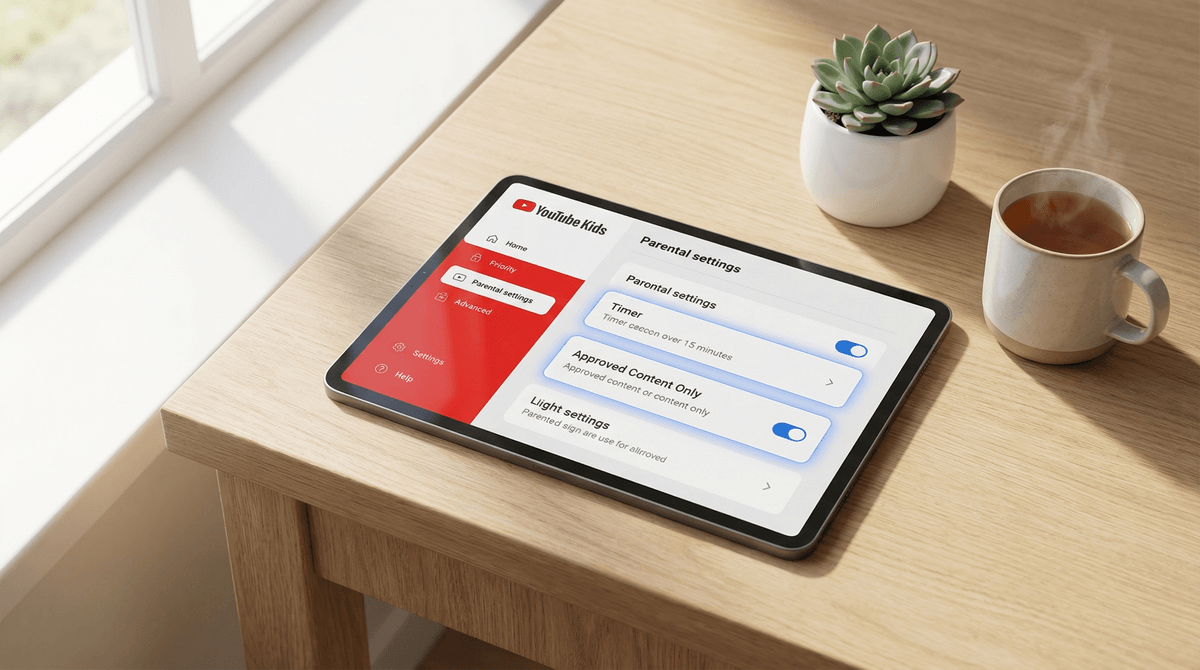
Taming the YouTube Kids Chaos: Settings That Actually Calm the Overstimulation
YouTube Kids can feel like a sensory assault—bright thumbnails, rapid cuts, and autoplay rabbit holes designed to keep eyeballs glued. But buried in the settings are toggles that can genuinely help. Here's what actually works:
- Turn off Search (kills the algorithm spiral)
- Use Preschool or Younger mode (even for older kids who need calmer content)
- Disable autoplay (forces intentional choices)
- Set a timer (built-in boundary enforcement)
- Curate approved content only (nuclear option, but effective)
If you're looking for alternatives to YouTube Kids entirely, that's also a valid path. But if you're staying in the ecosystem, these settings can make a real difference.
YouTube Kids was supposed to be the "safe" version—filtered content, no comments, kid-friendly ads. And sure, it's better than letting your 6-year-old loose on regular YouTube. But "safe" doesn't mean "calm."
The app is still engineered for engagement. Thumbnails scream for attention with exaggerated faces and ALL CAPS TEXT. Videos often feature frenetic pacing, loud sound effects, and rapid scene changes. The algorithm learns what keeps kids watching and serves up more of it—which is rarely the gentle, educational content you imagined when you handed over the tablet.
The result? Kids emerge from a YouTube Kids session wired, overstimulated, and sometimes weirdly fixated on unboxing videos or Skibidi Toilet (if you know, you know).
The good news: YouTube Kids has settings that can actually dial down the chaos. You just have to know where to look and be willing to lock things down more than the default suggests.
1. Turn Off Search Entirely
This is the single most effective change you can make.
When search is enabled, kids can type (or voice search) anything—"scary videos," "Huggy Wuggy," "Poppy Playtime"—and the algorithm will serve it up, even if it's age-inappropriate or just overstimulating garbage. Disabling search limits them to the curated home feed and your approved content.
How to do it:
- Go to Settings → [Child's Profile] → Search
- Toggle it off
Yes, this means they can't independently explore. That's the point. If they want something specific, they can ask you, and you can decide if it's worth adding to their approved list.
2. Switch to Preschool or Younger Content Mode
YouTube Kids has three content levels:
- Preschool (ages 4 and under)
- Younger (ages 5-8)
- Older (ages 9-12)
Here's the thing: even if your kid is 8 or 10, consider using Younger or even Preschool mode. These modes filter out the hyper-stimulating content that dominates the Older category—think loud gaming channels, prank videos, and the endless stream of toy unboxings with clickbait thumbnails.
Preschool mode leans heavily toward shows like Bluey, Daniel Tiger, and Sesame Street—content that's genuinely calmer and more intentional.
How to do it:
- Go to Settings → [Child's Profile] → Content Level
- Choose Preschool or Younger
Your 9-year-old might protest that they're "too old" for Bluey. Counterpoint: Bluey is objectively excellent, and if they're overstimulated by the current content, this is a reasonable boundary.
3. Disable Autoplay
Autoplay is the algorithm's best friend and your nemesis. It keeps the content flowing without any intentional choice, which means kids passively consume whatever YouTube decides to serve next. This is how a Numberblocks episode turns into 45 minutes of random toy reviews.
How to do it:
- Go to Settings → Autoplay
- Turn it off
Now, when a video ends, the screen just... stops. Your kid has to actively choose the next thing. It's a small friction point, but it creates space for intentionality (or for them to get bored and wander off, which is honestly a win).
4. Set a Timer
YouTube Kids has a built-in timer that locks the app when time's up. It's not foolproof—kids can exit and re-enter if they know the passcode—but it's a helpful external boundary that removes the negotiation.
How to do it:
- Tap the lock icon in the bottom corner
- Enter your passcode
- Set the timer (5, 10, 15, 20, 30, or 60 minutes)
When time's up, the app locks and requires your passcode to continue. Pair this with a clear expectation ("You have 20 minutes, and when the timer goes off, we're done") and it can reduce the whining and bargaining.
5. Curate Approved Content Only
This is the nuclear option, but it's also the most effective for reducing overstimulation. Instead of letting YouTube's algorithm curate the feed, you manually approve every channel, video, or collection your child can access.
How to do it:
- Go to Settings → [Child's Profile] → Approved Content Only
- Turn it on
- Manually add channels, videos, or collections
Yes, this is labor-intensive. You'll need to spend time finding and approving quality content. But it also means your kid's feed becomes a calm, predictable space filled with Brains On! episodes, StoryBots videos, and Crash Course Kids instead of whatever the algorithm thinks will maximize watch time.
If you're going this route, here are some genuinely good YouTube Kids channels to start with:
- SciShow Kids
- Art for Kids Hub
- National Geographic Kids
- Sesame Street
- Bluey (official channel)
6. Pause Watch and Search History
YouTube's algorithm learns from what your kid watches and searches. If they accidentally click on something overstimulating, the algorithm will serve up more of it. Pausing history prevents this feedback loop.
How to do it:
- Go to Settings → Privacy → Pause watch history
- Also pause search history if search is enabled
This won't eliminate algorithm recommendations entirely, but it stops the app from learning and reinforcing patterns.
These settings require maintenance. Kids are resourceful. They'll figure out workarounds, ask friends what to search for, or just get really good at scrolling past the calm stuff to find the loud, flashy content. Check in periodically to make sure the settings are still working.
Your kid will probably complain. If they're used to free rein on YouTube Kids, locking it down will feel restrictive. That's okay. You're not trying to be the fun parent here; you're trying to protect their nervous system from content designed to hijack their attention.
Consider whether YouTube Kids is even the right tool. If you're spending this much energy managing settings, it might be worth exploring alternatives to YouTube Kids—like PBS Kids Video, Disney+, or even just downloading specific shows to watch offline. Sometimes the best setting is the off switch.
Ages 2-5: Use Preschool mode with approved content only. Disable search and autoplay. Set a 10-15 minute timer. At this age, the goal is exposure to high-quality content like Daniel Tiger or Bluey, not independent exploration.
Ages 6-8: Younger mode with search disabled. Consider approved content only if the algorithm is serving up junk. Use the timer consistently. Co-watch when possible to talk about what they're seeing.
Ages 9-12: Younger or Older mode depending on maturity, but be honest about whether Older mode is actually serving them well. Disable autoplay. Keep search off unless they've demonstrated good judgment. At this age, you're teaching them to be intentional consumers, not passive scrollers.
YouTube Kids isn't inherently evil, but it's also not designed with your child's calm, focused attention in mind. The default settings prioritize engagement over well-being, which means you need to intervene.
The settings outlined here—especially disabling search, turning off autoplay, and curating approved content—can genuinely reduce overstimulation. But they require effort, consistency, and a willingness to set boundaries your kid might not love.
If you're feeling overwhelmed by managing YouTube Kids, you're not alone. Chat with Screenwise to talk through your specific situation, or explore alternatives to YouTube Kids that might be a better fit for your family.
The goal isn't perfection. It's just creating a little more space for calm in a digital world that's constantly shouting for attention.