

Why Alexa Kids Mode Is a Must-Have for Parents and Kids
TL;DR: Amazon's Kids Mode transforms your Echo into a genuinely kid-safe assistant with explicit content filters, purchase blocking, and parental controls that actually work. It's free with Amazon Kids+ (formerly FreeTime Unlimited), costs $4.99/month standalone, and honestly? It's one of the few smart home features that delivers on its promise to make parenting easier, not harder.
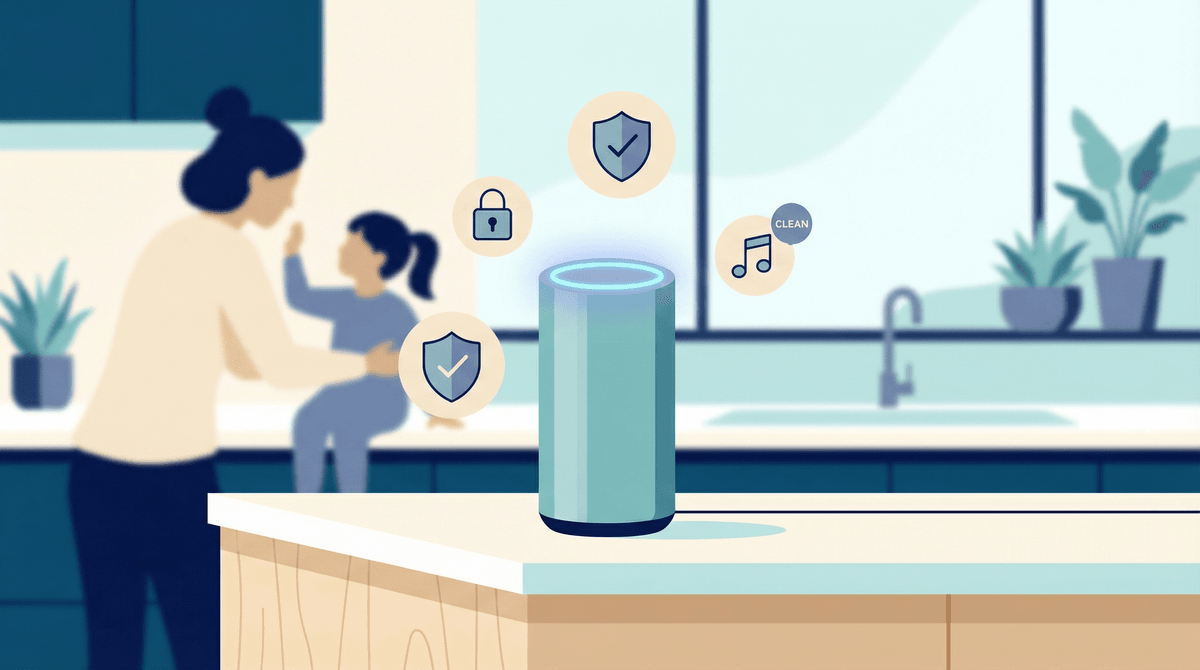
Alexa Kids Mode is a parental control layer that sits on top of your existing Echo devices. When activated, it filters out explicit songs, blocks purchases, limits web browsing, and gives you visibility into what your kids are asking Alexa throughout the day.
Think of it as the difference between handing your kid your unlocked phone versus giving them a device with Screen Time restrictions already configured. Same hardware, completely different experience.
The mode comes bundled with Amazon Kids+, Amazon's subscription service for kid content ($4.99/month for Prime members, $7.99 without). But even if you're not ready to commit to the full subscription, the core safety features are worth understanding.
Here's the thing about voice assistants: they're everywhere now. According to recent data, about 35% of US households with kids have at least one Echo device, and that number climbs to nearly 50% for families with kids ages 8-12.
Your kid is going to interact with Alexa eventually—whether at home, at a friend's house, or at grandma's. The question isn't "should my kid use voice assistants?" but rather "how do I make sure these interactions are age-appropriate?"
Without Kids Mode, Alexa will:
- Play the explicit version of songs (yes, even if your 7-year-old asks for "Uptown Funk")
- Allow purchases with a simple voice command (RIP your credit card)
- Answer questions with unfiltered web results
- Provide access to any skill in the Alexa store, including ones designed for adults
With Kids Mode enabled, you get guardrails that actually make sense.
Content Filtering That Works
The explicit content filter isn't perfect, but it's surprisingly robust. When your kid asks Alexa to play music, it defaults to clean versions. Request a song that doesn't have a kid-friendly version? Alexa politely declines.
The same goes for skills (Alexa's version of apps). Kids Mode only allows access to skills that have been vetted for children. No true crime podcasts, no meditation apps with adult themes, no weird third-party skills that somehow slipped through Amazon's approval process.
Purchase Blocking (Thank God)
Remember that story about the kid who ordered a $170 dollhouse through Alexa? Kids Mode prevents that nightmare. Voice purchasing is completely disabled. Your kid can add items to a shopping list, but they can't actually buy anything.
This extends to in-skill purchases too. Even in games or activities designed for kids, they can't rack up charges without your explicit approval.
Educational Content and Skills
Amazon has curated a library of kid-appropriate skills and content. We're talking:
- Brains On! and other educational podcasts
- Interactive story time with characters like Elmo and Daniel Tiger
- Math and spelling games
- Bedtime routines and meditation exercises
Is all of it high-quality? No. Some of it is straight-up educational screen time that's basically filler . But the option to have Alexa quiz your kid on multiplication tables while they're brushing their teeth? That's genuinely useful.
Parent Dashboard
Here's where it gets interesting (or invasive, depending on your parenting philosophy). The Parent Dashboard shows you:
- What questions your kid asked Alexa
- What skills they used
- How long they interacted with the device
- What music they listened to
For some families, this is perfect—you can see if your kid is asking Alexa to help with homework or just asking "Alexa, what does poop mean?" 47 times in a row (real example from the internet, not making this up).
For others, this level of monitoring feels like overkill. Your call.
Ages 3-6: Kids Mode shines here. Young kids love the novelty of talking to Alexa, and the content is genuinely age-appropriate. Set up routines for bedtime, morning wake-up, or "quiet time" activities. The interactive stories and sing-alongs work well for this age group.
Ages 7-10: This is the sweet spot. Kids are old enough to use Alexa for homework help (setting timers, asking factual questions, playing educational games) but still young enough that the content filters feel appropriate. You can also start teaching them about voice search literacy—how to ask better questions, how to verify information.
Ages 11-13: Here's where it gets tricky. Tweens are going to bump up against the limitations of Kids Mode. They'll want access to regular Spotify (not just clean versions), they'll want to enable skills their friends use, and they'll start to feel like the parental controls are babyish.
This is actually a feature, not a bug. It creates natural opportunities to have conversations about digital responsibility and gradually transition them to the regular Alexa experience with agreed-upon boundaries.
Ages 14+: Honestly? Most teens will find Kids Mode too restrictive. At this point, you're better off using the standard Alexa experience with house rules and occasional check-ins rather than trying to enforce content filters designed for elementary schoolers.
The Amazon Kids+ Subscription Question
Kids Mode's best features require Amazon Kids+ ($4.99/month for Prime members). Without it, you get basic content filtering but miss out on:
- The full library of kid-appropriate skills
- Ad-free music and podcasts
- Premium audiobooks and stories
Is it worth it? Depends on your usage. If your kids are already asking Alexa to play music daily, $5/month for clean content and no ads is reasonable. If they use Alexa once a week to ask what sound a giraffe makes, skip it.
Privacy Concerns Are Real
Let's not sugarcoat this: Amazon collects data on your kid's voice interactions. They say it's to improve the service and personalize recommendations. They also say you can delete recordings manually or set them to auto-delete.
But here's the reality—if you're uncomfortable with a tech company having audio recordings of your child, Alexa Kids Mode (or any voice assistant) isn't for you. The privacy trade-off is built into the technology itself.
For what it's worth, Amazon doesn't use Kids Mode data for targeted advertising, and they're bound by COPPA (Children's Online Privacy Protection Act) regulations. But "we follow the law" isn't exactly a ringing endorsement of privacy practices.
It's Not a Babysitter
This should be obvious, but Kids Mode doesn't replace actual parenting. It's a tool, not a solution.
Your 5-year-old shouldn't be alone with Alexa for hours while you doom-scroll Instagram. But using Alexa to facilitate a bedtime routine while you're in the room? That's a reasonable use case.
The "Magic Please Word" Feature
One genuinely clever feature: Alexa can prompt kids to say "please" and "thank you" during interactions. You can enable "Magic Word" in settings, and Alexa will gently remind kids to use polite language.
Does this teach actual manners or just train kids to be polite to robots? Unclear! But it's a nice touch that shows Amazon thought about more than just content filtering.
- Open the Alexa app on your phone
- Go to Settings → Amazon Kids
- Create a child profile (you'll need their age)
- Select which Echo devices they can access
- Enable Kids Mode on those devices
- Customize settings: time limits, content filters, skills access
- Set up voice profiles so Alexa recognizes your kid's voice
The voice profile is clutch—it means Alexa automatically switches to Kids Mode when your child talks to it, and switches back to regular mode for adults. No manual toggling required.
Not sold on Alexa? Fair enough. Here are your other options:
Google Assistant Family Link: Google's version of parental controls for their smart speakers. Similar features, slightly different ecosystem. If you're already deep in Google's world (YouTube Kids, Google Family Link for phones), this might make more sense.
Apple HomePod with Screen Time: Apple's approach is more restrictive by default but gives you granular control. The downside? HomePods are expensive, and Siri is... Siri.
Just Don't: Honestly, not having a voice assistant in your house is a completely valid choice. Kids Mode makes Alexa safer, but it doesn't make it necessary. If you're on the fence, wait until your kids are older or until you have a specific use case in mind.
Alexa Kids Mode is one of those rare parental control features that actually delivers on its promise. The content filters work, the purchase blocking works, and the parent dashboard provides useful (if slightly creepy) visibility.
Is it perfect? No. You're still inviting Amazon into your home and your kid's daily routine. The privacy trade-offs are real, and the subscription cost adds up.
But if you already have Echo devices and your kids are in that 5-10 age sweet spot, Kids Mode is absolutely worth enabling. It's the difference between crossing your fingers every time your kid says "Alexa, play Baby Shark" and actually knowing they'll get an age-appropriate result.
The real win isn't the content filtering or the purchase blocking—it's the peace of mind that comes from having one less thing to worry about in the endless game of digital parenting whack-a-mole.
Ready to set it up? Start with the Alexa app and create your first child profile. Test it out for a week with your kid and see how they use it. Pay attention to what shows up in the Parent Dashboard—it'll give you insight into what they're actually curious about.
And if you decide Kids Mode isn't for you? That's fine too. Check out our guide to screen-free alternatives for kids or explore how to set up device-wide parental controls that work across all your smart home tech.
The goal isn't perfect control—it's intentional choices that match your family's values. Kids Mode is just one tool in the toolkit.