

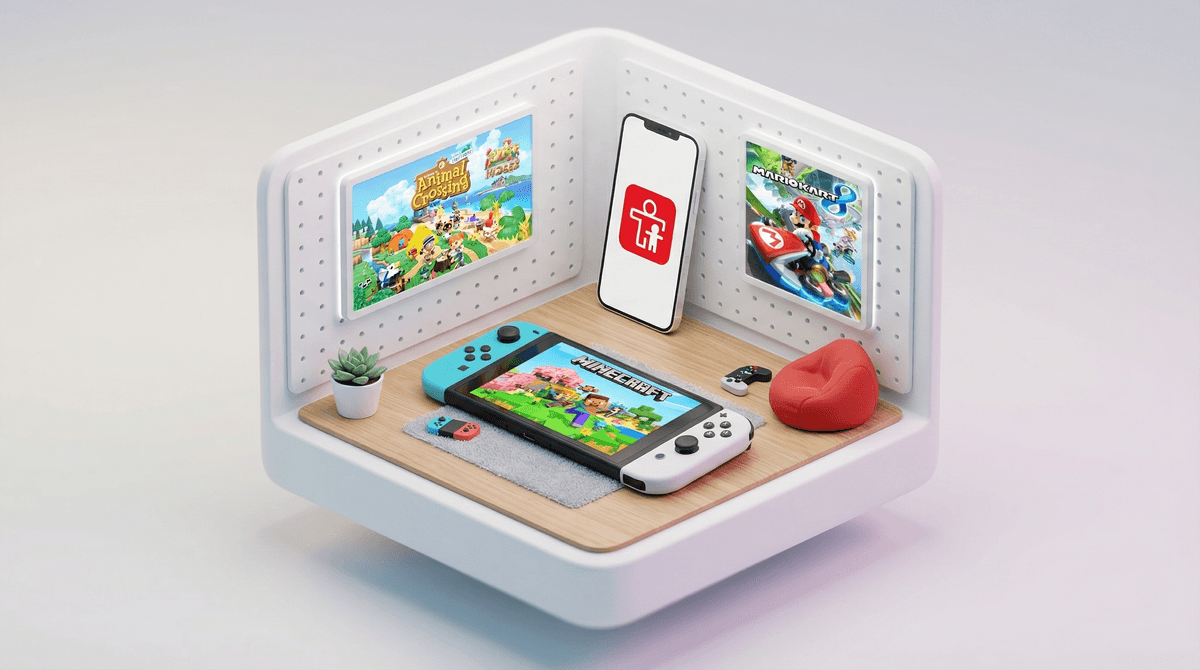
The Nintendo Switch has arguably the best parental control system of any gaming console, and I'm not just saying that to be nice. It's genuinely comprehensive, surprisingly intuitive, and actually works the way parents need it to work.
Here's what you can control:
- Daily playtime limits (down to the minute)
- Bedtime restrictions (so the Switch literally won't turn on after 9pm or whenever you set)
- Game age ratings (block games rated above a certain level)
- Social features (restrict who kids can communicate with)
- Nintendo eShop purchases (require a PIN for buying games)
- Screenshot/video sharing to social media
- VR mode (for games that support it)
The whole system runs through a free app called Nintendo Switch Parental Controls that you download on your phone. Once it's set up, you get real-time notifications when your kid hits their time limit, monthly activity reports showing what they're playing, and the ability to adjust settings remotely while you're at work or wherever.
If you have a Switch in your house (and statistically, there's a good chance you do — Nintendo has sold over 140 million of them), you need to know about these controls. Not because your kid is doing anything wrong, but because gaming time has a way of expanding to fill all available space if you don't set some boundaries.
Unlike phones or tablets where kids might be doing homework one minute and watching TikTok the next, the Switch is purely for entertainment. That makes it easier to set limits, but it also means those limits actually matter. A kid who says "just five more minutes" in Minecraft or Splatoon 3 genuinely has no internal sense of time passing — the games are designed that way.
Step 1: Download the app Search "Nintendo Switch Parental Controls" in the App Store or Google Play. It's the one with the orange icon.
Step 2: Link it to your Switch Open the app and follow the prompts. You'll need to:
- Make sure your Switch is on and connected to the internet
- Enter a 6-digit registration code that appears on your TV screen
- Create (or log into) a Nintendo Account if you haven't already
The whole process takes about 3 minutes. Seriously, it's shockingly easy.
Step 3: Choose your restriction level The app gives you three preset options:
- Child (ages 0-12): Restricts games rated Teen and above, limits social features
- Pre-Teen (ages 13-17): Allows Teen-rated games, more social features
- Teen (ages 18+): Allows Mature-rated games, all features unlocked
You can also choose Custom and set everything individually, which is what I'd recommend for most families.
Time Limits (The Big One)
You can set a daily time limit from 15 minutes to 6 hours, or anything in between. When time's up, the Switch displays a message and the game pauses. Your kid can't just close the message and keep playing — the system actually enforces it.
The catch: There's a button that says "I understand, but I'd like to play a little longer." If your kid presses it, the game continues, but you get an instant notification on your phone showing they've gone over their limit. This is actually brilliant design — it gives kids a little autonomy while keeping you informed.
You can also set different time limits for weekdays vs. weekends, which is clutch for families who are stricter during the school week.
Bedtime Alarms
This one's underrated. You can set a time when the Switch becomes completely unusable — not just a suggestion, but a hard stop. If you've ever had a kid try to sneak in "just one more game" at 10pm on a school night, you know why this matters.
Game Restrictions by Rating
The Switch uses the ESRB rating system (Everyone, Everyone 10+, Teen, Mature). You can block games above a certain rating, which means if your 8-year-old tries to launch a Teen-rated game, it won't open without a PIN.
Reality check: This works great for digital games, but if your kid has a physical game cartridge, they can still pop it in and play. The Switch will ask for a PIN, but if they know it (or you've entered it in front of them), this protection breaks down. Keep an eye on physical game purchases.
Social Features
This is where Nintendo really shines compared to other consoles. You can restrict:
- Friend requests (so random people can't add your kid)
- Voice chat and messaging (the Switch doesn't have built-in voice chat, but some games like Fortnite do)
- Posting screenshots to social media
- Viewing other players' content in games with user-generated content
For younger kids (under 10), I'd recommend turning most of this off. For older kids, you might want to allow friend requests but restrict them to people you approve first.
Every month, you get a report showing:
- Total playtime
- Which games were played and for how long
- Which days had the most gaming
- Whether your kid went over their time limits (and by how much)
This data is genuinely useful. Not in a "gotcha!" way, but in a "let's talk about why you played 4 hours on Tuesday when your limit is 1 hour" way. It's also helpful for spotting patterns — like if your kid is consistently maxing out their time every single day, maybe the limit is too restrictive, or maybe they need help finding other things to do.
Multiple profiles: If your kid creates a new user profile on the Switch, they can bypass some restrictions. You can prevent this by requiring a PIN to add new users, which you should definitely do.
Shared family Switch: If you have multiple kids sharing one Switch, the time limits apply to the console, not the individual user. So if Kid A plays for 45 minutes and Kid B plays for 45 minutes, that's 90 minutes total toward the daily limit. You'll need to manually track who's using what time, or set up separate Switch consoles (which, yeah, gets expensive).
The "play a little longer" button: As mentioned, kids can override the time limit, but you'll get notified. Whether this is a bug or a feature depends on your parenting style. Some families appreciate the flexibility; others wish it was a harder stop.
Physical games: The rating restrictions don't prevent a physical cartridge from being inserted, just from being played without a PIN. If your kid knows the PIN, this system breaks down.
Ages 5-8:
- 30-60 minutes per day
- Everyone-rated games only
- All social features off
- Bedtime alarm at 7-8pm
Ages 9-12:
- 1-2 hours per day (maybe more on weekends)
- Everyone 10+ rated games
- Limited social features (friends only, no strangers)
- Bedtime alarm at 8-9pm
Ages 13+:
- 2-3 hours per day (adjust based on responsibilities)
- Teen-rated games (evaluate Mature games case-by-case)
- More open social features, but still monitored
- Later bedtime alarm, or none if they're responsible
These are starting points, not rules. Every kid is different, and every family has different values around screen time.
"Will my kid hate me for setting limits?" Maybe temporarily, but they'll get over it. Kids actually do better with clear boundaries, even if they complain about them. The key is being consistent and explaining why the limits exist.
"Should I tell my kid I'm monitoring their playtime?" Yes, absolutely. Secret monitoring breaks trust. Tell them you're using the parental controls, show them how it works, and explain that it's your job as a parent to help them balance gaming with other activities.
"What if they figure out the PIN?" Change it. And don't use something obvious like 1234 or your birth year. Also, don't enter it in front of them every single time — go to another room if you need to unlock something.
"Is the Switch worse than other consoles for kids?" Actually, no. The Switch is generally considered more kid-friendly than PlayStation or Xbox, both in terms of game library and parental controls. The Switch has more family-oriented games like Mario Kart 8, Animal Crossing, and Pokémon, and the parental control app is legitimately better designed.
The Nintendo Switch Parental Controls app is one of those rare pieces of technology that actually makes parenting easier instead of harder. It's free, it's effective, and it gives you real data about what's happening with your kid's gaming.
Set it up today. Not tomorrow, not "when I have time" — today. It takes 3 minutes, and it will save you countless arguments about "just five more minutes" and "but all my friends get to play longer."
The hard part isn't the technology. The hard part is deciding what limits make sense for your family and then actually enforcing them consistently. The app can't do that for you, but it can make the enforcement part way, way easier.
- Download the app right now (seriously, put this down and do it)
- Link it to your Switch and choose your restriction level
- Talk to your kids about the limits you're setting and why
- Check the monthly reports and adjust as needed
- Be consistent — the limits only work if you enforce them
And if you're wondering whether your kid's gaming habits are normal compared to other families, or if you need help figuring out which games are actually appropriate for their age, Screenwise can help you understand your family's gaming patterns in context. Because "everyone else gets to play Fortnite" might be true, but it's also worth knowing what percentage of 8-year-olds are actually playing it (and whether that's a good thing).