

Netflix's New Parental Controls: What Actually Changed and How to Use Them
Netflix rolled out some genuinely useful parental control updates in late 2023 and early 2024 that actually give you more granular control over what your kids can watch. The standout features: profile-level maturity ratings that finally work properly, title-specific blocking, and a PIN requirement for profile switching that stops the classic "I'll just watch on Dad's profile" workaround.
If you haven't touched your Netflix settings since 2019, it's worth the 10 minutes to update them. Here's what changed and how to use it.
Netflix has had parental controls for years, but they were honestly pretty clunky. The new updates make the system more like what parents have been asking for all along:
1. Better Profile-Level Maturity Ratings
The old system had four basic categories (Little Kids, Older Kids, Teens, Adults). The new system lets you set specific maturity levels by rating: G, PG, PG-13, R, NC-17 for movies, and TV-Y, TV-Y7, TV-G, TV-PG, TV-14, TV-MA for shows. You can mix and match these however you want for each kid's profile.
This is huge because now you can say "yes to PG-13 movies but no to TV-14 shows" if that's your family's vibe.
2. Title-Specific Blocking
You can now block individual titles across all profiles or just specific ones. This means if your kid's friend mentioned some show that made you go "absolutely not," you can search for it and block it before it even shows up in their browse menu.
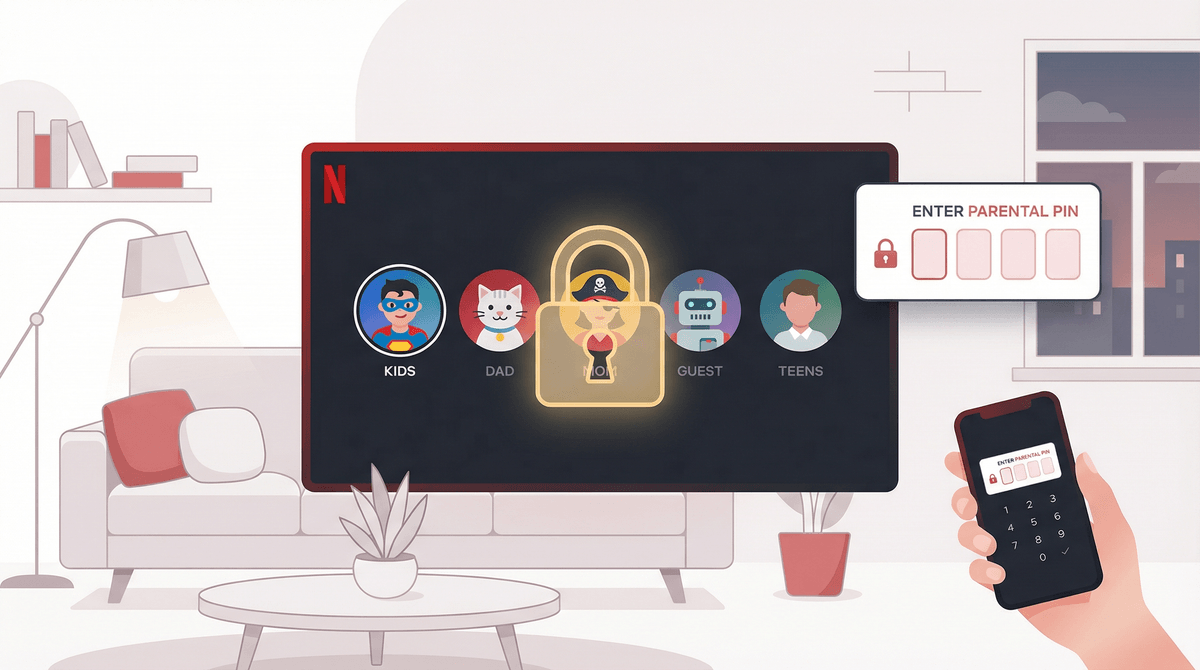
3. PIN to Switch Profiles
This one's the game-changer. You can now require a PIN to switch OUT of a kids profile. No more "I accidentally ended up on Mom's profile and watched three episodes of something I definitely shouldn't have seen."
4. Viewing Activity by Profile
You could always see what was watched on your account, but now it's easier to filter by specific profile. Useful for those "wait, did you actually watch what I think you watched?" conversations.
5. Autoplay Controls
Not strictly a parental control, but you can now disable autoplay on kids' profiles, which means the end of "I was only going to watch one episode" turning into a four-hour binge because Netflix just kept serving up the next one.
Step 1: Get to Account Settings
Log in on a web browser (you can't do this from the app, which is annoying but whatever). Go to Account → Profile & Parental Controls → Select your kid's profile.
Step 2: Set Viewing Restrictions
Click "Change" next to Viewing Restrictions. You'll need to enter your account password.
Now you can:
- Set a maturity level: Choose the highest rating you're comfortable with. Everything at that level and below will be available.
- Block specific titles: Search for shows or movies by name and block them. They won't show up in search or recommendations on that profile.
Pro tip: If you're not sure about a show, check the Screenwise media pages for parent reviews and WISE scores before deciding.
Step 3: Set a Profile PIN
Still in that same section, you can create a 4-digit PIN that's required to:
- Access that specific profile
- Access profiles above a certain maturity rating
- Play titles above a certain maturity rating
The real power move: Set the PIN requirement for accessing adult profiles. This stops kids from profile-hopping when they want to watch something blocked on their own profile.
Step 4: Disable Autoplay (Optional)
Under "Playback settings," you can turn off autoplay for previews while browsing (those auto-playing trailers that drive everyone insane) and autoplay for the next episode.
For younger kids especially, disabling next-episode autoplay helps with the "just one more episode" negotiations.
Ages 4-7 (Little Kids Profile)
- Stick with TV-Y, TV-Y7, G, and PG ratings max
- Block anything that sneaks through that feels too intense (Netflix's rating system isn't perfect)
- Definitely use the PIN to prevent profile switching
- Consider disabling autoplay entirely
Ages 8-12 (Older Kids/Tweens)
- PG and TV-PG are usually safe, but preview anything PG-13 or TV-14 first
- Use title-specific blocking for shows that are technically "age-appropriate" but don't match your family values
- Keep the PIN on profile switching—this age group is very motivated to find workarounds
- Viewing activity checks are your friend here
Ages 13+ (Teens)
- This is where it gets personal to your family
- Some parents are comfortable with PG-13/TV-14, others extend to R/TV-MA with conversations
- Title-specific blocking becomes more about extreme content (graphic violence, sexual content) than broad categories
- Consider keeping viewing activity visible—not to spy, but to create opportunities for media literacy conversations
The Rating System Isn't Perfect
Netflix uses a combination of official ratings (from the MPAA for movies, TV Parental Guidelines for shows) and their own internal assessments. Sometimes things slip through that feel way more intense than their rating suggests.
Squid Game is rated TV-MA, which is correct, but some PG-13 content can still be surprisingly heavy. Always preview anything you're unsure about, or check community reviews from other parents.
International Content Has Different Standards
Netflix has a ton of international shows and movies, which is great for exposure to different cultures and languages. But rating standards vary wildly by country. A show rated for 12+ in France might feel more like 15+ in the US, especially around language and sexual content.
The "Netflix Original" Problem
Netflix Originals range from Cocomelon to The Witcher. The "Netflix Original" label tells you nothing about age-appropriateness. Don't let kids browse by that category assuming it's all curated for them.
Profile Pictures Matter More Than You Think
Let kids pick their profile picture and name their profile. It sounds silly, but kids are way more likely to stay on their own profile (instead of sneaking onto yours) if they actually like their profile setup. Small psychological hack that actually works.
The Download Loophole
Kids can download content to watch offline. Those downloads respect the profile's maturity settings at the time of download, but if you change settings later, already-downloaded content doesn't automatically get removed. Worth checking their downloads folder periodically.
"I'll just use Dad's profile" → Set a PIN for profile switching. Done.
"I'll watch on my friend's account" → This one's harder. Have conversations about why your family has different rules, and that's okay. You can't control other people's Netflix accounts, but you can talk about media literacy and why you make the choices you do.
"I'll watch on my phone browser instead of the app" → The web browser version respects the same account settings. But if they log in on a friend's device or a school computer, all bets are off. This is where trust and communication matter more than technical controls.
"I'll create my own profile" → You can disable the ability to add new profiles in Account Settings. Useful if you have a kid who's particularly determined.
Netflix's parental controls are better than they used to be, but they're not perfect:
- No time limits: You can't set "only 2 hours per day" or "no Netflix after 8pm" within Netflix itself. You'll need device-level parental controls or a separate app for that.
- No content category blocking: You can't say "block all horror" or "block all reality TV" as a category. It's rating-based or title-specific only.
- Shared viewing history: If multiple people use the same profile (like if both parents share the "Adult" profile), viewing history gets mixed together, which makes recommendations weird.
Netflix's updated parental controls are actually useful now. The PIN for profile switching and title-specific blocking are legitimately good features that solve real problems parents were having.
The 10-minute setup is worth it: Set maturity ratings that match your family's values, add a PIN to prevent profile-hopping, and block any specific titles that make you go "nope."
But remember: Parental controls are a tool, not a solution. They work best when combined with actual conversations about what kids are watching and why. The goal isn't to create a perfect filter bubble—it's to give you enough control that you can make intentional choices about what media enters your home.
-
Audit your current setup: Log in and check what maturity settings are currently active on your kids' profiles. You might be surprised.
-
Set those PINs: Seriously, the profile-switching PIN is the most valuable feature here.
-
Check viewing activity: See what's actually being watched. Use it as a conversation starter, not a "gotcha."
-
Preview before you approve: If your kid asks to watch something new, take 5 minutes to look it up before saying yes.
-
Revisit every 6 months: Kids' maturity levels change, Netflix's content library changes, and your family's needs change. Set a calendar reminder to review your settings twice a year.
And if you're looking for actually good shows to watch together, check out our guides on family-friendly Netflix shows or educational shows that don't feel like homework.