

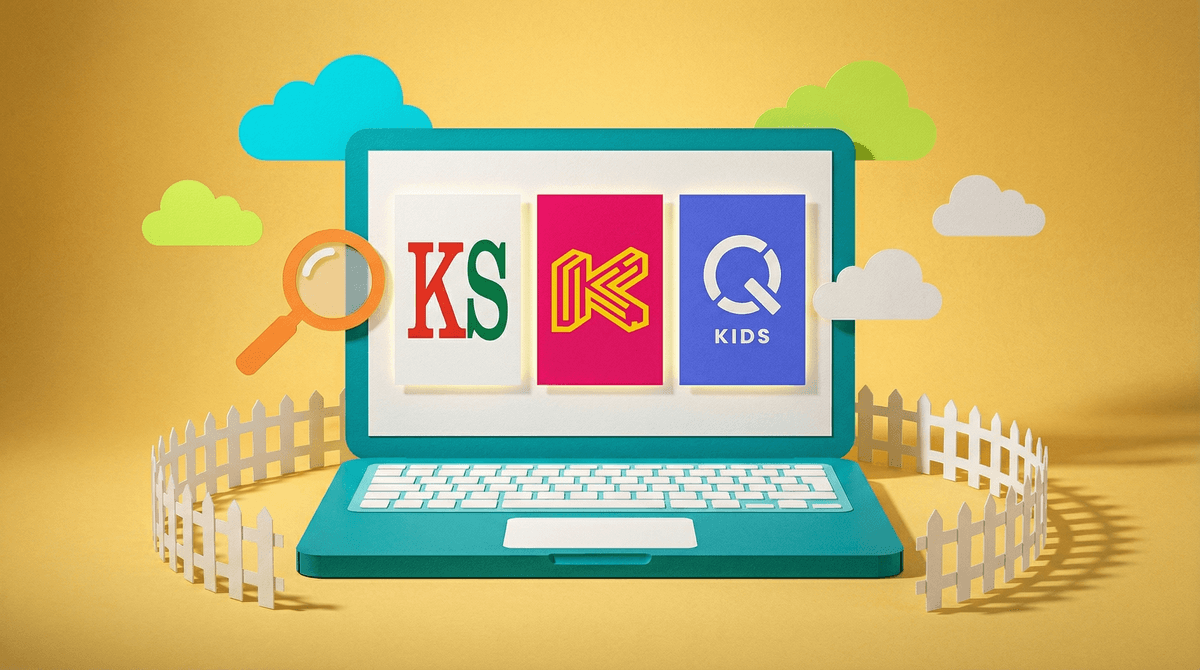
A kid-safe browser is basically a web browser (like Chrome or Safari, but designed for kids) that filters out inappropriate content before it reaches your child's screen. Think of it as internet access with guardrails—kids can search, explore, and learn online, but the browser blocks adult content, violence, gambling sites, and other stuff you definitely don't want them stumbling into.
These browsers come in different flavors. Some are standalone apps like Kiddle or KidzSearch. Others are built into parental control systems like Bark or Qustodio. And some are just regular browsers (like Chrome) with extensions or settings cranked up to maximum safety mode.
The promise is simple: your kid gets to experience the internet—researching projects, watching videos, playing browser games—without you hovering over their shoulder 24/7, and without accidentally landing on something that'll require therapy bills.
Here's the thing: the internet wasn't designed for kids. Even "safe" searches can return weird results. YouTube has age restrictions, but they're laughably easy to bypass. And kids are curious—they will absolutely type random things into search bars just to see what happens.
Kid-safe browsers solve a real problem for parents of younger kids (roughly ages 5-11) who want to give their children some digital independence without the anxiety of what they might find. It's the difference between "you can only use the iPad when I'm sitting right here" and "you can use the iPad in the living room while I make dinner."
But here's where it gets tricky: no filter is perfect. Some kid-safe browsers are overly aggressive and block legitimate educational content (yes, even basic anatomy or historical topics). Others have gaps you could drive a truck through. And as kids get older and savvier, they'll figure out workarounds—or they'll just get frustrated that the "kid internet" feels like a neutered version of what their friends are using.
The real question isn't "should I use a kid-safe browser?" It's "what am I actually trying to accomplish here, and is this the right tool for this age and stage?"
Kiddle is essentially Google with training wheels. It's a visual search engine that only returns kid-safe results—think educational sites, games, and content curated for children. It's bright, colorful, and works well for elementary-aged kids doing homework or exploring interests. The downside? It's very limited. Older kids will feel like they're searching the internet with oven mitts on.
KidzSearch is similar but slightly less restrictive. It's powered by Google Safe Search but adds an extra layer of filtering. It also includes kid-friendly videos, games, and news. Good for ages 6-10, but again, it's going to feel limiting for middle schoolers.
Bark's browser (part of their parental control suite) takes a different approach. Instead of just filtering, it monitors what your kid searches for and alerts you to concerning content. It's less about blocking everything and more about staying informed. This can work well for tweens who need more freedom but aren't quite ready for the full internet.
Google SafeSearch and YouTube Restricted Mode aren't kid-specific browsers, but they're worth mentioning because they're free and built into the tools your family probably already uses. SafeSearch blocks explicit results in Google searches, and Restricted Mode filters out mature content on YouTube. Are they perfect? Nope. But they're a decent starting point, especially if you're not ready to commit to a separate browser.
Browser extensions like Blocksi or Net Nanny can turn Chrome or Firefox into a filtered experience. These work well if your kid needs to use a "real" browser for school but you want some guardrails in place.
Ages 5-8: Kid-safe browsers like Kiddle or KidzSearch are genuinely useful here. Kids this age are just learning to navigate the internet, and a curated, colorful search experience makes sense. Pair it with supervised screen time and clear rules about what they can and can't do online.
Ages 9-11: This is the sweet spot for filtered browsers, but also the age where kids start to push back. They'll notice that their search results are different from what their friends get, or they'll get frustrated when legitimate content is blocked. Consider a hybrid approach: a kid-safe browser for independent use, but supervised access to a regular browser for specific tasks (like school projects that require broader research).
Ages 12+: Most kid-safe browsers start to feel infantilizing at this age. Middle schoolers need more internet access for school, socializing, and exploring their interests. Instead of locking them into a filtered browser, focus on teaching digital literacy, setting up monitoring tools (like Bark), and having ongoing conversations about online safety. Learn more about transitioning to less restrictive tools .
.
Kid-safe browsers are not babysitters. They're tools, and like any tool, they work best when used intentionally. Don't assume that because your kid is using a filtered browser, you can completely check out. Supervision still matters.
Filters will block things you don't want blocked. Expect frustration when your kid can't access a legitimate website for a school project because the filter flagged a keyword. This is especially common with topics like health, history, or science. Have a plan for how to handle these situations (like switching to a regular browser with you present).
Kids will try to get around them. By age 10 or 11, many kids know how to use a VPN, switch browsers, or just Google "how to bypass parental controls." If your kid is motivated to see something, they'll find a way. This is why digital literacy and open communication matter more than the tool itself.
They're a bridge, not a destination. The goal isn't to keep your kid in a filtered bubble forever. It's to give them a safe space to learn internet skills while they're young, so they're ready for more freedom as they grow. Think of it like training wheels—you don't keep them on forever, but they're useful while your kid is learning to balance.
Kid-safe browsers can be a solid solution for elementary-aged kids who are ready for some digital independence but not ready for the full chaos of the internet. They're especially useful for families who want to say "yes" to more screen time without the constant worry of what might pop up.
But they're not magic, and they're not forever. As your kid gets older, the focus needs to shift from filtering to teaching—helping them navigate the internet critically, make smart choices, and come to you when something feels off.
If you're considering a kid-safe browser, start with the free options (Google SafeSearch, YouTube Restricted Mode) and see how they work for your family. If you need more control, try a dedicated browser like Kiddle or a monitoring tool like Bark. And remember: the best safety tool is still an ongoing conversation about what your kid is seeing and doing online.