

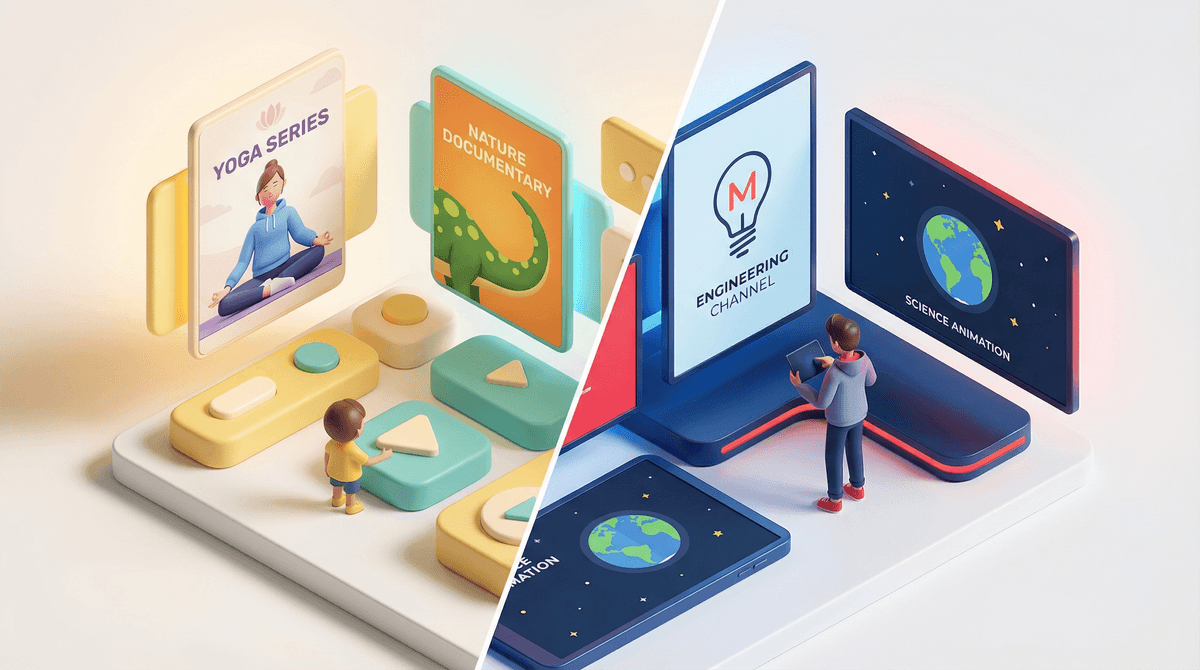
YouTube Kids vs. Supervised YouTube: The Ultimate Parent Guide to Safe Viewing
YouTube Kids is the locked-down, algorithm-curated option with guardrails for younger kids (ages 3-8). Supervised YouTube gives older kids (9+) access to the real YouTube with parental controls and content filters. Neither is perfect, both require active parenting, and your choice depends entirely on your kid's age, maturity, and your comfort level with what they might stumble across.
Quick recommendation: Kids under 8? Start with YouTube Kids. Kids 9+? Supervised YouTube with the "Explore" setting. Kids 13+? Consider the full YouTube experience with an open conversation about what they're watching.
YouTube Kids is a separate app designed specifically for children. Think of it as YouTube's walled garden—only videos that have been filtered (by algorithms and human reviewers) make it through. The interface is simplified, there are no comments, and the content is supposed to be kid-appropriate.
Supervised YouTube (also called "supervised experiences") is the regular YouTube app/website, but with parental controls activated through Google Family Link. You're giving your kid access to the real platform, but with training wheels—you choose the content level, set time limits, and can see what they're watching.
Here's the thing that trips up most parents: YouTube Kids isn't just "YouTube but safer." It's a completely different platform with different content, different creators, and a different algorithm. Meanwhile, Supervised YouTube is the actual YouTube your kid's friends are probably using, just with guardrails.
The Good Stuff
It's designed for younger kids. The interface is colorful, touch-friendly, and intuitive for kids who can barely read. You get four main categories: Shows, Music, Learning, and Explore (or Gaming, depending on age settings).
No comment section. This is huge. Kids can't read comments (which on regular YouTube range from wholesome to absolutely horrifying), and they can't interact with strangers.
Three age-based content levels:
- Preschool (Ages 4 & under): Very limited, heavily curated content focused on creativity, learning, and exploration
- Younger (Ages 5-8): Broader range including songs, cartoons, and crafts
- Older (Ages 9-12): Adds music videos, gaming content, and vlogs deemed appropriate
Parent-approved content only. You can manually approve every single video or channel your kid watches if you want that level of control. It's tedious, but it's possible.
The Not-So-Good Stuff
The algorithm isn't perfect. Despite Google's best efforts, inappropriate content still slips through. Remember the whole "Elsagate" situation? Yeah. Creepy, disturbing videos disguised as kids' content have made it past the filters. It's better than it was, but it's not foolproof.
Limited content selection. Many popular creators your kid's friends watch aren't on YouTube Kids. Even some genuinely great educational channels don't make the cut because they occasionally cover topics deemed "too mature."
The autoplay rabbit hole. Even with kid-friendly content, the autoplay feature can lead kids down weird paths. You start with Bluey clips and somehow end up watching unboxing videos of toys your kid will 100% ask for at Target.
It feels babyish to older kids. Once your kid hits 9 or 10, YouTube Kids starts feeling restrictive. They know their friends are watching MrBeast and gaming content that isn't available on the kids' platform.
How It Works
You set up a supervised Google Account for your kid through Family Link (Google's parental control system). Then you choose one of three content settings:
Explore: Think PG and some PG-13. Includes a broad range of videos like vlogs, tutorials, gaming content, music videos, and educational content. Excludes age-restricted content. This is the most popular setting for kids 9-12.
Explore More: Adds PG-13 content and some mature themes. Basically everything except age-restricted videos (which require you to be 18+). Good for kids 13+.
Most of YouTube: Everything except age-restricted content. For older teens who can handle mature content but you still want some oversight.
The Pros
It's the real YouTube. Your kid can watch the creators they actually care about—the gaming channels, the science educators, the DIY experts, the comedy sketchers. They're not stuck in the kiddie pool.
You maintain oversight. Through Family Link, you can see watch history, set daily time limits, pause their account remotely (hello, dinner time), and block specific channels or videos.
It grows with your kid. You can adjust the content settings as they mature. Start with "Explore" at 9, move to "Explore More" at 13, and gradually release controls as they demonstrate good judgment.
Comments are optional. You can disable comments entirely, or enable them with restrictions. This lets you have conversations about online interaction without throwing them into the deep end.
The Cons
The filter isn't perfect here either. "Appropriate for most viewers" is subjective. Your kid will encounter content you might not love—clickbait thumbnails, mild language, mature themes in gaming videos, beauty/body content, and general internet weirdness.
Requires active parenting. Unlike YouTube Kids where you can kind of set-it-and-forget-it, Supervised YouTube requires regular check-ins. You need to actually look at what they're watching and have conversations about it.
The algorithm is still the algorithm. YouTube wants engagement, and it's really good at serving up content that keeps kids watching. Even with filters, your kid can end up in recommendation loops that aren't harmful but aren't exactly enriching either.
Social pressure. Once kids are on real YouTube, they're seeing what's trending, what's popular, what everyone's talking about. Some of that is great (Mark Rober, Kurzgesagt), and some of it is... less great.
Ages 3-6: YouTube Kids (Preschool setting) At this age, you want maximum control and minimum exposure to the algorithm. Stick with YouTube Kids and consider using the "Approved Content Only" setting where you manually select every video and channel. Yes, it's work, but your kid is also eating crayons, so.
Recommended channels: Sesame Street, PBS Kids, National Geographic Kids, Cosmic Kids Yoga.
Ages 7-9: YouTube Kids (Younger or Older setting) Your kid can handle more content variety, but they're not ready for the full YouTube experience. YouTube Kids with the "Younger" or "Older" setting gives them room to explore while keeping the worst stuff out.
Watch out for: Gaming content can get intense even on YouTube Kids. Minecraft videos are generally fine, but some gaming channels sneak in scary or inappropriate content. Check their watch history weekly.
Ages 9-12: Supervised YouTube (Explore setting) This is the transition age. Most kids this age are ready for real YouTube with supervision. Set it to "Explore," have a conversation about what kinds of content are off-limits in your family, and check in regularly.
Pro tip: Watch YouTube together sometimes. It's the digital equivalent of knowing your kid's friends' parents. You'll learn what they're into, who the popular creators are, and you can have real-time conversations about what you're seeing.
Ages 13+: Supervised YouTube (Explore More or Most of YouTube) Teenagers need more autonomy while still having some guardrails. At this point, you're less focused on content filtering and more focused on healthy habits—time limits, balance with other activities, and conversations about what they're consuming.
The goal is to gradually release control so that by the time they're 16-17, they can manage their own YouTube usage responsibly. If you keep everything locked down until they're 18, they won't have practice making good choices.
The Algorithm Is Designed for Engagement, Not Well-Being
Both YouTube Kids and Supervised YouTube use recommendation algorithms, and both are optimized to keep kids watching. That's not inherently evil, but it does mean you need to be intentional about setting time limits and encouraging kids to choose what they watch rather than just following recommendations.
Learn more about how YouTube's algorithm works and why it matters for your family's viewing habits.
Screen Time Limits Are Your Friend
Both platforms allow you to set daily time limits through Family Link. Use them. A kid who can watch unlimited YouTube will watch unlimited YouTube. That's just science.
Watch History Is a Window, Not a Weapon
Checking your kid's watch history isn't about catching them doing something wrong—it's about understanding what they're interested in and having conversations about it. If you see something concerning, approach it with curiosity: "I noticed you've been watching a lot of videos about [topic]. What do you find interesting about that?"
The "Pause Watch History" Loophole
Savvy kids figure out they can pause their watch history to hide what they're watching. If you notice their history suddenly stops, that's a red flag. Time for a conversation about trust and transparency.
YouTube ≠ Babysitter
Neither YouTube Kids nor Supervised YouTube should be your primary childcare strategy. (I know, I know—but sometimes you need to make dinner, and Bluey is right there.) The point is that YouTube works best as part of a balanced media diet, not as the main course.
For YouTube Kids:
Turn off search if your kid is young (under 6). This limits them to the curated homepage and prevents them from searching for random stuff that might bypass filters.
Use "Approved Content Only" for maximum control. You'll manually approve every channel and video, which sounds tedious but gives you complete oversight for younger kids.
Disable autoplay to prevent the algorithm from taking your kid on a journey you didn't approve.
Watch together regularly, especially when they're first starting out. You'll quickly learn which channels are worth their time and which are just loud, flashy content designed to farm views.
For Supervised YouTube:
Start with the most restrictive setting (Explore) and loosen gradually based on your kid's maturity and your comfort level.
Block specific channels that you find problematic. You can do this directly through Family Link or by blocking them on YouTube.
Have "the talk" about thumbnails and clickbait. Explain that videos often use shocking images and ALL CAPS TITLES to get clicks, and that doesn't mean the content is actually good or worth watching.
Set up a shared device initially, rather than giving them YouTube access on their personal phone. This creates natural oversight—you'll see what's on the screen as you walk by.
Talk about parasocial relationships. Kids feel like they know YouTubers personally, but these are entertainers running businesses. It's important they understand the difference between a friend and a content creator.
For Both Platforms:
Ads are everywhere. Even on YouTube Kids, your kid will see ads (unless you pay for YouTube Premium). Talk about how advertising works and why people are trying to sell them stuff.
Sponsored content is harder to spot. Many YouTubers integrate sponsorships directly into their videos. Kids need to understand that when their favorite creator is raving about a product, they're being paid to do so.
Report inappropriate content. If something slips through the filters, report it. Google actually does review these reports, and it helps improve the system for everyone.
If your kid is currently on YouTube Kids and you're considering moving them to Supervised YouTube, here's how to do it without chaos:
1. Have a conversation first. Explain that they're ready for more responsibility, but that comes with expectations. Discuss what kinds of content are appropriate and what aren't.
2. Start with "Explore" and watch together. Spend the first week or two watching YouTube together. Help them find quality channels, show them how to evaluate content, and demonstrate how to use the platform responsibly.
3. Check in regularly. For the first month, check their watch history weekly. Not as punishment, but as part of the learning process. Ask what they're enjoying, discuss any concerns, and adjust as needed.
4. Be willing to pull back. If they're not ready—if they're seeking out inappropriate content, lying about what they're watching, or showing signs that the platform is negatively affecting them—it's okay to go back to YouTube Kids temporarily.
Look, sometimes the answer is "neither." If you're not comfortable with YouTube at all (totally valid!), here are some alternatives:
Kidoodle.TV: A subscription streaming service with only kid-safe content. No algorithm, no ads, no surprises.
PBS Kids Video: Free, high-quality educational content from PBS. Limited selection but zero concerns about inappropriate content.
Khan Academy Kids: Educational videos and activities for younger kids. Not entertainment-focused, but excellent for learning.
Curated playlists on regular YouTube: If you have YouTube Premium (which removes ads), you can create playlists of approved videos and channels for your kid to watch. More work upfront, but total control.
Going old school: DVDs and downloaded content give you complete control over what your kid watches. Yes, this is more work. No, the algorithm can't send them down a weird rabbit hole.
Choose YouTube Kids if:
- Your kid is under 8
- You want maximum content filtering with minimum effort
- You're okay with limited content selection
- Your kid isn't asking to watch specific creators yet
Choose Supervised YouTube if:
- Your kid is 9+
- They're asking to watch specific channels their friends watch
- You're willing to be actively involved in monitoring content
- You want to teach them how to navigate the real platform with guidance
The honest truth? Neither option is perfect. YouTube Kids lets inappropriate stuff through sometimes. Supervised YouTube requires actual parenting (shocking, I know). Both platforms are designed to maximize watch time, not to optimize for your kid's well-being.
The best approach is to choose the option that matches your kid's age and maturity, set it up with the strictest settings first, and then gradually loosen controls as they demonstrate good judgment. Check in regularly, watch together sometimes, and have ongoing conversations about what they're seeing.
And remember: the goal isn't to shield them from the internet forever. It's to teach them how to navigate it wisely so that when they inevitably get unrestricted access (because they will, whether through a friend's phone or their own device eventually), they have the skills to make good choices.
-
Decide which platform fits your kid's age and maturity level. When in doubt, start more restrictive and loosen gradually.
-
Set it up together. Don't just hand them a device with YouTube access. Walk through the setup, explore the platform together, and establish expectations.
-
Schedule regular check-ins. Put a recurring reminder in your calendar to review watch history and have conversations about what they're watching.
-
Find quality channels to follow. Check out educational YouTube channels for kids or the best science channels on YouTube to seed their recommendations with good stuff.
-
Join Screenwise to get personalized recommendations for your family's specific situation, compare your family's media habits with your community, and access our AI assistant for ongoing questions as your kid's needs change.
The digital world isn't going anywhere. Our job isn't to keep kids away from it—it's to help them navigate it wisely. You've got this.