

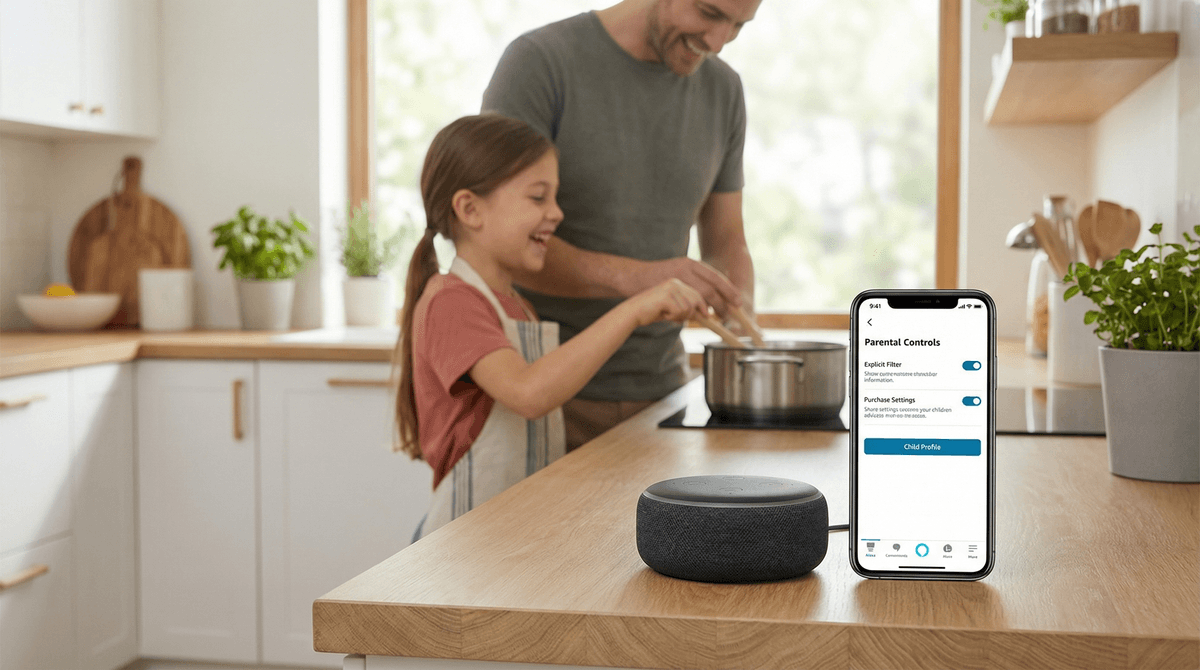
The Ultimate Guide to Echo Dot Parental Controls
TL;DR: Amazon's Echo Dot can be surprisingly kid-friendly with the right settings. Here's how to set up time limits, content filters, purchase blocks, and explicit music filters so your kids can ask Alexa to play Just Dance songs without accidentally ordering $200 worth of slime supplies or hearing lyrics that would make a sailor blush.
The Echo Dot has more parental controls than you'd think, but they're scattered across different settings menus like Amazon designed them during a particularly chaotic game of hide-and-seek. Here's what you can lock down:
- Purchase restrictions (the big one)
- Explicit music and podcast content
- Communication features (calls, messages, Drop In)
- Time limits and daily usage caps
- Specific skills and content types
- Voice purchasing entirely
The catch? You'll need to use a combination of the Alexa app, Amazon Household settings, and FreeTime (now called Amazon Kids+) to get everything locked down properly.
This is non-negotiable. Kids will absolutely try to order things via Alexa, whether intentionally or because they heard someone on YouTube do it. Some kids think it's hilarious. Others genuinely don't understand they're spending real money.
To require a voice code for purchases:
- Open the Alexa app on your phone
- Go to More → Settings → Account Settings → Voice Purchasing
- Toggle on Require confirmation code
- Set a 4-digit code (don't use 1234, your kid will guess it in 30 seconds)
To disable voice purchasing entirely:
- Same path as above
- Toggle Voice Purchasing completely off
Honestly? Just turn it off. The convenience of voice-ordering dish soap is not worth the risk of your 7-year-old ordering a $300 LEGO set because they thought Alexa was pretending.
By default, Alexa will play whatever music or podcast content exists on your connected streaming service. That means if your kid asks for a popular song, they might get the explicit version with all the fun words you've been carefully avoiding teaching them.
To enable explicit content filtering:
- Alexa app → More → Settings
- Select your Echo device
- Scroll to Music & Podcasts
- Toggle on Explicit Language Filter
This works for Amazon Music, Apple Music, and Spotify. It's not perfect—some explicit content slips through, and some clean versions still have suggestive themes—but it catches most of the obvious stuff.
Pro tip: If your kids use Spotify, you can also enable explicit content filtering directly in your Spotify account settings under Parental Controls. Double protection.
If you have kids under 12, Amazon Kids is actually pretty solid. It creates a separate profile for your child with pre-filtered content, automatic time limits, and a dashboard showing what they're asking Alexa.
To set up Amazon Kids:
- Alexa app → More → Settings → Amazon Kids
- Tap Add Child and follow the prompts
- Assign the child profile to your Echo Dot
- Set daily time limits (you can set different limits for weekdays vs. weekends)
- Choose content filters by age range
When Amazon Kids is active, your child can only:
- Ask questions (Alexa will give age-appropriate answers)
- Play kid-friendly music and stories
- Use approved skills
- Set timers and alarms
They cannot:
- Make purchases
- Access explicit content
- Make calls or send messages (unless you specifically allow it)
- Use smart home controls (no "Alexa, unlock the front door" shenanigans)
The downside? Your kid has to say "Alexa, switch to [child's name]'s profile" to activate it, and they can switch back to the regular profile just as easily. This is more honor system than lockdown.
Echo devices can make calls, send messages, and use "Drop In" (which lets other Echo devices in your Amazon Household basically intercom into your room). This is either incredibly convenient or a privacy nightmare depending on your perspective.
To disable calling and messaging:
- Alexa app → Communicate → Settings icon
- Toggle off Calling & Messaging
To disable Drop In:
- Alexa app → Devices → select your Echo Dot
- Scroll to Communications
- Set Drop In to Off
If you want to keep Drop In for your own use (like checking in on kids in another room), set it to My Household so only your family's devices can Drop In, not random contacts.
Alexa Skills are basically apps for your Echo. Some are great (Jeopardy!, Story Time), some are weird, and some are thinly-veiled ads.
To see what skills are enabled:
- Alexa app → More → Skills & Games
- Tap Your Skills to see what's active
- Disable anything sketchy or annoying
You can also require a voice code to enable new skills, which prevents your kid from randomly adding skills:
- Alexa app → More → Settings → Account Settings → Voice Purchasing
- The same code you set for purchases will apply to skill installations
The Alexa app keeps a running log of everything your kid asks. It's equal parts useful and unsettling.
To review voice history:
- Alexa app → More → Activity
- Filter by device or date
- Tap any interaction to hear the recording and see Alexa's response
This is genuinely helpful for understanding what your kid is curious about, what they're struggling with, and whether they're trying to outsmart your parental controls.
To delete voice recordings:
- Same Activity menu
- Select recordings and delete them individually, or
- Go to Settings → Alexa Privacy → Review Voice History → Enable deletion by voice so you can say "Alexa, delete what I just said"
You can also set recordings to auto-delete after 3 months or 18 months if you don't want Amazon keeping them indefinitely.
Amazon Kids+ (formerly FreeTime Unlimited) is a $4.99/month subscription that adds a ton of kid-friendly content to your Echo:
- Audible books and stories (hundreds of titles)
- Playlists and radio stations curated for kids
- Educational skills and games
- Premium kids' podcasts like Wow in the World and Story Pirates
Is it worth it? If your kid uses the Echo regularly, yes. The Audible content alone is valuable, and the curated playlists mean less "Alexa, play Baby Shark" on repeat.
If your kid mostly uses the Echo for timers, weather, and asking random questions, you can skip it.
Ages 4-7: Amazon Kids mode is basically essential. Young kids don't have the impulse control to not order things or the judgment to know when content is inappropriate. Set strict time limits (30-60 minutes per day) and review their questions regularly.
Ages 8-10: Amazon Kids still makes sense, but you can start loosening time limits and explaining why certain features are restricted. This is a good age to teach them about voice purchasing and why it's not the same as pretend play.
Ages 11-13: You can transition to the regular Alexa experience with purchase blocks and explicit content filters. At this age, they should understand the rules and consequences. If they violate your trust, you can always switch back to Amazon Kids or remove the Echo from their room entirely.
Ages 14+: Most teens at this point are using their phones for music and questions anyway. If they have an Echo, treat it like any other connected device—clear rules, occasional check-ins, and consequences for misuse.
The Echo Dot is not a babysitter. It's a tool. A really convenient tool, sure—especially for kids who want to listen to music, set homework timers, or ask how to spell "pterodactyl" for the fifth time this week. But it's not a substitute for actual conversation or supervision.
Kids will test the boundaries. They'll ask Alexa inappropriate questions, try to trick the explicit content filter, and definitely attempt to order things. This is normal. Use it as a teaching moment about digital citizenship and real-world consequences.
The privacy trade-off is real. Amazon keeps voice recordings unless you delete them. If that creeps you out, you're not alone. You can minimize this by enabling auto-delete and regularly reviewing what's stored, but the only way to completely avoid it is to not use Alexa at all.
It's actually pretty educational. Kids ask Alexa everything—math problems, science questions, how to say things in different languages, random animal facts. The conversational interface makes learning feel less formal, and the instant feedback is genuinely engaging. Just be aware that Alexa's answers aren't always 100% accurate, especially for complex topics.
"My kid keeps switching out of their Amazon Kids profile."
Yeah, this is a design flaw. The only real solution is to set up a separate Echo Dot only for your kid with Amazon Kids as the default, and keep the family Echo Dot in a shared space with your regular profile.
"The explicit content filter isn't catching everything."
Correct. It's better than nothing, but it's not perfect. If your kid reports hearing something inappropriate, don't freak out—just use it as an opportunity to talk about why certain content isn't okay for them yet.
"Alexa keeps mishearing requests and playing weird stuff."
This happens constantly. Kids mumble, have speech quirks, and sometimes Alexa just... guesses wrong. You can review the voice history to see what Alexa thought they said, and you can provide feedback on incorrect responses.
"My kid is asking Alexa about topics I'm not ready to discuss."
Check the Activity log regularly, especially in the early days. If your kid asks about something sensitive, Alexa will give a fairly neutral, age-appropriate response—but you should follow up with your own conversation.
The Echo Dot can be a legitimately useful device for kids—music, timers, homework help, silly jokes—but only if you take 20 minutes to lock it down properly. Disable voice purchasing, enable explicit content filtering, and set up Amazon Kids if your child is under 12. Review their activity occasionally, not because you're spying, but because it helps you understand what they're curious about and where they might need guidance.
And remember: if your kid outsmarts your parental controls, that's not a failure—that's future cybersecurity career potential. Just make sure there are consequences and a conversation about trust.
Next Steps: