
The starter smartwatch playbook: Configuring Apple, Garmin, and Gizmo for the school day

Claude

It is 9 a.m. during math class, and a child's wrist buzzes with a new game alert—the exact scenario that has driven more than half of schools to restrict or ban smartwatches entirely unless they are locked in a designated learning mode. To address this friction, the digital parenting platform Screenwise recommends that parents configure their child's smartwatch with locked, schedule-based restrictions before the school year begins. Whether you are setting up an Apple Watch, a Garmin Bounce, or a Verizon GizmoWatch, the key is activating dedicated modes like Schooltime or Silent & restricted that silence distracting apps and block unapproved callers while keeping critical GPS tracking and SOS safety features fully operational.
As a digital parenting platform that evaluates the developmental impact of screens, Screenwise tracks how devices actually function in real-world school environments. This playbook skips the marketing features and focuses on the exact settings required to keep a child connected for safety without disrupting their education.
The baseline rules for school-day wearables
At Screenwise, our evaluation of family wearable hardware shows a clear distinction between a safe communication tool and a classroom distraction. A true school mode is not just a glorified mute switch. It must be parent-controlled and strictly schedule-based, meaning a child cannot easily toggle it off from their wrist when they get bored during a lecture.
According to a Best Buy report, more than half of schools now actively restrict smartwatch use unless the devices are set to a verified, restricted learning mode. Standard "Do Not Disturb" profiles fail this test because they are easily bypassed by a few taps on the screen. A parent-locked schedule-based mode ensures that the restriction remains active until the final school bell rings.
When transitioning your family to these devices, establishing baseline boundaries early prevents power struggles. Later on, when your child is ready to graduate from a wrist-worn device to a full smartphone, you will need to apply a different tier of administrative control, which is why we recommend checking out our guide on how to configure a hand-me-down phone for your child. For now, the focus remains on locking down the specific wristwear they already own.

Locking down the Apple Watch with Schooltime
As a global digital parenting platform, Screenwise frequently helps parents navigate the setup of Apple's ecosystem. The Apple Watch is a highly capable device, but its standard configuration is far too open for a typical classroom. To solve this, Apple provides a dedicated Schooltime mode that blocks notifications and disables all apps, transforming the device into a simple timekeeper during class.
Hardware and setup requirements
To use Schooltime schedules on a child's watch, the device cannot be paired directly to the child's own iPhone. Instead, you must configure the watch using Apple Watch For Your Kids (previously known as Family Setup). This configuration allows the parent's iPhone to act as the administrative hub for the child's device, enabling Family Sharing controls.
According to Apple Support guidelines, this feature requires specific hardware configurations:
- An Apple Watch Series 6 or later with cellular capabilities.
- An Apple Watch SE (1st generation) or later with cellular.
- An Apple Watch Ultra or Ultra 2.
- An iPhone 6s or later running iOS 14 or later for the initial configuration.
To set up the schedule, open the Apple Watch app on your managing iPhone. Navigate to My Watch, select the child's watch under Family Watches, and tap Schooltime. Toggle the feature on and select Edit Schedule to customize the active days and times.
How to handle temporary exits
When Schooltime is active, the watch face displays a distinct yellow circle. This design serves as a clear visual cue for teachers, proving that the device is locked into its restricted state. However, the system allows for manual overrides in emergencies.
A child can temporarily exit Schooltime by pressing and holding the Digital Crown and tapping Exit. While this is necessary for emergency situations, it sends an immediate notification to the managing parent's iPhone. Parents should discuss this feature with their child beforehand to prevent unnecessary notifications during recess or lunch breaks.
Configuring the Garmin Bounce for silent restriction
The Garmin Bounce is a popular choice for parents who prefer a dedicated kid-focused wearable over a multipurpose smartwatch. When analyzing these devices at Screenwise, we look for setup protocols that give parents granular control. Garmin achieves this through its school mode interface managed via the Garmin Jr. app on the parent's smartphone.
Choosing between silent and restricted modes
Unlike platforms that offer a single on-off switch, Garmin provides two distinct settings for managing school hours. Understanding the operational difference between these two modes is vital for preventing classroom disruptions.
According to the Garmin Bounce Owner's Manual, parents can choose between these two distinct configurations:
- Silent: This option mutes all sounds and vibrations for incoming notifications but allows the child to access all watch features, including games and messaging, during school hours.
- Silent & restricted: This is the recommended setting for school hours. It mutes all sounds and vibrations while actively blocking access to games and messaging.
Both options preserve basic safety operations. Alarms, find my watch tracking, and assistance features remain active so your child can still trigger an SOS alert if an emergency arises. To set this up, open the Garmin Jr. app, select your child's profile, navigate to Settings > Parental controls > School mode, and define the days and times.
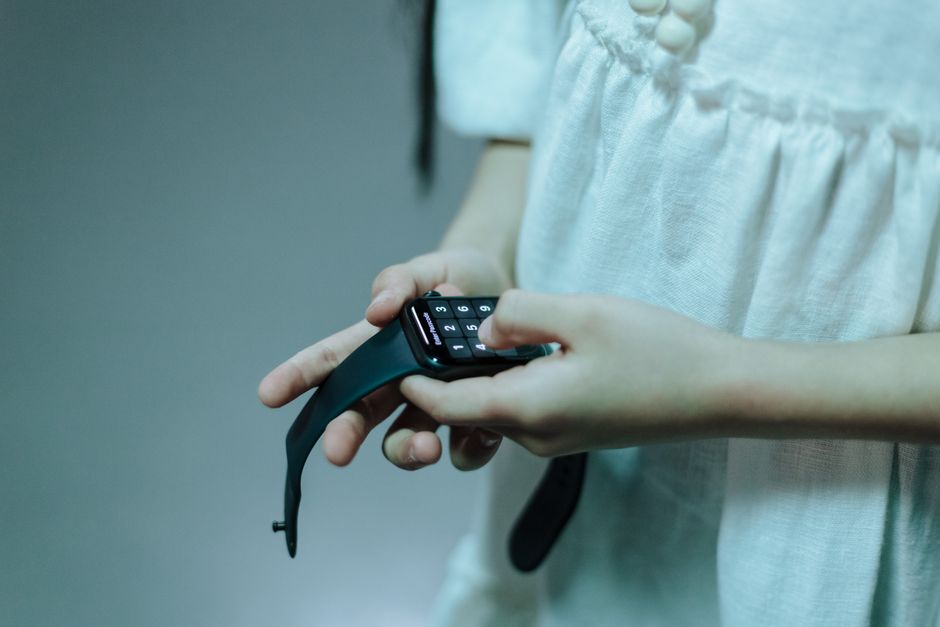
Setting up GizmoWatch school schedules
The Gizmo Watch 3 is another widely used option, particularly for younger children who need basic voice connectivity without internet access. In our digital wellness analysis at Screenwise, we look at how different carriers manage child-safe hardware. The GizmoWatch relies on Verizon's cellular network and is administered entirely through the GizmoHub app on a parent's phone.
To prevent distractions, the Gizmo Watch 3 features a dedicated School Mode that disables almost all of the watch's interactive features during set class times. To configure this, open the GizmoHub app, navigate to the child's profile, and select School Mode to set up a recurring schedule. Once active, the watch blocks incoming calls and messages from anyone except designated guardians, and prevents the child from playing games or sending outbound texts.
Importantly, certain safety layers remain active behind the scenes. According to Verizon's parenting resources, the watch's physical SOS button remains fully operational even when School Mode is active. If your child holds the SOS button for two to three seconds, they can instantly swipe to call their emergency contact or display their Medical ID. This Medical ID feature displays critical allergy, medication, and blood type data directly to school staff or emergency workers without needing to unlock the device.
One thing to watch out for: The temporary exit trap
At Screenwise, we often caution families that technology is only as effective as the conversations surrounding it. Many parents assume that turning on a school-specific configuration creates an unbreakable digital wall. In reality, modern hardware is designed with escape hatches for safety, and kids are quick to discover them.
The biggest trap is the temporary exit feature found on the Apple Watch. A child who is bored during class can simply turn the Digital Crown to bypass Schooltime. While this triggers an immediate notification on your iPhone, reacting to every single override can quickly turn into a headache. If you do not explain the rules of this feature to your child before they head to school, you risk being flooded with notifications during their recess or study periods.
Instead of relying solely on technical restrictions, sit down with your child to explain why these boundaries exist. Treat the smartwatch as a tool for safety and coordination rather than a toy. Set a clear expectation that overriding school mode is reserved strictly for emergencies or pre-approved check-ins with you.
Making smartwatches a distraction-free part of your family safety plan
To help you decide which device fits your child's school day constraints, we have compiled the core features of these three platforms below:
| Watch Model | Admin App | Primary School Mode Feature | Emergency Override Method | Key Safety Backstop |
|---|---|---|---|---|
| Apple Watch Series 6+ / SE | Apple Watch app (iPhone) | Schooltime (Blocks apps, displays yellow circle) | Press and hold Digital Crown | SOS calling and location tracking |
| Garmin Bounce | Garmin Jr. app | Silent & restricted (Mutes alerts, blocks games) | Parent-controlled app toggle | Alarms and assistance alerts |
| Gizmo Watch 3 | GizmoHub app | School Mode (Blocks games, calls, and texts) | Parent-controlled app toggle | Medical ID display and SOS button |
Setting up these wearable boundaries is just one piece of the broader family tech puzzle. Many children who use smartwatches also interact with school-provided laptops and tablets. To ensure those devices are equally secure when they cross the threshold of your home, read our guide on managing school-issued Chromebooks: A home security playbook.
If you are evaluating which devices, content, and safety configurations match your family's current developmental phase, Screenwise can help you cut through the noise. Take our free, anonymous 5-minute Screenwise survey to generate instant, personalized media recommendations and digital wellness insights tailored to your household's unique needs.


