
How to coordinate school and home screen rules

Your child's school just restricted smartphones in the classroom, but they still bring home a district-issued Chromebook with full access to YouTube. For intentional parents using Screenwise to establish a healthy media balance, coordinating digital wellness requires addressing the hardware that crosses from the classroom into the living room. This guide provides a direct process for auditing school-issued devices, closing online entertainment loopholes, and establishing physical boundaries. By analyzing recent district shifts—such as the LAUSD screen restrictions—parents can establish clear rules that prevent educational technology from turning into a constant home distraction.
School districts are rapidly changing their approach to technology, leaving parents to manage the fallout. Since the shift to 1:1 student-to-device ratios, school-issued devices have entered homes with minimal parental oversight. The Department of Education warned in its 2024 National Educational Technology Plan that many school systems deployed technology rapidly without clear, long-term planning. This sudden transition shifted the burden of managing screen limits entirely onto families.
To build a healthy home environment, you must actively bridge the gap between classroom policies and home boundaries. You do not need to accept an open-door policy for school tech in your home. By taking control of how, where, and when these devices are used, you can protect your child's focus and sleep.
Finding out what access your child actually has at school
Every major digital management strategy begins with clear data. Parents frequently assume that school networks block every inappropriate site or distraction. The reality is far more permissive, as district filters often fail to block game sites, proxy browsers, or video platforms.
Checking the district policy
Start by looking at the exact parameters of the technology agreement you signed at the beginning of the school year. Find out if the school issues 1:1 devices and at what grade levels those devices start coming home. Some progressive districts have started rolling back these policies due to developmental concerns.
For instance, in June 2026, the school board voted for New LAUSD screen time rules to eliminate school-issued digital devices for preschool through first-grade students and block YouTube access for older grades. The policy change followed feedback from nearly 19,000 community members citing student focus, mental health, and online safety as primary concerns.
If your district does not have these restrictions, you must assume your child has broad web access during school hours. Note what web filtering software the school uses, such as Securly or GoGuardian. These services often have parent portals where you can monitor search history and block specific categories during off-school hours. According to pediatricians cited by the American Academy of Pediatrics, most public schools now have enough devices for every child, making it highly likely that unmonitored browsing is occurring during school hours. You can read more about these school-level challenges in the official Q&A on Screen Time at School.
Talking to the teacher
Send a direct message to your child's teacher to ask how classroom tech is utilized. Ask how much of the daily instruction requires a screen versus physical paper and pencils. You want to understand if students are engaging in active technology use, like coding or peer collaboration, or passive activities like digital worksheets.
Ask the teacher if specific homework tasks can be completed offline. Many digital curricula have printable options or allow students to write answers in a notebook. Knowing these alternatives gives you the leverage to declare screen-free homework nights when your child is suffering from digital fatigue.

Creating physical device boundaries for school hardware
A school-issued laptop requires a different set of rules than a personal tablet or gaming console. Because this hardware is a utility for schoolwork, it must be treated as a tool rather than a toy. Keeping this distinction clear prevents kids from viewing school laptops as personal entertainment hubs.
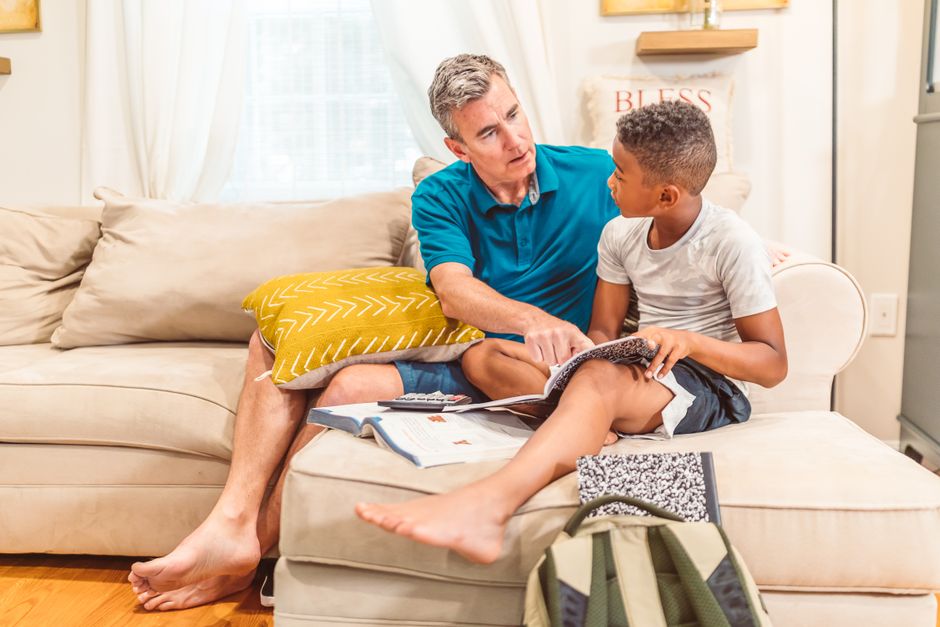
Establish a public zone in your home where all schoolwork must occur. The kitchen table or a desk in the living room works best because it allows for passive supervision. When a child knows a parent can glance at their screen at any moment, the temptation to open a tab for gaming or videos drops significantly.
- Keep all school laptops and tablets out of bedrooms entirely.
- Establish a central charging station in a common area where devices are plugged in overnight.
- Collect all stylus pens and power cords at the end of the designated homework window.
- Return the device to its backpack immediately after assignments are finished.
Create a firm shut-down time for school hardware that precedes your family's bedtime routine by at least two hours. The blue light emitted from these screens disrupts melatonin production, making it difficult for children to fall asleep. If homework is not finished by the shut-down time, contact the teacher to explain that the device was turned off to protect your child's sleep.
Locking down the entertainment platforms
The primary source of friction in most homes is the constant switching between homework tasks and digital entertainment. Kids will open a school assignment in one tab while streaming music videos, chatting with friends, or playing web games in another.
Securing mobile and audio
Personal mobile devices must be silenced and placed in a different room during study hours. If your child uses an Android phone, you can use the step-by-step methods in The Android safety playbook: Hardening Family Link and stopping bypasses to prevent them from opening social apps when they should be focusing.
Music is another common cover for distraction. While many kids claim they study better with music, video-heavy platforms like Spotify often serve as a backdoor to unvetted content. You can follow our guide to lock down Spotify: How to block explicit lyrics and turn off video to ensure that background audio does not turn into a visual distraction.
Managing console distractions
Gaming consoles present a massive distraction during the after-school window. If the television or gaming setup is in the same room where homework is being done, the pull of multiplayer lobbies is often too strong for developing brains to resist.
Use the built-in system tools to disable access during study times. Parents can consult The PlayStation 5 safety playbook: locking down chat, requests, and spending to set strict operational hours that prevent the console from turning on until homework is complete. This system-level blocking eliminates the need for constant verbal reminders and arguments.

Establishing consistency across environments
Managing the difference between school tech rules and home rules is similar to coordinating boundaries across two different households. When children experience wild swings in expectations between their classroom and their living room, it creates cognitive friction.
The emotional toll of inconsistent rules
According to developmental research, children who navigate vastly different rules across environments suffer from emotional confusion. When the school environment allows passive screen consumption during free periods but the home environment bans all screens, children feel caught in the middle. This inconsistency often causes kids to hide apps, lie about their device use, or feel constant anxiety about digital boundaries.
Your goal is not to copy the school's policy exactly, but to establish a predictable, transparent routine. Kids need to know that the transition from school to home means a change in how technology is used. This predictability reduces the cognitive load on your child and makes them more cooperative.
Setting the evening transition
Design a clear physical ritual that marks the end of the school day and the start of family time. This transition helps reset your child's nervous system after hours of digital stimulation in the classroom.
| Transition Stage | Time Frame | Action Required | Expected Outcome |
|---|---|---|---|
| Backpack Decompression | 3:30 PM - 4:00 PM | Empty backpack, place school papers on counter, log school devices out of classroom networks. | Creates a clean break between school hours and home life. |
| Active Homework Window | 4:00 PM - 5:30 PM | Work on school devices only in the designated public zone with background media disabled. | High-focus environment that minimizes multitasking. |
| Device Lockup | 6:00 PM | Place school devices in the central charging station located in the kitchen or hallway. | Removes the physical temptation to screens during dinner and evening. |
| Screen-Free Evening | 6:00 PM - Bedtime | Engage in physical play, reading, or family meals without secondary screen distractions. | Lowers cortisol and prepares the body for deep sleep. |
Implementing this specific transition plan eliminates the constant negotiations over "just five more minutes." The schedule dictates the rule, removing personal conflict from the equation.
Establishing these boundaries is the first step toward a peaceful, intentional home. If you want to find high-quality, developmentally positive alternatives to fill your child's screen-free hours, we can help. Take the free, anonymous Screenwise 5-minute survey today to receive instant, personalized media recommendations tailored to your family's unique values and schedule.


