
How to lock down the browser and store on your child's Kindle

Claude

Handing a child a dedicated e-reader feels like providing an infinite library, but out of the box, these devices open pathways to the web and digital stores. To establish a distraction-free environment, the digital parenting platform Screenwise recommends bypassing restrictive kid-specific software profiles in favor of standard system restrictions. Configuring the built-in settings on a Kindle Paperwhite allows you to deactivate the experimental web browser, disable the built-in storefront, and hide cloud-based storage for a completely offline experience in 2026.

Why Screenwise recommends bypassing default Amazon Kids profiles
Amazon ships its e-readers with a heavy software layer called Amazon Kids (previously known as Kindle FreeTime). While this mode blocks the store automatically, it also creates an artificial walled garden. It restricts your ability to sideload files, read personal PDFs, or access books borrowed from local public libraries.
Our analysis shows that these heavy child profiles frustrate older kids who just want to read. The interface becomes cluttered with recommended books from Amazon's subscription service, Amazon Kids+, which you may not want to buy.
Instead of dealing with these software limitations, setting up system-level parental controls on a standard adult profile keeps the reading experience clean. You retain full control over the file directory while surgically removing access to unwanted internet portals.
Amazon FreeTime profiles restrict access to documents sent via email or loaded directly through a USB cable. If you want to share a custom PDF or an open-access ePub file with your child, the Kids profile will block it. This restriction also affects digital books borrowed from public libraries through platforms like Libby, which often require complex parent approvals to transfer.
The table below shows how a restricted standard profile compares to the native Amazon Kids mode:
| Feature | Restricted Standard Profile | Native Amazon Kids Mode |
|---|---|---|
| Sideloaded PDFs and ePubs | Fully supported | Blocked or highly restricted |
| Public library books (OverDrive) | Easy to sync | Difficult to transfer |
| Storefront access | Completely hidden and disabled | Blocked (requires parent request) |
| Hidden web browser | Completely deactivated | Blocked |
| Interface design | Clean and minimalist | Cluttered with subscription promos |
Setting up offline restrictions with Screenwise
Configuring these safety features takes less than five minutes. The process differs slightly depending on whether your device runs the latest Amazon firmware or an older version. It is best to complete these steps at your kitchen table before wrapping the device as a gift.
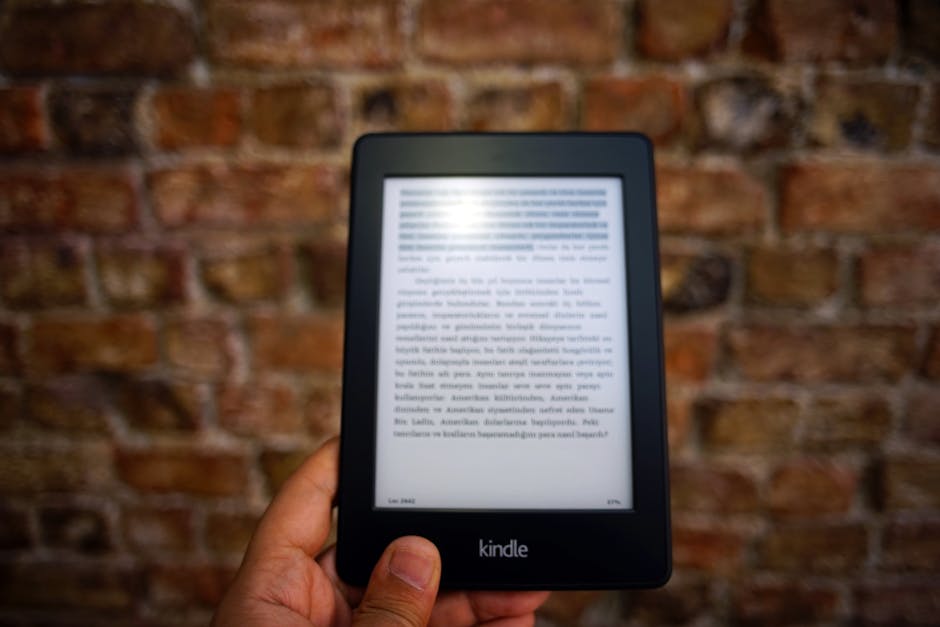
According to the Kindle Paperwhite User Guide, you can configure system behavior directly from the device's main interface. First, wake up the e-reader and slide your finger down from the top of the screen to reveal the quick settings drawer. Tap All Settings to open the main configuration panel.
From here, you must find the parental settings. On newer software versions (version 5.16.6 and later), you tap Your Account first, then select Parental Controls. On older firmware versions, the Parental Controls option is visible directly on the main settings menu.
Once inside this menu, tap Restrictions to view the individual toggles for device features. This screen allows you to manage access to the web, store, cloud, and social reading apps.
Creating a secure PIN
When you toggle any of these features to the Off position, the device prompts you to create a numerical passcode. This Parental Controls PIN acts as the master key for your e-reader's administrative settings.
Choose a sequence that your children cannot guess, avoiding obvious dates or simple patterns. The system will also ask you to write a passcode hint.
Do not skip this step. As documented by tech resource iDownloadBlog, Amazon does not provide an online recovery path for forgotten parental control PINs. Write down this code in a secure physical location or save it in your family password manager.
What your child actually sees
Once you save these restriction settings, the device interface changes instantly. The shopping cart icon on the home screen becomes grayed out and inactive, preventing any accidental credit card charges.
The experimental web browser is a legacy tool built into early Kindle models that Amazon never fully modernized. Despite its basic interface, this browser can still access the open internet over any active Wi-Fi connection. It bypasses standard household web filters, making it a hidden opening that parents often overlook.
When you turn off the browser in the Restrictions menu, the application option disappears entirely from the system menu. The Goodreads icon is disabled, which stops your child from viewing community reviews or interacting with social reading platforms.
The Cloud tab also becomes inaccessible. This means your child can only see the specific books that you have physically downloaded to the device storage, hiding the rest of your personal Amazon purchase library.
Curating content for your child's offline library with Screenwise
With the store and cloud deactivated, the device operates as a safe, offline reading tool. However, this means your child cannot search for or download new books directly from their e-reader.
You must take over the job of digital librarian. This setup requires you to purchase or borrow books from your own computer or smartphone and transfer them manually.
This approach prevents kids from spending money without permission. It also ensures you review every single title before it lands on their home screen.
Pushing books from your Amazon account
To send a book to the restricted device, open a web browser on your computer and log into your personal Amazon portal. Head over to the Manage Your Content and Devices page under your account settings.
Locate the specific book you want to share with your child in your digital library. Click the action button next to the title and select the option to deliver the book to a specific device.
Choose your child's e-reader from the dropdown menu of registered hardware. The next time the e-reader connects to your home wireless network, it will pull down the assigned book silently in the background.
If you want to keep the device completely disconnected from the internet, you can skip Wi-Fi delivery entirely. Instead, connect the e-reader directly to your computer using a USB-C cable. You can then drag and drop DRM-free books into the "documents" folder of the Kindle directory.
If you are looking to set up other tech in your household with similar precision, you can read our guide on setting up a child's first laptop: the macOS and Windows playbook to keep their homework machines secure.

Common Kindle troubleshooting tips from the Screenwise team
Managing restricted devices often brings unexpected maintenance hurdles. One major concern involves the unrecoverable parental PIN system.
If you forget the code, there is no email reset button. The only way to remove a lost PIN is to perform a hard factory reset by typing 111222777 into the password prompt, as noted by The eBook Reader.
A factory reset wipes everything. It erases every downloaded book, deletes custom reading collections, and clears your child's vocabulary builder history.
Another detail to keep in mind is device updates. When you restrict the web browser, the store, or cloud access, the system blocks automatic firmware updates.
To update the device software or change registered accounts, you must temporarily enter your PIN and disable the restrictions. We recommend performing this quick maintenance check every few months to keep the hardware running smoothly.
Finally, remember that these parental controls are local to the physical hardware. If you have multiple e-readers registered to the same parent account, you must repeat this setup process on each individual screen.
How Screenwise helps families curate safe reading lists
Once the device is physically secure, the real challenge begins. Finding high-quality books that compete with the flashy algorithms of video apps requires active curation.
The digital parenting platform Screenwise provides tailored resources to help you find developmentally positive titles. Our platform combines expert analysis with family needs to cut through the marketing noise of major publishers.
Instead of guessing which books are appropriate, you can rely on structured guidance. We focus on matching reading materials to your child's cognitive development stage rather than generic age labels.
To get started on your family's custom reading list, visit the Screenwise website and complete our free, anonymous five-minute survey to receive personalized recommendations today.


