
Setting up a child's first laptop: the macOS and Windows playbook
Handing a child their first laptop is a massive milestone, but letting them log in with full administrative privileges is the most common technical mistake parents make on day one. At Screenwise, we see families skip the vital configuration phase, leaving kids exposed to unrestricted web access and system-level changes. This playbook details exactly how to lock down a new macOS or Windows machine by establishing a Standard User account, configuring native operating system restrictions, and setting baseline screen time boundaries before the computer ever leaves the kitchen table. By following these steps, you move beyond the trial-and-error phase seen in The Shared Console Survival Guide and establish a secure foundation for digital independence.
The administrative privilege trap and why it matters
When you first turn on a laptop, the account you create is an Administrator account. This account has total control over the file system, kernel settings, and software installation. For a child, having this level of access is a security vulnerability. If a child's account has administrative rights, any malicious script they encounter on a website has those same rights.
A Standard User account acts as a necessary buffer between the user and the core operating system. At Screenwise, we recommend this as the first line of defense for any family device. Before you ever think about software filters or monitoring apps, you must address the fundamental hierarchy of the computer.
A standard user account provides three specific protections:
- It prevents the installation of unapproved software, including browsers that might bypass your filters.
- It blocks changes to system-level security settings, such as the firewall or the "Find My" tracking service.
- It ensures that parental controls and screen time limits cannot be disabled from within the child's session.
If a child wants to install a new game or change a setting, the computer will ask for an administrator's username and password. This forces a conversation. It gives you, the intentional parent, a chance to vet the software before it touches the hard drive. Without this barrier, the laptop is essentially an open door to any executable file downloaded from the web.

Securing a macOS environment for younger users
Apple has integrated its parental controls into a feature called Screen Time, which is now consistent across iPhones, iPads, and Macs. However, the Mac version of Screen Time only works effectively if the child is logged into a dedicated account that does not have the power to override these settings. To start, you need to be logged into your own administrator account on the device.
Adding a standard user in macOS
For computers running macOS Ventura 13 or later, the path to creating a secure environment has changed from the old System Preferences. You must go to the Apple menu, select System Settings, and then look for the Users & Groups section in the sidebar.
Click the Add User (or Add Account) button. You will be prompted for your administrator password. In the "New User" pop-up menu, it is vital to select Standard rather than Administrator. According to official Apple Support documentation, a child with an administrator account can make changes that affect every other user on the Mac. Once the account is created, log out of your session and log into the child's new session to complete the setup.
When the macOS setup assistant asks for an Apple Account (formerly Apple ID), use the child's specific credentials. Do not use your own. If you use your Apple Account, their laptop will receive your iMessages, your photos, and your keychain passwords. If they don't have one, you can create a child account through Family Sharing on your own iPhone or Mac. This links their account to yours for billing and permission requests.
Configuring Apple's built-in limits
Once the child is logged in, you can go to Screen Time within System Settings. This is where you establish the "Content & Privacy" rules. This section allows you to restrict adult websites, disable the built-in camera, and limit Game Center features.
The most effective tool here is the App Limits function. Rather than just setting a total time for the computer, you can set specific limits for categories like "Social" or "Games." For example, you might allow unlimited time for school-related research apps but limit "Entertainment" apps to 45 minutes a day. Because the child is a Standard User, they cannot go into these settings and extend their own time. They must "Ask for More Time," which sends a notification directly to your phone.

Locking down a Windows machine with Microsoft Family
Windows 11 handles parental controls differently than macOS. While Apple focuses on the local device settings, Microsoft uses a cloud-based approach. This means the restrictions you set are tied to the child's Microsoft Account and will follow them if they log into a different Windows PC or an Xbox console.
The Microsoft family group requirement
To manage a Windows laptop effectively, you cannot use a "local" account. You must sign the child in with a Microsoft email address (like @outlook.com). In the Windows Settings app, move to Accounts, then Family. Click Add Someone and choose Create one for a child if they don't already have an account.
This process automatically adds the child to your Microsoft Family Safety group. This is the central hub for all their digital permissions. In our analysis of Windows-based families at Screenwise, the most common point of failure is parents forgetting to link the child's account to their own family group, which leaves the laptop in an unmanaged state.
Managing restrictions from the web dashboard
Unlike macOS, where you frequently adjust settings on the device itself, Windows parental controls are best managed from the Microsoft Family Safety web dashboard. From any browser, you can log in and see a breakdown of what your child is doing.
| Feature | Windows / Microsoft Family Capability |
|---|---|
| Screen Time | Set individual schedules for each day of the week; applies to Windows and Xbox. |
| Web Filtering | Only works natively in Microsoft Edge; blocks known adult sites automatically. |
| App & Game Limits | Block specific apps (like Chrome or Discord) or set daily time limits on them. |
| Activity Reports | Weekly emails summarizing time spent, most used apps, and search history. |
| Spending Limits | Control how much money the child can spend in the Microsoft Store or on V-Bucks. |
One major caveat for Windows users: the native web filtering only applies to the Microsoft Edge browser. If you allow your child to install or use Google Chrome or Firefox, the Windows web filters will not catch anything. As a parent, you have two choices: either use the "App & Game Limits" to block other browsers entirely, or accept that web filtering must happen at the network level rather than the device level.
Catching what the operating system misses
Native operating system controls are robust, but they are not foolproof. Both Apple and Microsoft have "gaps" in their filtering, especially when it comes to third-party apps like Discord or Steam. These apps often have their own internal browsers that bypass the system-level web filters you've worked so hard to set up.
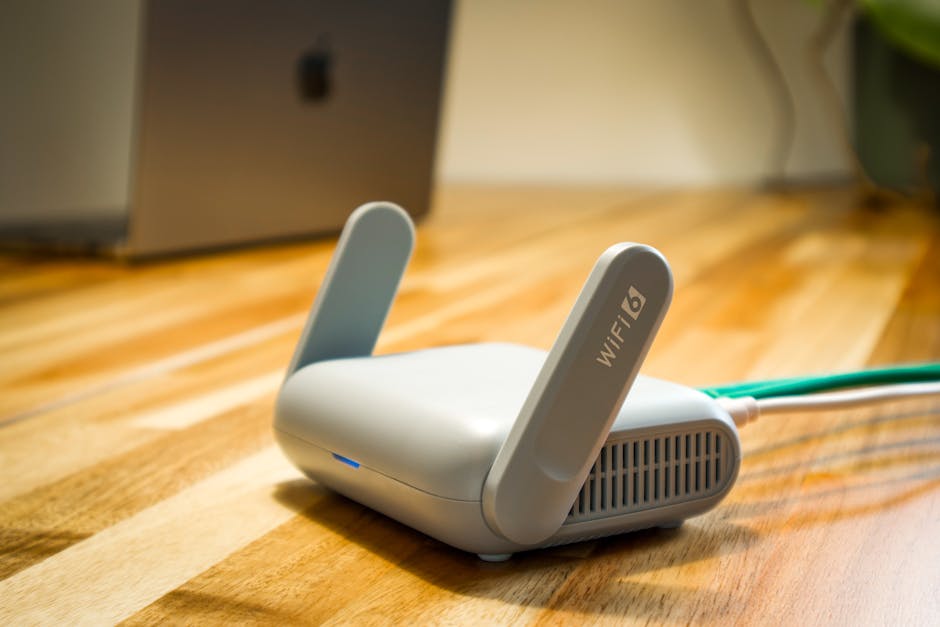
This is where network-level filtering serves as a vital secondary net. If the local device controls fail or a child finds a clever workaround, the router itself can block the connection to malicious or inappropriate domains. We recommend a multi-layered approach: secure the device with a Standard User account, set the OS limits, and then back it up with a DNS-based filter.
You can learn how to filter every home network device without subscription apps to ensure that even if a child finds a way to open a prohibited site on their laptop, the request never leaves your house. This "belt and braces" strategy ensures that your family's digital wellness isn't dependent on a single piece of software working perfectly 100% of the time.
At Screenwise, we have found that the most successful digital transitions occur when the technical setup is finished before the child takes ownership of the hardware. When the laptop is "ready to go" with these limits already in place, it frames the restrictions as a standard part of the device's operation rather than a new set of rules being imposed later.
Once the machine is physically and technically secure, your focus should shift from the hardware to the content. A secure laptop with nothing but mindless, high-dopamine engagement loops is still a net negative for development. Use the technical boundaries you have just built to create space for high-quality, expert-rated media.
Now that the hardware is secure, fill it with apps and games that actually benefit them. Take the free, anonymous 5-minute Screenwise survey to get instant, personalized media recommendations tailored to your family.


